
Navigating the 7-Day Week Overview
The Week View provides a high-level, 7-day timeblocking perspective across your entire week. By displaying Monday through Sunday side by side on a unified hourly canvas, it allows you to balance daily commitments, compare cross-day schedules, and spot open time windows at a glance.
Accessing the Week View
You can open the Week View at any time directly from the Day View navigation header:
- Locate the Calendar Navigation Header along the top of the Day View.
- Tap the Week View button (the teal icon with three vertical columns, ▮▮▮).
- The view transitions immediately to the 7-day overview, centered on the week containing the date you were viewing in your planner.
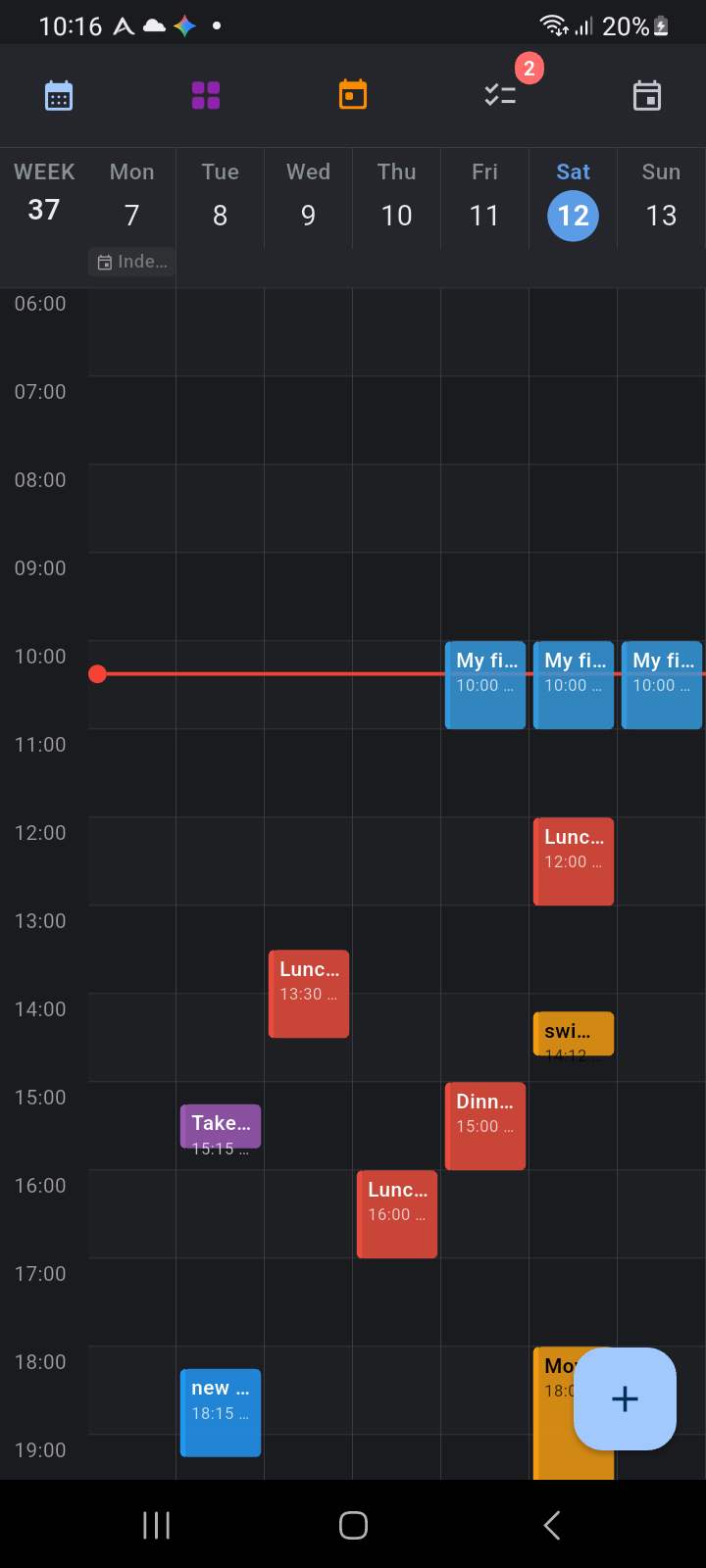
Figure 3.1: The Week View displaying the 7-day timeline grid, ISO week number, highlighted current day, and live time indicator line
The Week View Header Controls
The top navigation header in Week View provides quick navigation shortcuts tailored for weekly planning:
- Month View Button (Blue Calendar): Opens the full monthly calendar matrix.
- Year View Button (Purple 3×3 Grid): Opens the 12-month bird's-eye density overview.
- Go to Today Button (Orange Calendar): An instant shortcut that animates your week pager directly back to the current real-world week.
- Checklist Button (Checklist Icon with Badge): Displays a red badge with the total count of pending tasks across the visible week (for example, 2). Tapping this icon opens the daily tasks checklist dialog.
- Add All-Day Event Button (Calendar Plus Icon): Quickly opens the event creation dialog pre-set for all-day awareness entries.
The Day Header Row and Week Number
Directly beneath the top action controls sits the Day Header row:
- ISO Week Number: The far-left column displays the uppercase label
WEEKalongside the official ISO 8601 week number (e.g., 37), making it easy to coordinate with professional and academic schedules. - 7 Day Columns: Running from Monday through Sunday, each column header shows:
- The uppercase weekday abbreviation (
MON,TUE,WED,THU,FRI,SAT,SUN). - A circular date badge containing the calendar day number.
- Today Highlight: If the visible week contains the current real-world day, its date badge is filled with a solid blue circle and bold white text, providing an immediate visual anchor.
- The uppercase weekday abbreviation (
- All-Day Indicators: Any all-day commitments (such as public holidays, birthdays, or vacation travel) appear as compact colored chips directly under the date number with contextual icons. If more than three all-day items fall on the same day, a
+Nbadge indicates additional entries.
Every day header in the Week View is interactive. Tapping any day column header (such as
Mon 7 or Fri 11) immediately closes the week view and opens the detailed 24-hour Day View timeline for that exact date.
The 24-Hour Multi-Column Timeline Canvas
The core of the Week View is its unified 24-hour timeblocking grid:
- Time Column: A 48-pixel column on the left displays hourly markers from midnight (00:00) through 23:00, formatting labels according to your 12-hour or 24-hour setting.
- Synchronized Horizontal Alignment: All seven day columns share the exact same vertical time scale. An event scheduled at 10:00 AM on Wednesday aligns perfectly with a 10:00 AM meeting on Friday, allowing you to instantly assess your daily rhythm and identify repeating patterns.
- Alternating Hour Shading: Subtle alternating background shading separates even and odd hours across all seven columns to guide your eyes across the grid.
- Live Current-Time Indicator: When viewing the current week, a dynamic red indicator line with an anchor dot extends across the columns at your exact current minute, updating automatically in real time.
- Intelligent Auto-Scroll: When opening a week, Ancora automatically positions the scroll view approximately one hour before your configured wake-up time, or one hour before the earliest timed entry across the entire week.
Moving Between Weeks
Navigating through past and future weeks is built around fluid mobile gestures:
- Horizontal Swiping: Swipe left anywhere across the timeline grid to advance to the next week; swipe right to review past weeks.
- Instant Local Loading: Ancora utilizes an optimized two-phase loading architecture. Week data is pre-materialized from your device's local cache, making week-to-week transitions instantaneous without loading spinners or network stalls. Background synchronization patches freshness silently.
- Scroll Continuity: When swiping between weeks, your vertical scroll position is preserved so you stay focused on the same time of day without having to reposition the view.