
Adding the Ancora Widget to Your Home Screen
Overview: The Ancora Home-Screen Widget
The Ancora Planner home-screen widget provides an at-a-glance view of your current schedule directly on your Android device. It displays the current date, a live digital clock, upcoming events, and today's pending tasks.
How to Add the Widget
To add the widget to your Android home screen:
- Navigate to your Android home screen.
- Touch and hold (long-press) any empty area on the home screen until the customization options appear.
- Tap Widgets.
- Scroll through the list of widgets or use the search bar to locate Ancora Planner.
- Tap on Ancora Planner to expand the Ancora Planner 4×2 widget preview card.
- Tap "Add", or touch and hold the preview card to drag and drop it onto your desired home screen page.
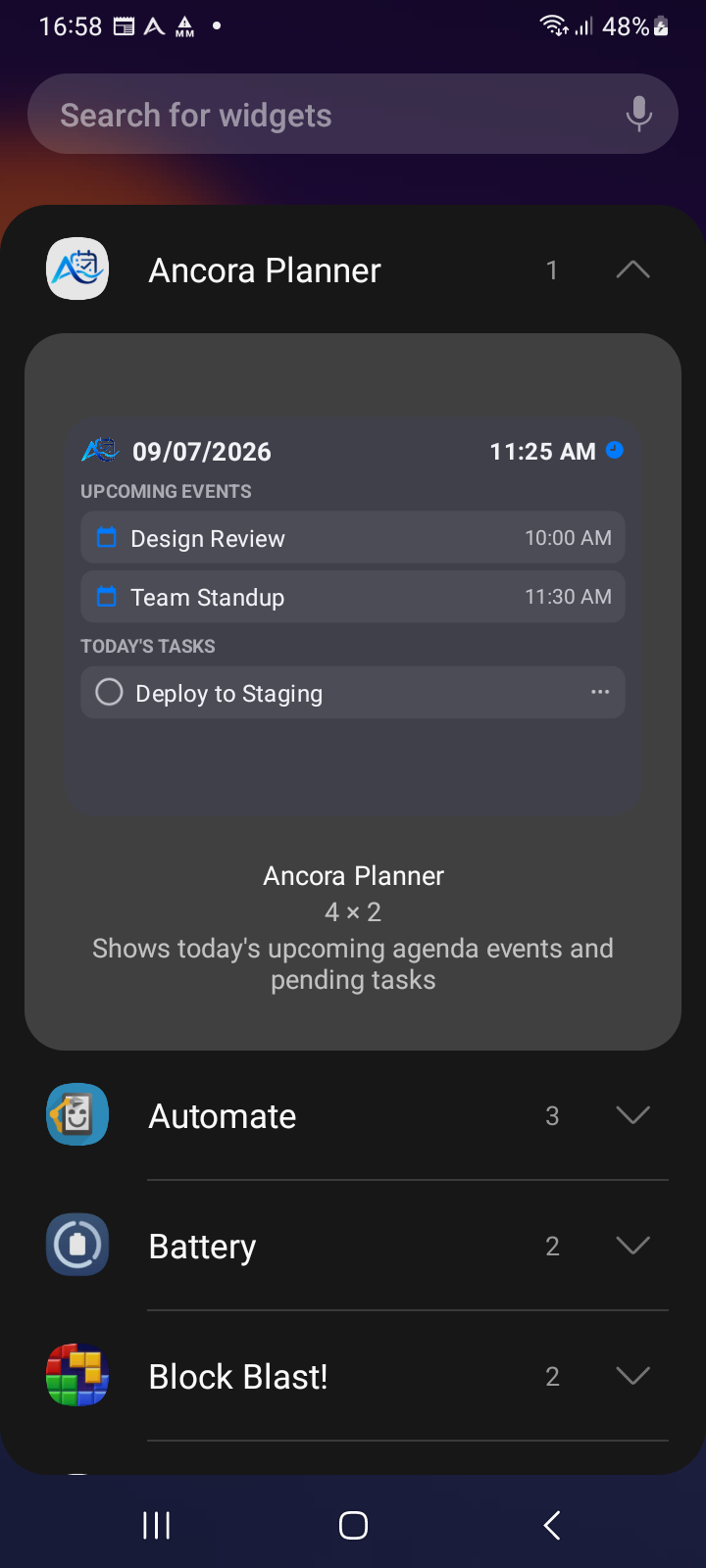
Figure 1.4: Widget picker — Locating and adding the Ancora Planner 4×2 widget
Resizing and Layout Behavior
The widget has a base grid size of 4×2 (4 columns wide by 2 rows tall) and supports both horizontal and vertical resizing:
- To resize: Touch and hold the placed widget until the resize frame and corner/edge handles appear.
- Vertical resizing: Drag the bottom handle downward to expand the widget vertically. Because the widget content is structured as a single vertical scrolling list, expanding the vertical height allows more events and tasks to be visible simultaneously without needing to scroll.
- Horizontal resizing: Drag the side handles to adjust the widget width across your home screen grid.
- Tap anywhere outside the widget to exit resize mode.
Widget Anatomy & Interactive Features
The placed widget is packed with direct interactive features:
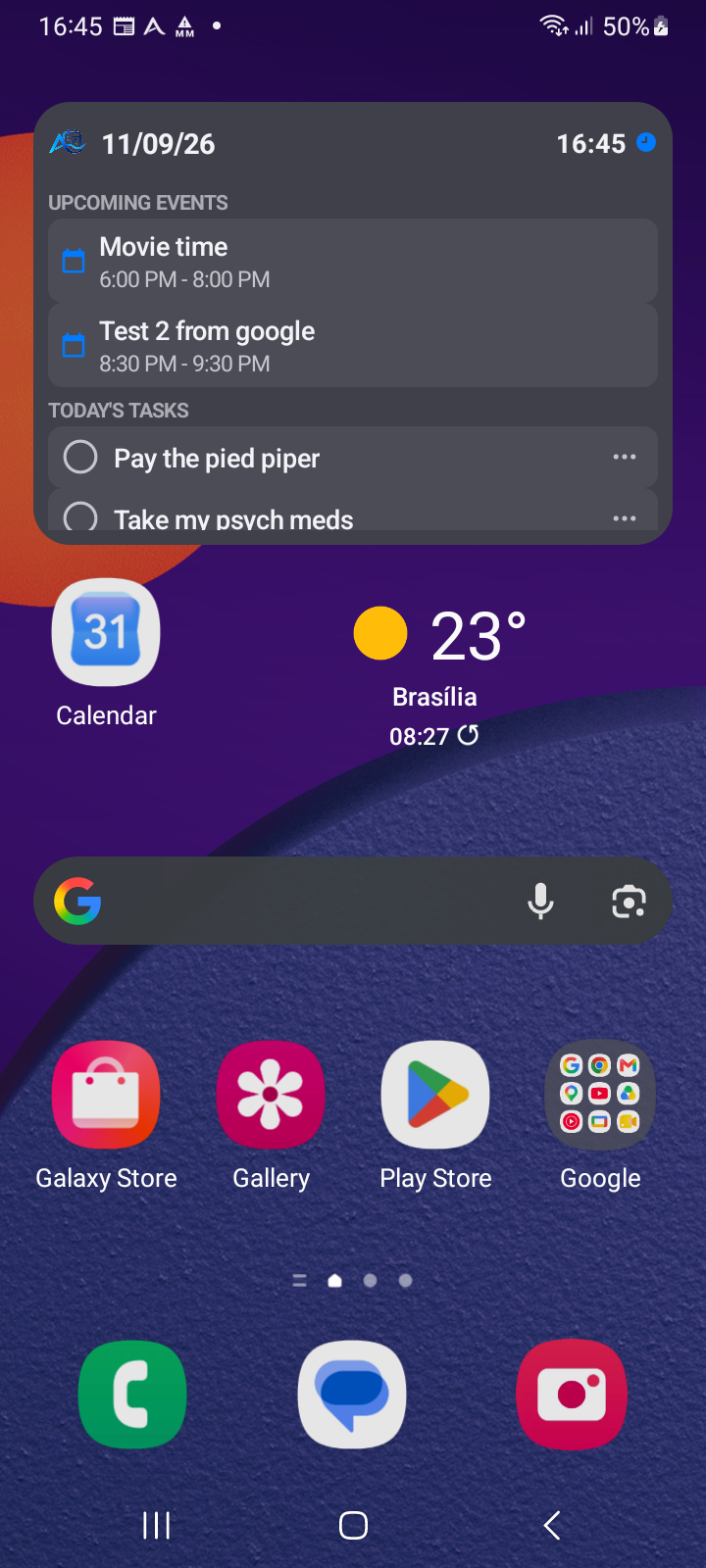
Figure 1.5: Ancora Home-Screen Widget — Layout and interactive touch targets
Event & Reminder Actions from the Widget
When you tap an upcoming event or reminder on the widget, Ancora Planner opens directly with the event action dialog:
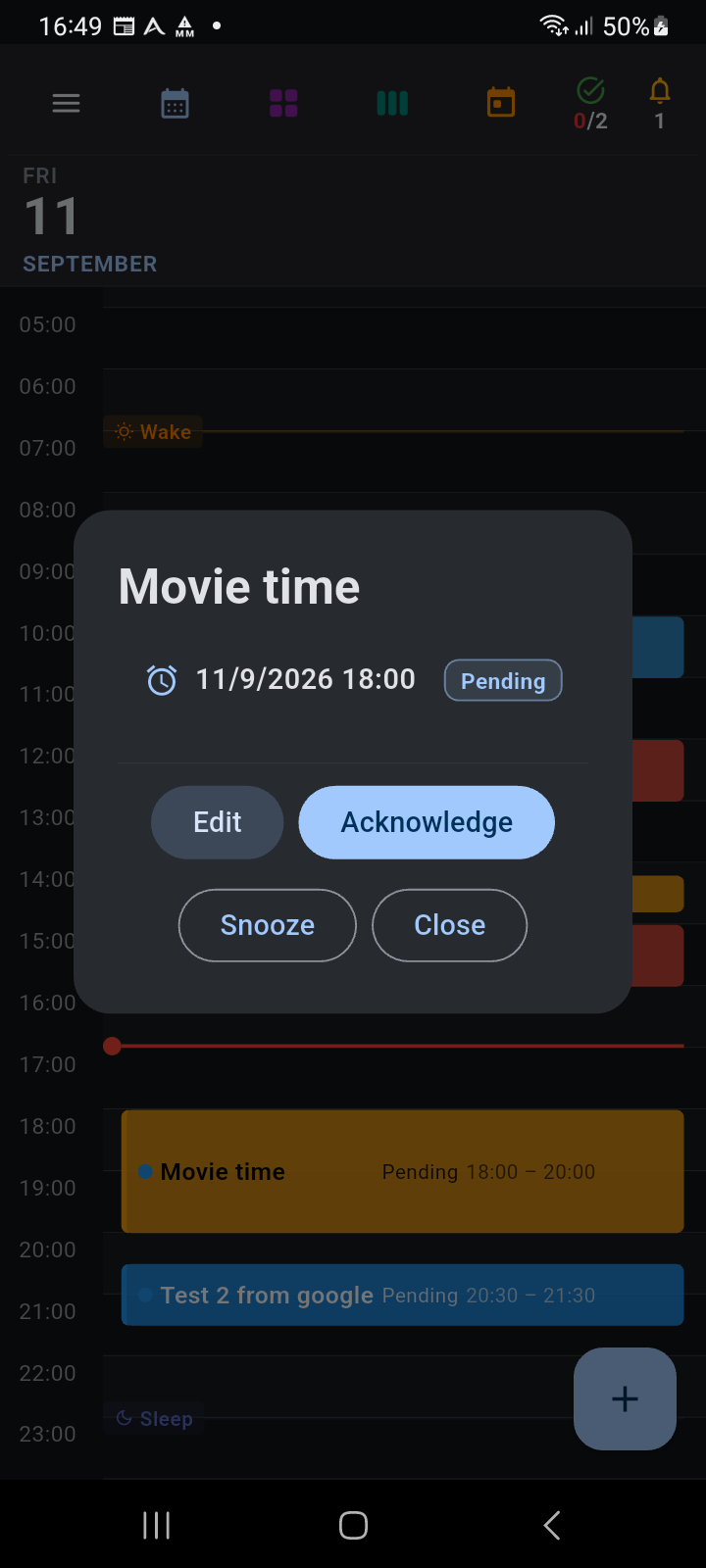
Figure 1.6: Reminder action dialog — Opened directly from tapping an event on the widget
Data Synchronization & Updates
The widget stays synchronized through several automatic mechanisms:
- In-App Changes: When you add, edit, or delete items inside Ancora Planner, the widget data snapshot is automatically refreshed (with a 300ms to 800ms debounce).
- App Lifecycle: The widget data is refreshed each time the Ancora app is opened, backgrounded, or resumed.
- Widget Completions: Tasks marked completed from the widget are immediately saved to native widget storage and synchronized into the app database when Ancora is next launched or resumed.
- Periodic Fallback: Android is configured with a 30-minute background periodic update interval.
Keywords: