
Daily Task Management & Due Times
Ancora's dedicated Task Manager gives you a focused, day-by-day command center for tracking to-dos, obligations, and deadlines. It automatically flags overdue items, calculates relative due times, and integrates directly with your Day View timeline.
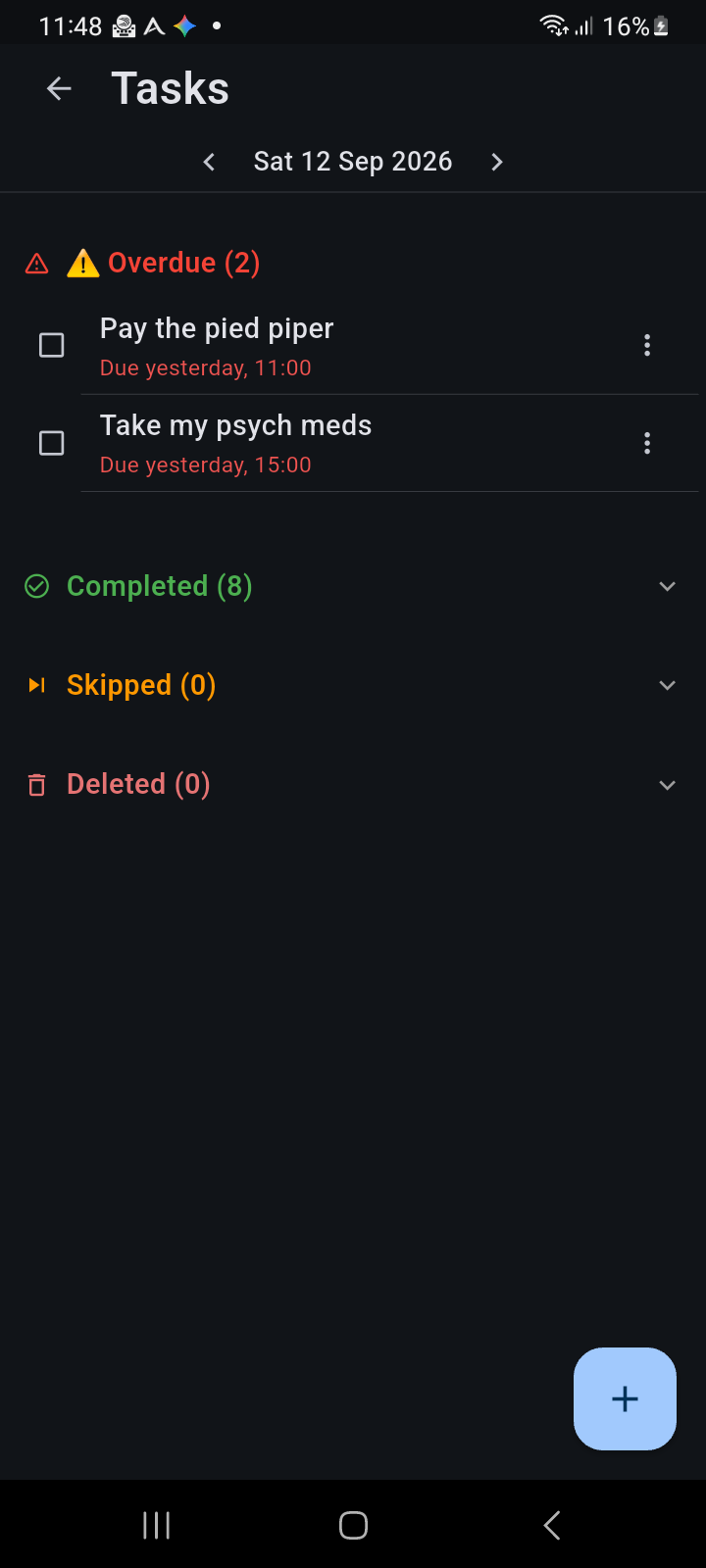
Figure 6.1: The Task Manager screen displaying the day selector, overdue task warnings with relative timestamps, and status accordions.
Accessing the Task Manager
You can navigate to the Task Manager from two primary locations in Ancora:
- Day View Task Badge: Tap the circular checkmark badge in the top-right header of the Day View. The badge displays a counter (such as
2/0), where the red first number indicates overdue tasks and the second number shows pending tasks due today. - Side Navigation Drawer: Tap the Navigation Menu icon (☰) in the top-left corner of any calendar screen and select Task Manager (marked with a green checkmark icon).
Navigating Across Days
The Task Manager is organized chronologically around individual calendar days:
- Date Navigation Header: Tap the left chevron (<) or right chevron (>) in the subheader to move backward or forward by one day.
- Horizontal Swipe: Swipe left anywhere on the screen canvas to advance to the next day, or swipe right to review the previous day.
- Active Date Display: The centered label shows the weekday, day number, month, and year (e.g.,
Sat 12 Sep 2026).
Creating a New Task
Tap the blue circular Floating Action Button (+) in the bottom-right corner to open the New Task dialog:
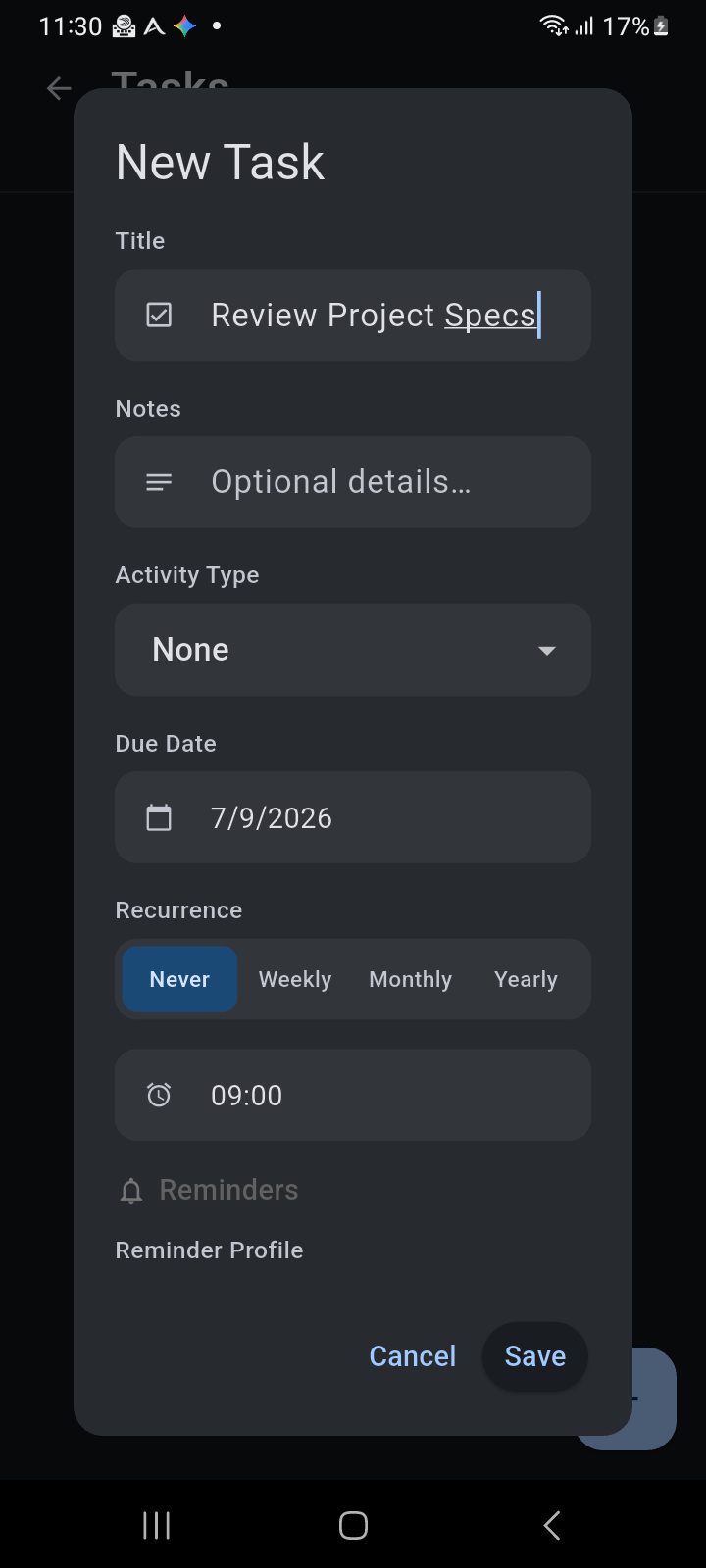
Figure 6.2: The New Task dialog featuring title input, optional notes, activity type tagging, due dates, recurrence rules, and reminder alarms.
- Title: Enter the action item or task summary in the What needs to be done... field.
- Notes: Add supplementary context, instructions, or sub-details in the Optional details... field.
- Activity Type: Assign a category (such as Work, Health, Personal, or Study) to color-code the task across calendar views.
- Due Date: Select the target deadline date. By default, this matches the day you were currently viewing.
- Recurrence: Choose whether the task repeats (
Never,Weekly,Monthly, orYearly). - Due Time: Tap the clock field to specify an exact deadline time (e.g.,
09:00), or leave it empty for an all-day task. - Reminder Profile: Connect an alarm profile to trigger spoken voice alerts or notification chimes before the deadline.
- Tap Save to schedule the task.
Overdue Task Tracking & Urgency Badges
Ancora actively monitors task deadlines and highlights obligations requiring attention:
- Automatic Overdue Detection: Any task with a past due date that has not been marked as completed or skipped is automatically elevated to the top of the list under the ⚠ Overdue header.
- Relative Due Timestamps: Overdue items display clear relative time indicators in red text (such as
Due yesterday, 11:00orDue 7/9/2026, 09:00 (5 days overdue)). - Quick Completion: Tap the square checkbox icon next to any task to mark it completed immediately. The item will be crossed off and moved into the Completed archive.