
Drilling Down and Month-Level Schedule Management
While Month View is ideal for identifying scheduling patterns across several weeks, effective time management requires moving seamlessly between macro-level planning and minute-by-minute execution. Ancora allows you to drill down into any specific day with a single tap, inspect all-day milestones, and capture new commitments without leaving the calendar grid.
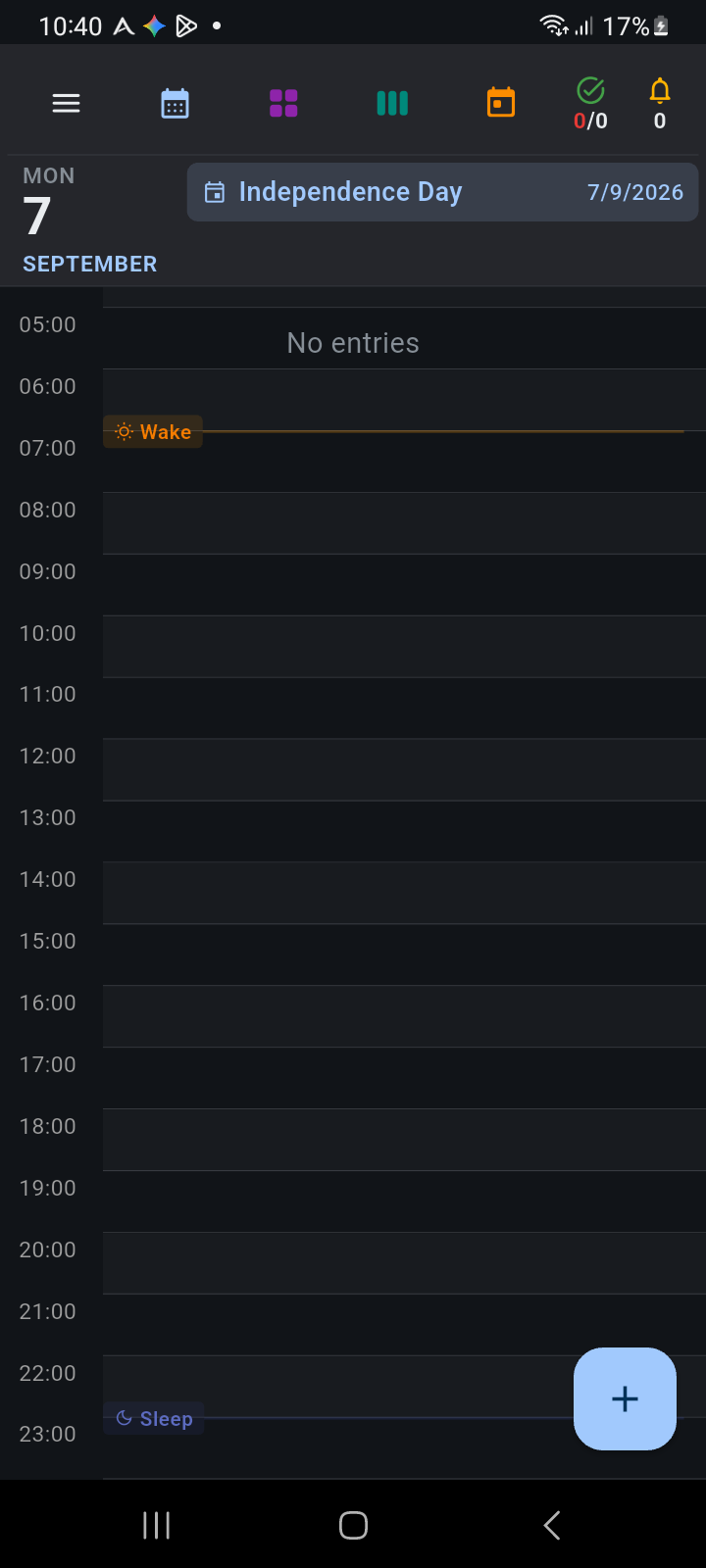
Drilling Down to the Day View Timeline
Every date cell within the Month View calendar grid functions as an interactive portal into that day's complete schedule:
- Locate the date you wish to inspect or schedule on the monthly grid.
- Tap anywhere within the day cell (or on the date number).
- The Month View screen automatically closes and navigates directly to the Day View timeline for the selected date.
- The Day View loads all scheduled events, circadian wake/sleep guidelines, and all-day awareness banners for that specific day.
This single-tap transition eliminates the friction of manually changing views and picking dates from separate picker dialogs.
Returning to Month View
To return to Month View after reviewing or editing your day, simply tap the blue Month View icon in the Day View top header. Ancora returns you to the exact month you were previously viewing.
Evaluating Monthly Workload & Availability
By reviewing the distribution of color-coded dots across the month grid, you can quickly assess schedule health and spot potential conflicts before they occur:
- Identifying Peak Workloads: Days clustered with three activity dots or an overflow badge (
+N) represent high-density days requiring careful energy management. - Spotting True Availability: Cells with no dots or only a single morning routine dot highlight ideal openings for scheduling appointments, focus blocks, or social outings.
- Monitoring Habit Continuity: Repeating routines (such as morning exercise or daily reading blocks) appear as consistent rows of matching colored dots Monday through Friday. Gaps in these rows quickly reveal where routines were displaced or skipped.
- All-Day & Multi-Day Awareness: Horizontal colored bars at the top of day cells give you instant visibility into multi-day vacations, conferences, or national holidays without opening individual event cards.
Fast Capture with the Quick-Add Menu
You do not need to drill down into Day View just to add a new task, event, or reminder. The expandable Quick-Add Floating Action Button (FAB) is located at the bottom-right corner of Month View:
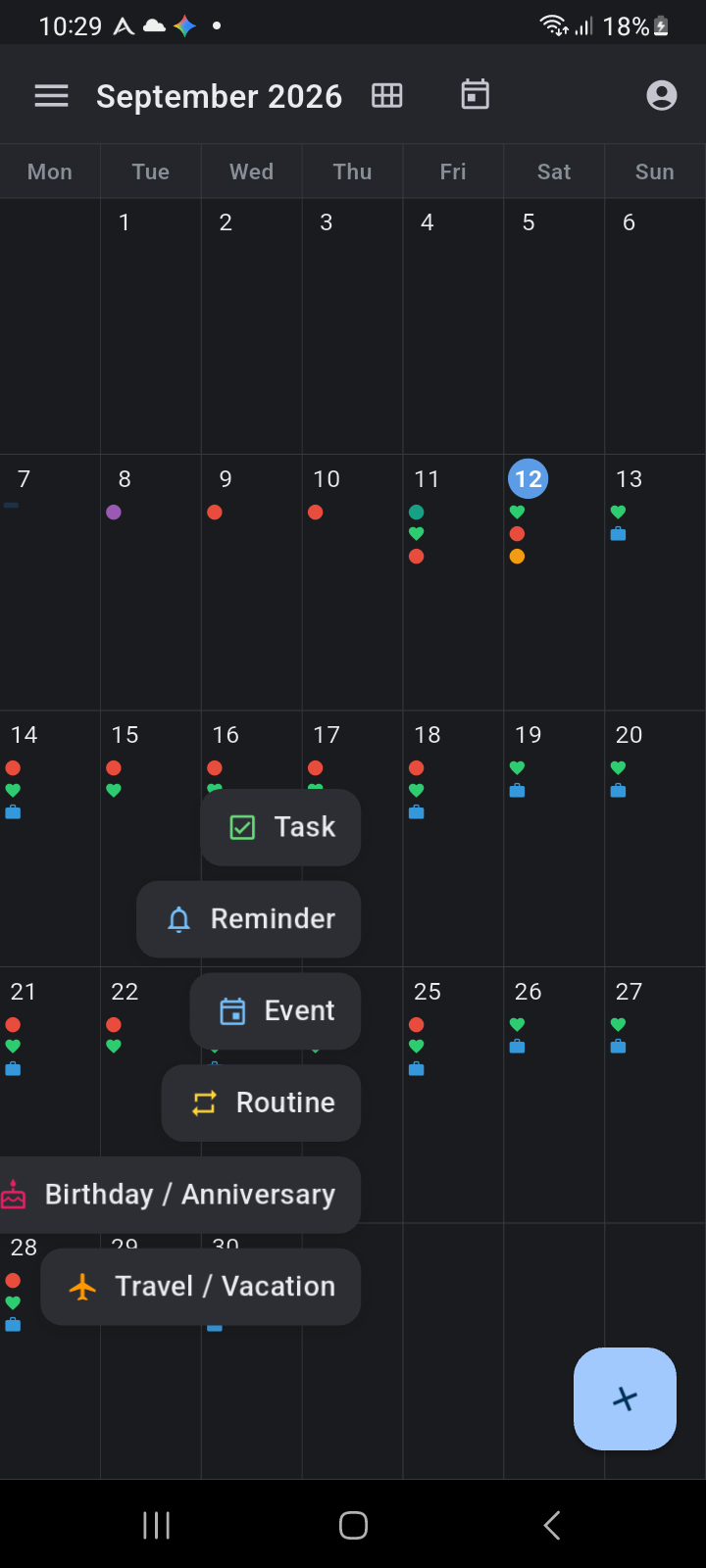
Tapping the blue + button expands six dedicated creation shortcuts:
- Task (Green Checkbox): Opens the task creation dialog to schedule a to-do item with optional due date, priority, and checklist items.
- Reminder (Blue Bell): Quickly schedules a timed reminder or alarm notification with customizable lead time.
- Event (Blue Calendar): Opens the New Agenda Entry dialog to schedule a one-time timed or all-day calendar event.
- Routine (Gold Circular Arrows): Creates a recurring habit or recurring activity block that repeats across selected weekdays.
- Birthday / Anniversary (Pink Cake): Opens the awareness dialog to set an annual milestone with reminder notifications.
- Travel / Vacation (Orange Airplane): Sets up multi-day travel or vacation banners spanning across days on both Day View and Month View.
Items scheduled through the Quick-Add FAB are instantly committed to local storage and immediately reflect on the Month View grid density markers.
Navigation Hierarchy Summary
Ancora provides a unified multi-tiered zoom hierarchy for all your scheduling needs:
- Zoom In (Macro to Micro): Month View → Tap a day cell → Day View Timeline (hour-by-hour detail).
- Zoom Out (Macro to Panorama): Month View → Tap the Month Title or Year View icon → 12-Month Year View (annual heat map).
- Parallel Overview: Open the navigation drawer or top header → 7-Day Week View (side-by-side timeblocking).