
Fast Capture with the Quick-Add Menu & Agenda Tools
Capture thoughts, tasks, events, and routines the moment they arise. Ancora's Quick-Add Speed Dial lets you create six different types of schedule entries from anywhere in the app with just two taps.
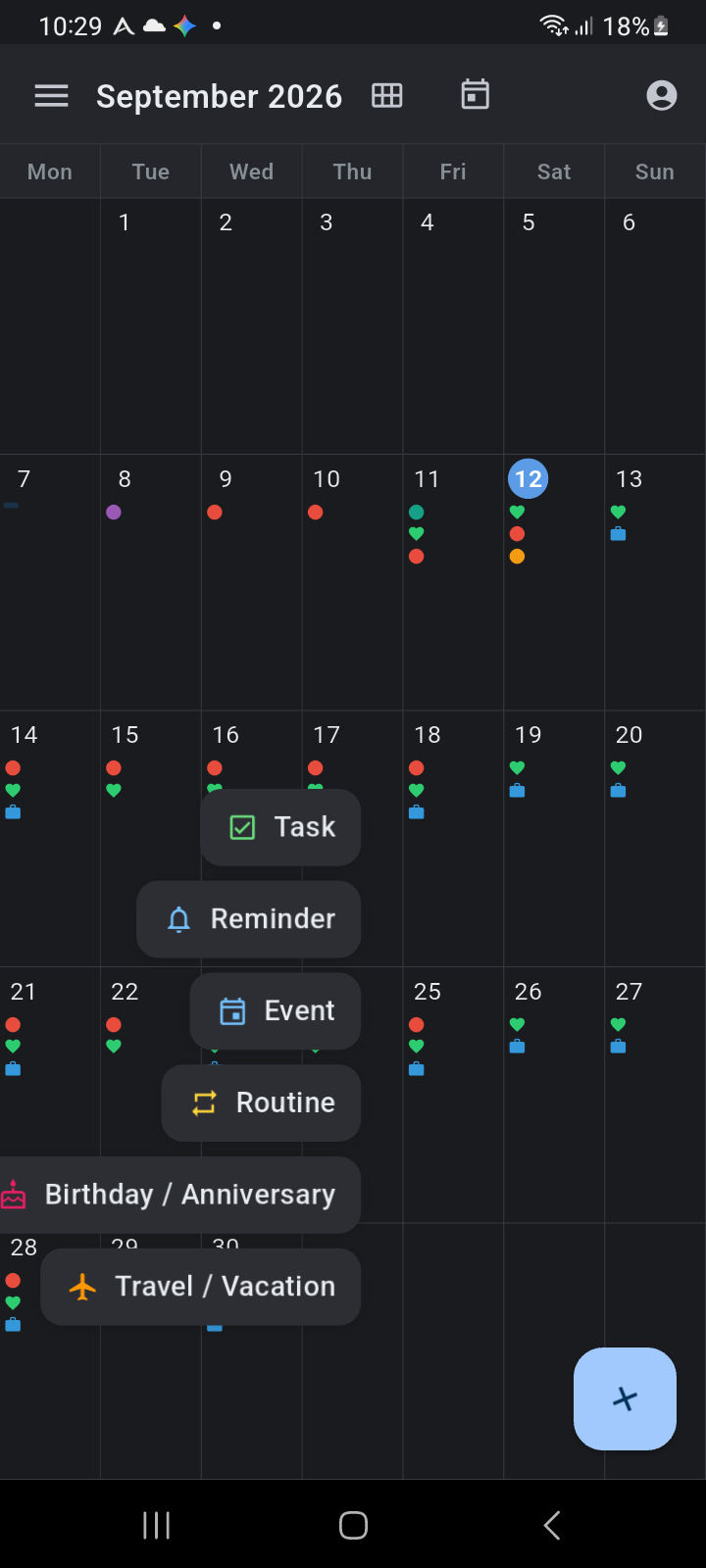
Figure 5.2: The expanded Quick-Add Speed Dial showing shortcuts for Task, Reminder, Event, Routine, Birthday/Anniversary, and Travel/Vacation.
The Floating Action Button (FAB)
The primary Quick-Add button (+) floats in the bottom-right corner across all primary calendar screens—including the Day View, Week View, Month View, and Year View.
- Tap the + button to expand the speed-dial menu.
- The button icon smoothly rotates into a close icon (×), and six dedicated item buttons fan out vertically.
- Tap any item button to open its dedicated creation dialog.
- To close the menu without adding an item, tap the × button or tap anywhere on the dimmed background.
The 6 Quick-Add Item Types
Ancora categorizes schedule commitments into dedicated types so you always have the right fields and alarm options:
| Item Type | Icon / Accent | Purpose & Behavior |
|---|---|---|
| Task | Green Checkbox | Creates an action item or to-do in your Task Manager. Lets you set due dates, priority levels, estimated duration, and checklist assignment. |
| Reminder | Blue Bell | Creates an alert or timed notification. Supports spoken voice alerts, recurring alert profiles, sound chimes, and pre-reminder warnings. |
| Event | Blue Calendar | Schedules a one-time agenda entry or appointment. Includes start and end times, location, descriptions, and all-day toggle options. |
| Routine | Gold Arrows | Defines recurring time blocks (such as morning routines, exercise, or study blocks) that repeat on selected days of the week. |
| Birthday / Anniversary | Pink Cake | Creates an annual awareness milestone that highlights celebratory dates across your calendar views year after year. |
| Travel / Vacation | Orange Airplane | Schedules multi-day trips and out-of-office date ranges, displaying banner spans across your Week and Month views. |
Context-Aware Date Selection
When you trigger Quick-Add from a specific view, Ancora pre-populates the date automatically:
- From Day View: The new entry defaults to the day currently displayed on your timeline.
- From Month View: If you tapped on a specific day in the grid, the Quick-Add dialog opens with that date pre-selected.
- From Week View: The dialog defaults to the current day or focused column date.
Note: You can always adjust dates, times, repetition rules, and notification alarms inside the dialog before tapping Save.