
Initial Setup and Permissions
The First-Run Onboarding Wizard
After registering a new account or logging in for the first time, Ancora Planner presents a 7-step onboarding wizard to configure core preferences before opening the Day View. Completing the wizard takes approximately one minute.
Note on Verification:
The onboarding wizard runs on first app launch before user preferences are initialized. The steps below are documented from the application source code (UserOnboardingScreen), and the resulting preferences can be reviewed and adjusted at any time in Personal Preferences and Settings.
Step 1: Welcome
The welcome step displays the Ancora brand logo along with the introductory message: "Plan your day. Keep everything in one place." and "We'll have you ready in about a minute." Tap "Get Started" to proceed.
Step 2: Appearance (Theme)
Choose the interface theme:
- Follow System (Default): Matches your device's active dark or light system theme.
- Light: Light background with dark typography and colored accent badges.
- Dark: Dark slate background for low-light environments and reduced power consumption.
The selected theme is applied immediately so you can preview its appearance. Tap "Next" to continue.
Step 3: Language
Select your application language from the dropdown menu:
- Use Device Language (Default)
- English
- English (United States)
- Português (Brasil)
- Español
- Italiano
Selecting a language updates the interface immediately and pre-selects the default voice model for that language. Tap "Next" to continue.
Step 4: Daily Rhythm (Schedules)
Ancora Planner structures daily planning around your wake and sleep schedule:
- Weekday Wake up time: Default is
07:00. - Weekday Sleep time: Default is
23:00. - Are weekends different? (Toggle): When enabled, you can set distinct weekend wake (default
09:00) and sleep (default23:00) times. - Sleep reminder (Toggle): When enabled, sets a recurring reminder before sleep. The default title is
Time to sleep.
These schedule times establish the primary time boundaries displayed in the Day View. You can adjust these settings later under Settings > Personal Preferences.
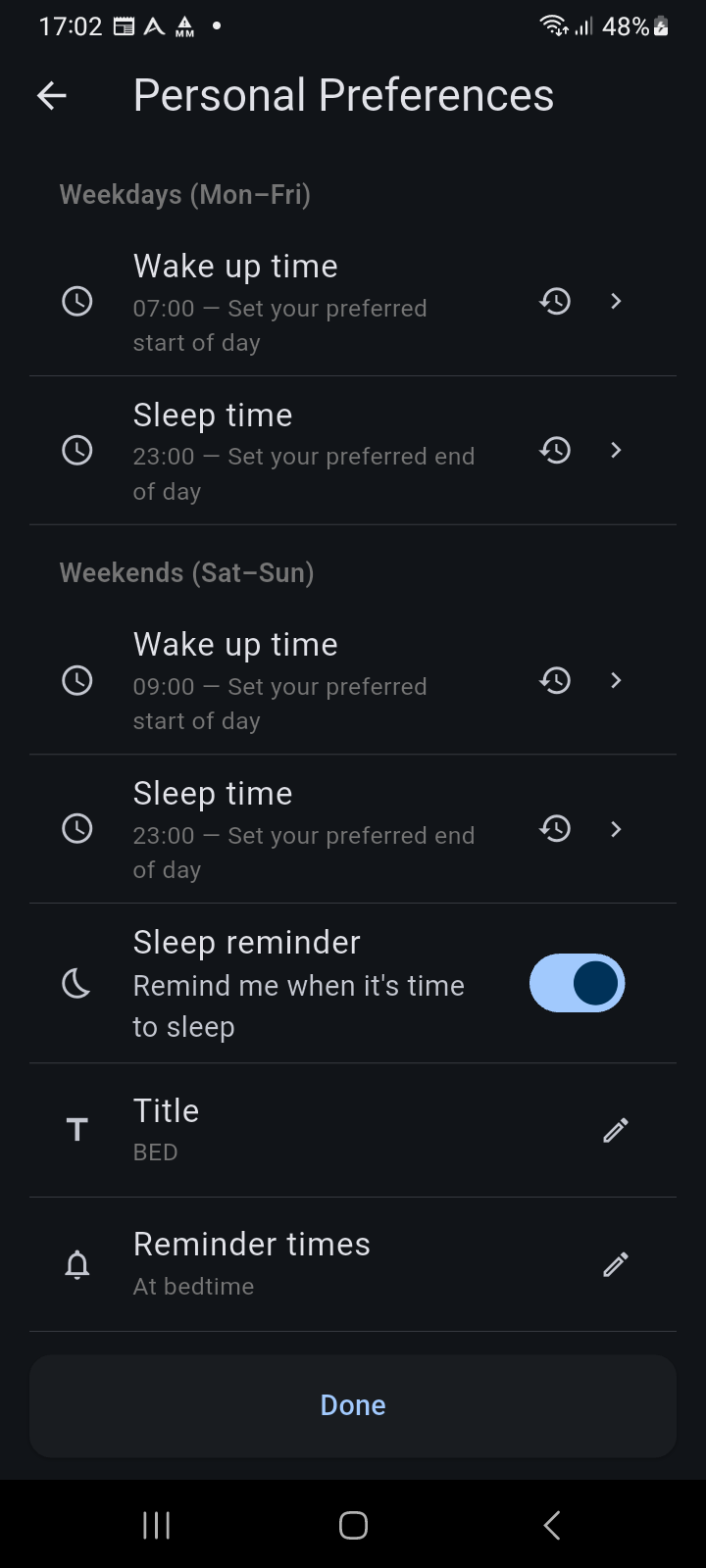
Figure 1.2: Personal Preferences — Circadian wake, sleep, and reminder schedules
Step 5: Voice Selector
Configure spoken audio alerts for reminders:
- Neural Voices (Piper Engine): Displays offline neural voice models matching your selected language. Each entry shows the voice name, quality rating, and download size in megabytes (MB). You can tap the play/stop icon next to any voice to hear a sample before selecting it.
- Alternative notification settings (Expandable):
- System TTS: Uses your Android device's built-in text-to-speech engine.
- Silent Notifications: Disables spoken voice playback for notifications.
Tap "Next" to continue.
Step 6: Planner Reminders (Permissions)
To deliver timely alerts and reminders, the app requests system permissions on Android:
- Notifications (Android 13+): Tap "Grant Notifications". When permission is granted, the button updates to a "Notifications Allowed" status indicator.
- Exact Alarms (Android 12+ / SDK 31+): Tap "Grant Exact Alarms". Android's aggressive battery optimizations and Doze mode can delay standard alarms by several minutes. Ancora uses
SCHEDULE_EXACT_ALARMwithexactAllowWhileIdleto trigger timed reminders at the exact scheduled time. When granted, the button updates to "Exact Alarms Allowed".
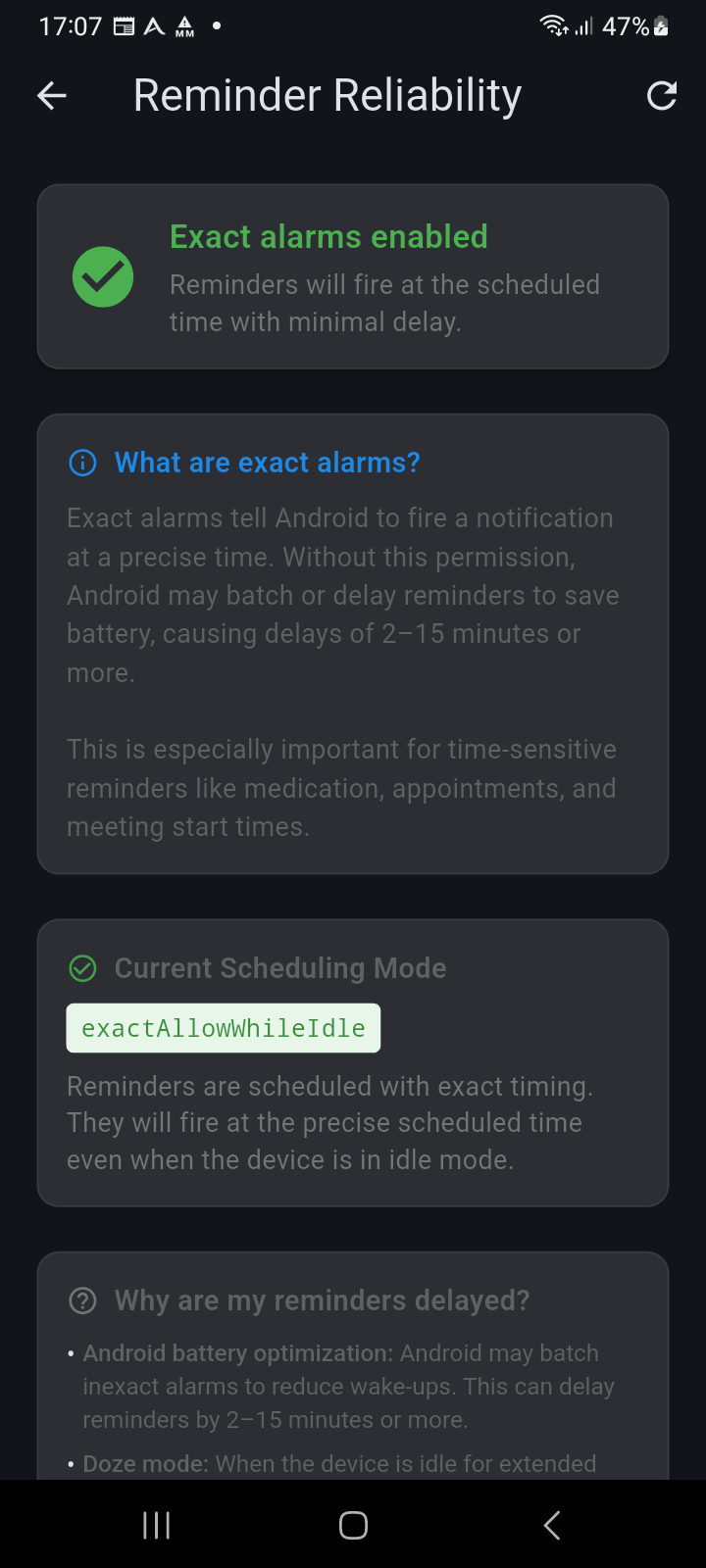
Figure 1.3: Reminder Reliability — Exact alarms and battery optimization status
Tap "Done" to proceed to the final step.
Step 7: Setup Complete
The final screen confirms: "You're all set! Ancora is ready to help you stay on track." Tap "Open Ancora" to complete onboarding and enter the Day View.