
Navigating the Day View Timeline
The Day View is the central home canvas of Ancora Planner. It presents your daily commitments on a continuous 24-hour visual timeblocking grid, framed by your circadian wake and sleep rhythms and kept in sync with the current time of day.
The 24-Hour Timeline Canvas
Ancora structures each day around a full 24-hour visual timeline. Rather than burying your schedule in disconnected lists, the timeline displays how your commitments, routines, and rest periods fit together chronologically.
- Continuous Hourly Grid: The timeline runs from midnight (00:00) through 23:00. Every hour slot is clearly separated with subtle dividers and alternating background shading so you can quickly scan your schedule.
- Time Formatting: Time labels along the left margin automatically reflect your preferred time format (12-hour AM/PM or 24-hour format), which you can configure in Settings.
- Intelligent Auto-Scroll: When you open a day, Ancora automatically scrolls to your active schedule window—positioning the timeline approximately one hour before your configured wake-up time, or one hour before your earliest scheduled entry if you have early commitments.
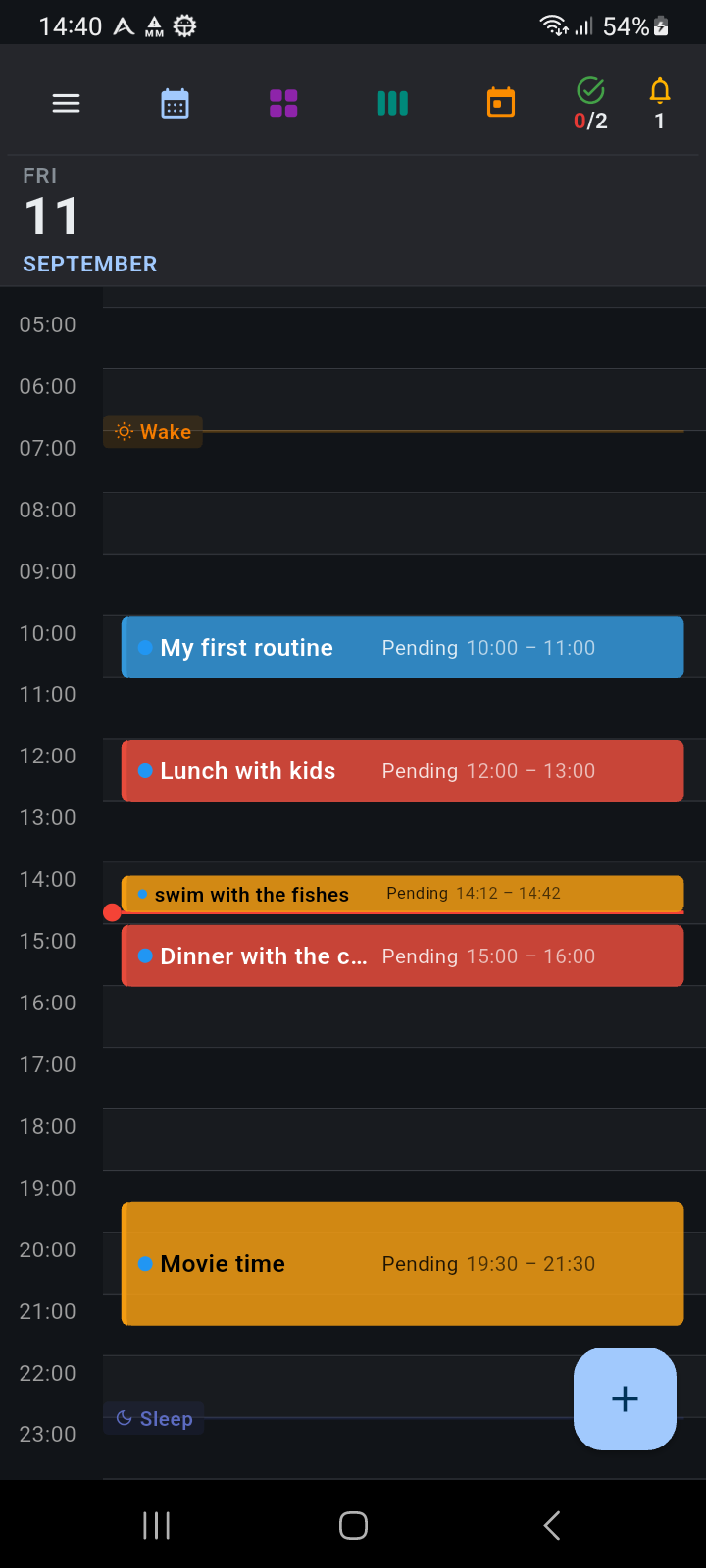
Figure 2.1: The Day View timeline displaying the navigation header, circadian markers, current-time indicator line, and scheduled event blocks
The Calendar Navigation Header
At the top of the Day View, the Calendar Navigation Header provides instant access to all core calendar perspectives, drawer shortcuts, and status counters:
- Menu Button (☰): Tapping the hamburger icon on the far left opens the main side drawer, providing quick access to the Task Manager, Reminders, Lists, Connected Calendars, Personal Preferences, Settings, and Account management.
- Month View Button (Blue Calendar): Opens the full-month overview grid. Tapping any day in the month view jumps directly back to that date on the Day View timeline.
- Year View Button (Purple 3×3 Grid): Opens the 12-month high-level bird's-eye view, allowing you to jump across months and track scheduling density throughout the year.
- Week View Button (Teal Multi-Column): Opens the 7-day side-by-side timeblocking overview to compare schedules across the full week.
- Go to Today Button (Orange Calendar): An instant shortcut that animates your timeline directly back to today's date and current time position.
- Task Status Counter (Green Checkmark): Displays your active task ratio formatted as
[Overdue] / [Pending](for example, 0/2). Tapping this badge opens the Task Manager screen. - Reminder Status Counter (Amber Bell): Displays the total count of active reminders scheduled for the visible day. Tapping this badge navigates directly to your Reminder List.
Dynamic Header Adaptability:
On narrow screens or devices with enlarged accessibility text sizes, the header automatically prioritizes essential controls (Menu, Month, Today, Tasks) while tucking secondary counters into comfortable touch targets without horizontal clipping.
The Date Block & All-Day Banner Strip
Directly beneath the navigation header sits the Date Block and the All-Day events strip:
- Date Block: Clearly displays the uppercase weekday abbreviation (e.g.,
FRIorSAT), the day number in large bold text, and the full month in your accent color. - All-Day Events Strip: Positioned to the right of the date block, this area displays multi-day events, public holidays, birthdays, anniversaries, and travel reservations. Keeping all-day items in this compact top strip ensures they remain visible without cluttering the hourly time slots below.
- Category Icons: All-day entries display contextual icons based on their awareness category, such as a cake icon for birthdays, a heart for anniversaries, a flight icon for travel, or a calendar badge for general all-day events.
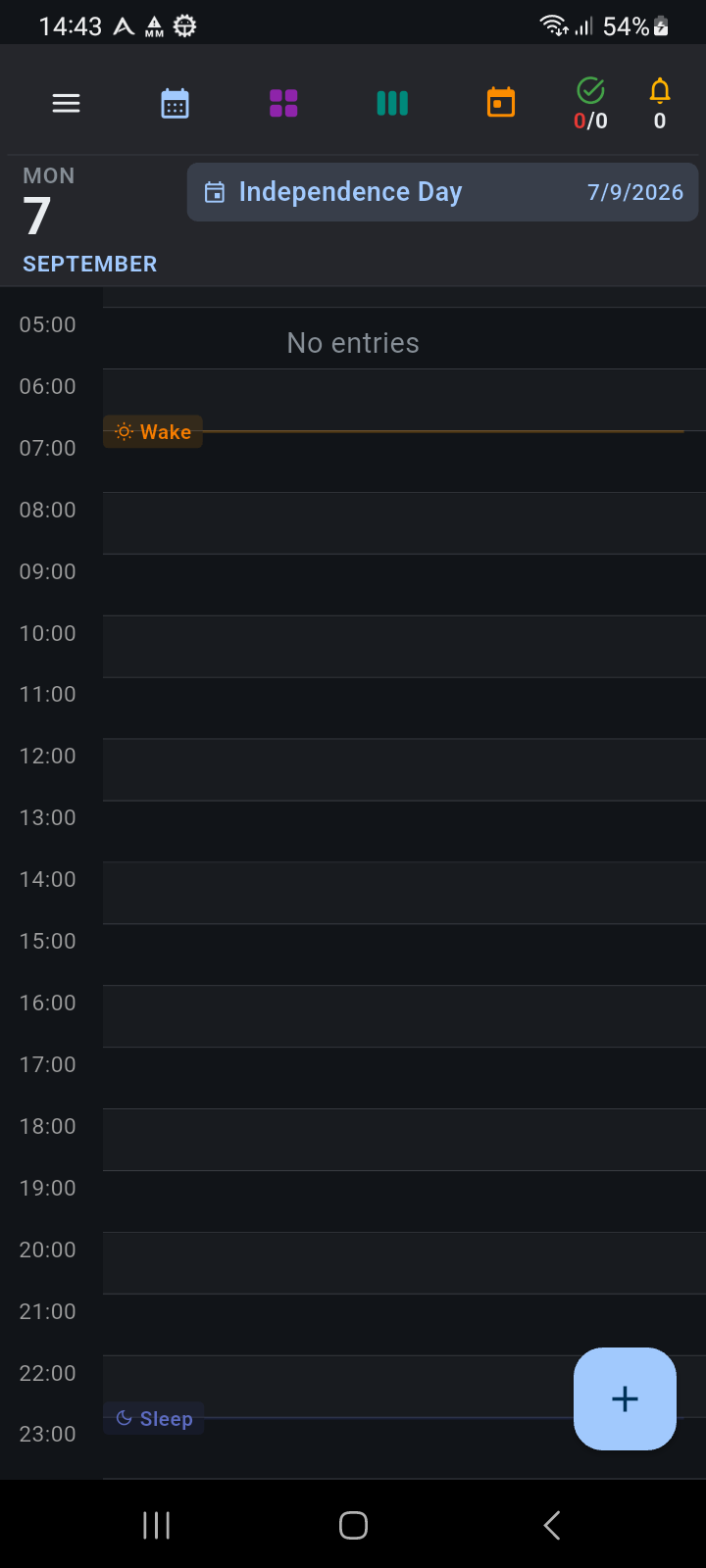
Figure 2.2: All-Day event banner displayed beside the date block above an empty timeline
Circadian Rhythm Markers: Wake and Sleep Lines
Ancora is built around supporting healthy circadian habits. Rather than treating all 24 hours identically, the timeline clearly indicates your personal waking day:
- Wake Marker: A horizontal amber line anchored by a sun badge (
Wake) marks your designated wake-up time. - Sleep Marker: A horizontal indigo line anchored by a crescent moon badge (
Sleep) marks your targeted bedtime.
These boundary lines visually frame your active waking window. You can configure your standard weekday and weekend wake/sleep times in Personal Preferences, or override them for a specific date using the Day Settings sheet.
The Live Current Time Indicator
When viewing today's schedule, Ancora renders a dynamic red indicator line with an anchor dot across the timeline at your exact local time:
- The line advances across the screen minute-by-minute in real time.
- It provides immediate visual awareness of whether scheduled events are upcoming, currently active, or already in the past.
- On past or future dates, the red current-time indicator is automatically hidden to keep historical and upcoming planning clean.
Moving Between Days and Scroll Continuity
Navigating through your planner is smooth and gesture-driven:
- Horizontal Swiping: Swipe left anywhere on the timeline to move forward to the next day; swipe right to review previous days.
- Scroll Continuity: When you swipe between days, Ancora preserves your vertical scroll position. For example, if you are reviewing afternoon meetings at 14:00 and swipe forward to tomorrow, the view stays anchored around 14:00 so you maintain your temporal context.
- Instant Return: Whenever you navigate to a distant date, tap the orange Today button in the top header to instantly return to today's schedule.