
Navigating the Monthly Calendar Grid
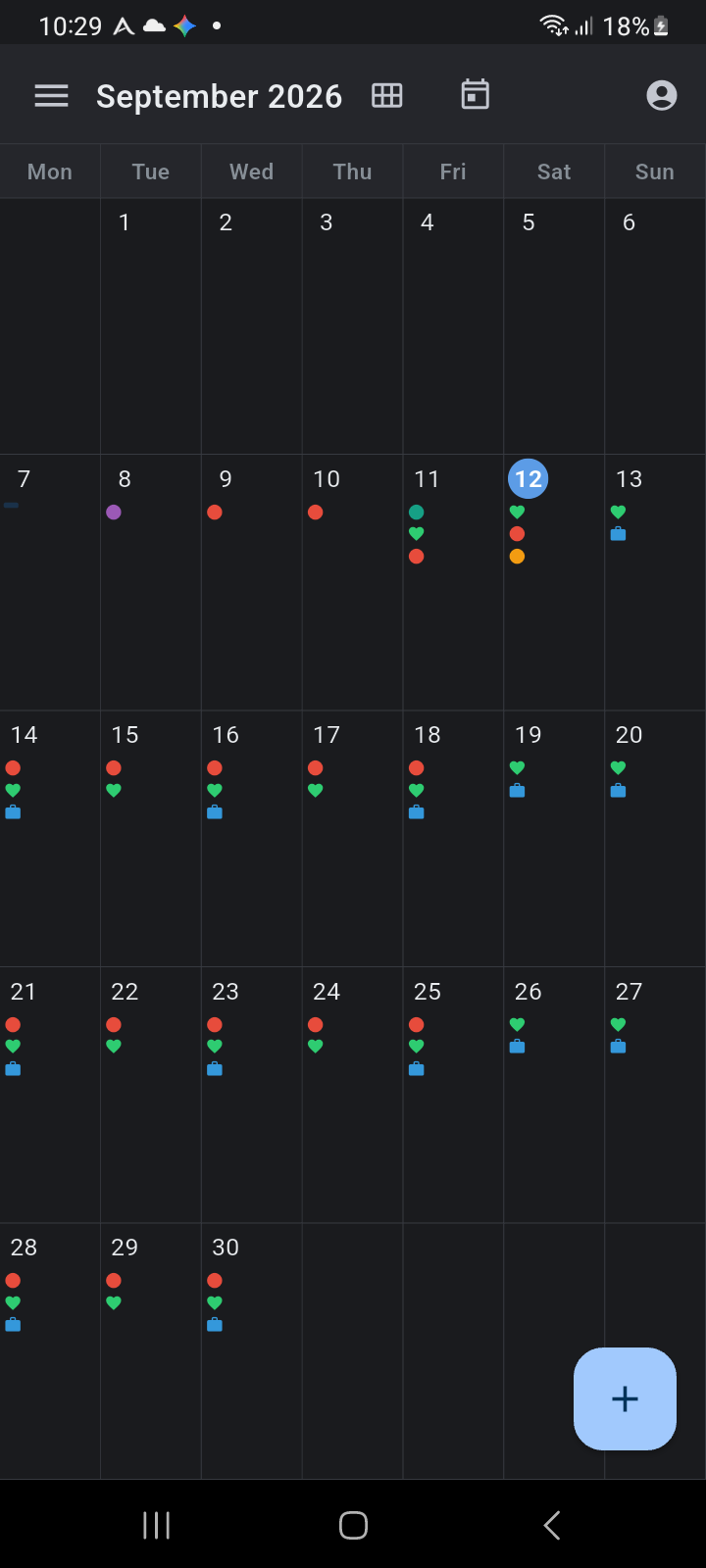
Ancora's Month View gives you an expansive, high-level overview of your commitments across the entire month. Designed around a responsive 5- to 6-week calendar matrix, Month View pairs instant local caching with compact visual indicators so you can evaluate monthly scheduling density, spot open days, and navigate across the calendar without waiting on network calls.
Accessing Month View
You can transition into Month View at any point during your planning workflow:
- From Day View or Week View: Tap the Month View icon (a calendar grid icon) in the top navigation header.
- From Year View: Tap any individual month card (such as Sep or Oct) on the 12-month yearly grid to open that month directly.
- From the Navigation Drawer: Open the main menu from the hamburger icon and select Month View.
The Month Navigation Header
The top navigation header provides consistent navigation controls across all calendar modes:
- Navigation Drawer (Hamburger Menu): Located on the far left, tapping this icon opens Ancora's slide-out navigation drawer to access settings, task lists, and account tools.
- Month and Year Label: Displays the current month and year (e.g. September 2026). Tapping directly on this label opens the 12-month Year View screen.
- Year View Button: Positioned immediately to the right of the month label, this shortcut icon (a 3×2 grid) allows one-tap access to the Year View overview.
- Today Button: Positioned next to the Year View button, tapping this calendar icon immediately animates the grid back to the current month, regardless of how far forward or backward you have browsed.
- Account / Profile Icon: Positioned on the far right, tapping your profile icon opens the Account Panel modal to view your active profile or switch between personal and shared family profiles.
The 7-Column Calendar Grid Matrix
Beneath the navigation header, the 7-column weekday strip labels columns from Monday through Sunday (Mon, Tue, Wed, Thu, Fri, Sat, Sun). The grid automatically calculates either 5 or 6 weekly rows depending on the month's starting weekday and total number of days:
- Leading and Trailing Days: Days falling outside the active month's boundaries are displayed with clean dividing borders without date numbers, keeping visual focus centered on the active month.
- Today Ring Highlight: The current calendar date is highlighted with a circular accent badge (using your theme's timeline highlight color) and bold white text (e.g. 12 on September 12), ensuring you always maintain temporal orientation.
- Standard Date Numbers: All other days display their date number in the top-left corner of the day cell.
Interpreting Activity Density Indicators
To preserve visual clarity on mobile screens, Month View uses compact indicator glyphs rather than truncated text snippets. Up to three indicator rows appear inside each day cell:
Compact Indicator Hierarchy
Indicators are prioritized to give you maximum scheduling context in minimum space:
- All-Day Indicator Bar: A small horizontal colored bar rendered directly under the date number indicates all-day awareness events, holidays, or multi-day spans (e.g., the blue bar on September 7 indicating Independence Day). If multiple all-day events occur, a compact count number appears alongside the bar.
- Activity Category Micro-Icons & Colored Dots: Timed agenda entries appear as either specialized micro-icons (such as a heart for health/personal, a briefcase for work, a cake for birthdays, or an airplane for travel) or solid colored dots matching the activity category's assigned palette color.
- Overflow Indicator (
+N): When a single date has more entries than can fit within the three visible slots, a subtle grey badge (e.g.,+2) indicates the total additional events scheduled. - Todo Task Indicator: A small checkbox icon paired with a numeric count indicates incomplete tasks due on that day.
Smooth Gestures & Background Sync
Month View is built for responsive, offline-first navigation:
- Horizontal Month Swiping: Swipe left anywhere on the grid to flip forward to the next month; swipe right to navigate to the preceding month. Smooth physics-driven animations provide instantaneous visual feedback.
- Local High-Speed Index: All event indicators are read directly from local device storage without waiting on server round-trips. Adjacent months (previous and next) are preloaded automatically in the background.
- Pull-to-Refresh: Drag down from the top of the calendar grid to initiate an immediate background sync with your cloud databases and external Google Calendars, refreshing density markers upon completion.