
The 12-Month Year View Overview
Ancora's 12-Month Year View gives you an instant high-level vantage point across your entire calendar year. Use it to spot busy periods at a glance, navigate years effortlessly, and drill directly into any month.
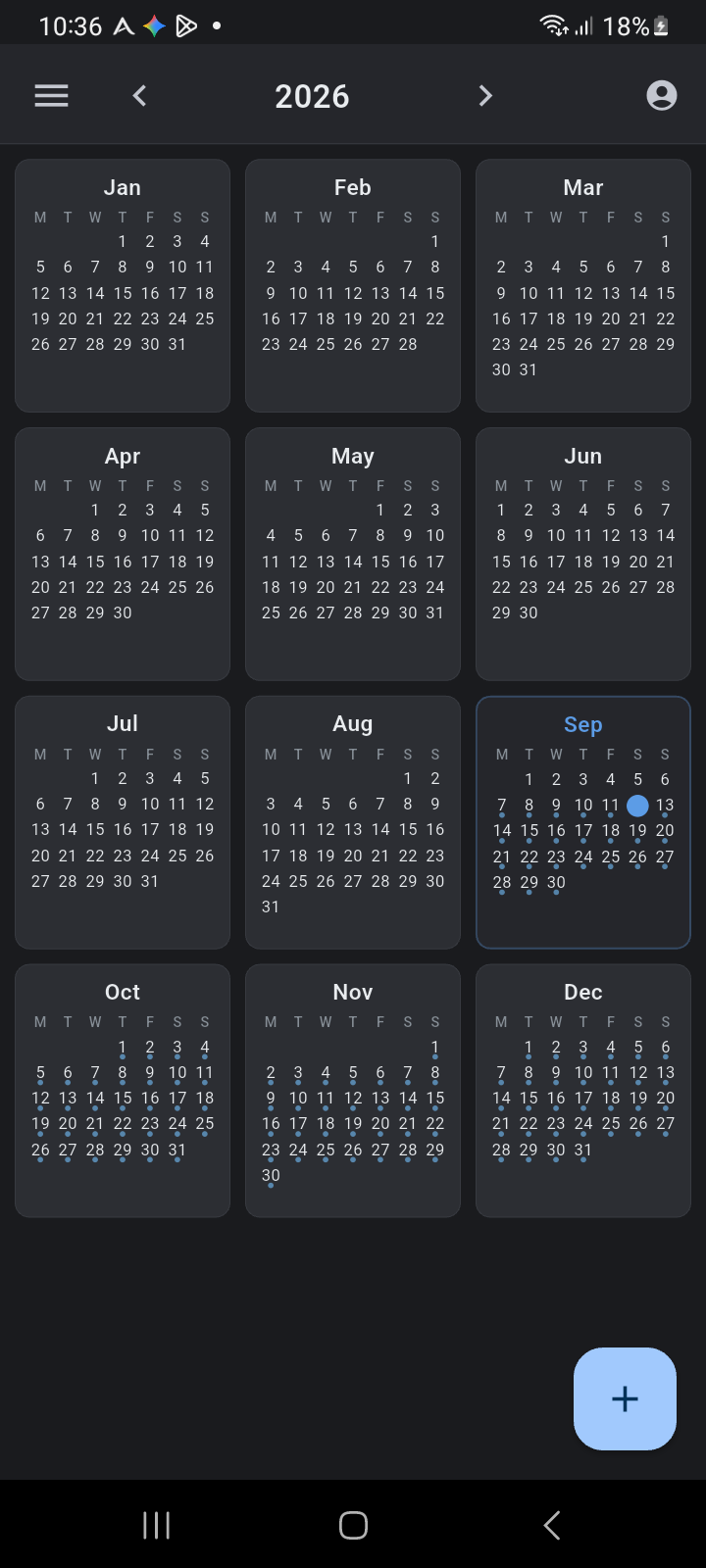
Figure 5.1: The 12-Month Year View showing all twelve mini-month cards, the active month outline, today's badge, and activity density dots.
Accessing the Year View
You can open the Year View from any main calendar screen:
- Tap the Navigation Menu icon (☰) in the top-left corner to open the side drawer.
- Select Year View from the calendar navigation list.
Header Navigation and Year Controls
The top app bar provides intuitive controls for browsing through time:
- Year Title: The center of the app bar clearly displays the active year (e.g.,
2026). When browsing a year other than the current one, tapping the year title immediately returns you to the current year. - Previous / Next Year Chevrons: Tap the left chevron (<) or right chevron (>) to move backward or forward by one full calendar year.
- Today Button: When browsing past or future years, a Today calendar icon appears in the header. Tapping this button instantly jumps back to the current year.
- Account Profile: Tap the profile avatar in the top-right corner to view your active account and synchronization settings.
The 12-Month Grid Layout
The Year View arranges all twelve months in a clean 3-column by 4-row grid. Each mini-month card features:
- Month Header: The abbreviated month name (Jan, Feb, Mar, etc.) centered at the top of each card.
- Weekday Headers: Column initials representing Monday through Sunday (
M T W T F S S). - Active Month Outline: The current month (such as September) is highlighted with an accent-colored border and title, making it easy to orient yourself within the year.
- Today Indicator: The current date is marked by a solid circular accent badge over the date number.
- Activity Density Dots: Days with scheduled agenda events, routines, or tasks display subtle blue dots beneath the date numbers. This provides an instant visual heat map of your schedule commitments across the entire year without slowing down app performance.
Drilling Down into a Month
The Year View is not just an overview—it is a fast navigation hub:
- Tap Any Month Card: Tap anywhere on a mini-month card to immediately open that month in the full 7-column Month View.
- From the Month View, you can inspect daily event chips or tap any individual date to jump straight down into the Day View timeline.
Tip: The Year View uses an optimized lightweight summary index. It loads in milliseconds even with hundreds of events distributed across the year.