
Organizing Task States & Lifecycles
Ancora Planner structures daily tasks across explicit lifecycle states, ensuring you always know what is pending, what requires urgent attention, and what has already been accomplished without cluttering your daily view.
Task Action Options
Each task item in the Task Manager features a contextual options menu, accessible by tapping the three vertical dots (⋮) on the right edge of any task card or by long-pressing the task row.
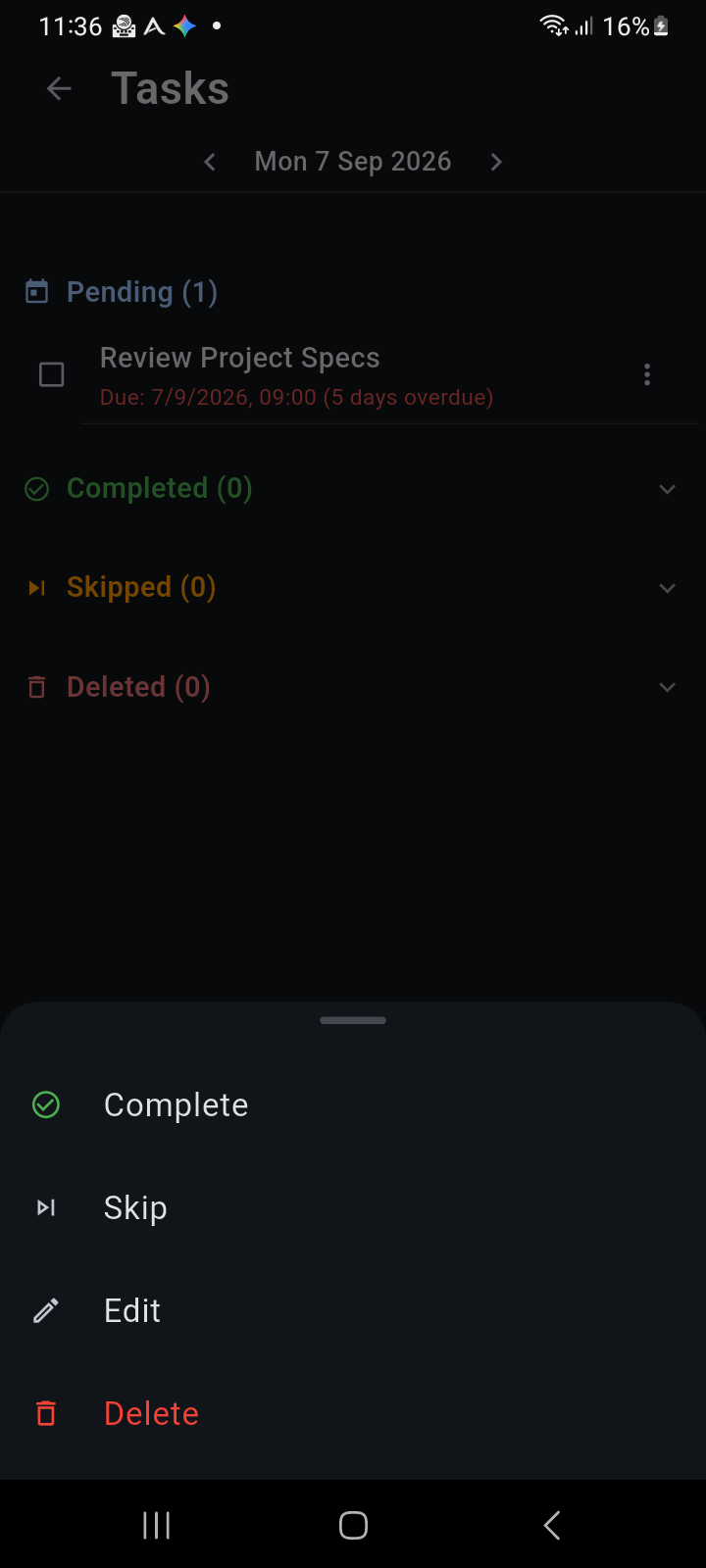
Figure 6.3: Contextual task action sheet providing rapid access to Complete, Skip, Edit, and Delete commands.
The action sheet presents four immediate commands:
- Complete: Marks the task as completed immediately, recording the exact completion timestamp and archiving it under the Completed accordion.
- Skip: Marks the task occurrence as skipped. Skipping is especially useful for recurring habits or routines that you were unable to perform today, preserving your schedule continuity without leaving an artificial overdue item.
- Edit: Opens the full task editing dialog, enabling you to modify the title, notes, due date, recurrence pattern, due time, or reminder profile.
- Delete: Moves the task to the soft-deleted trash bin. Soft-deleted tasks remain restorable from the Deleted accordion before permanent removal.
The Five Task Lifecycle States
The Task Manager groups all tasks for any chosen day into five clear lifecycle accordions:
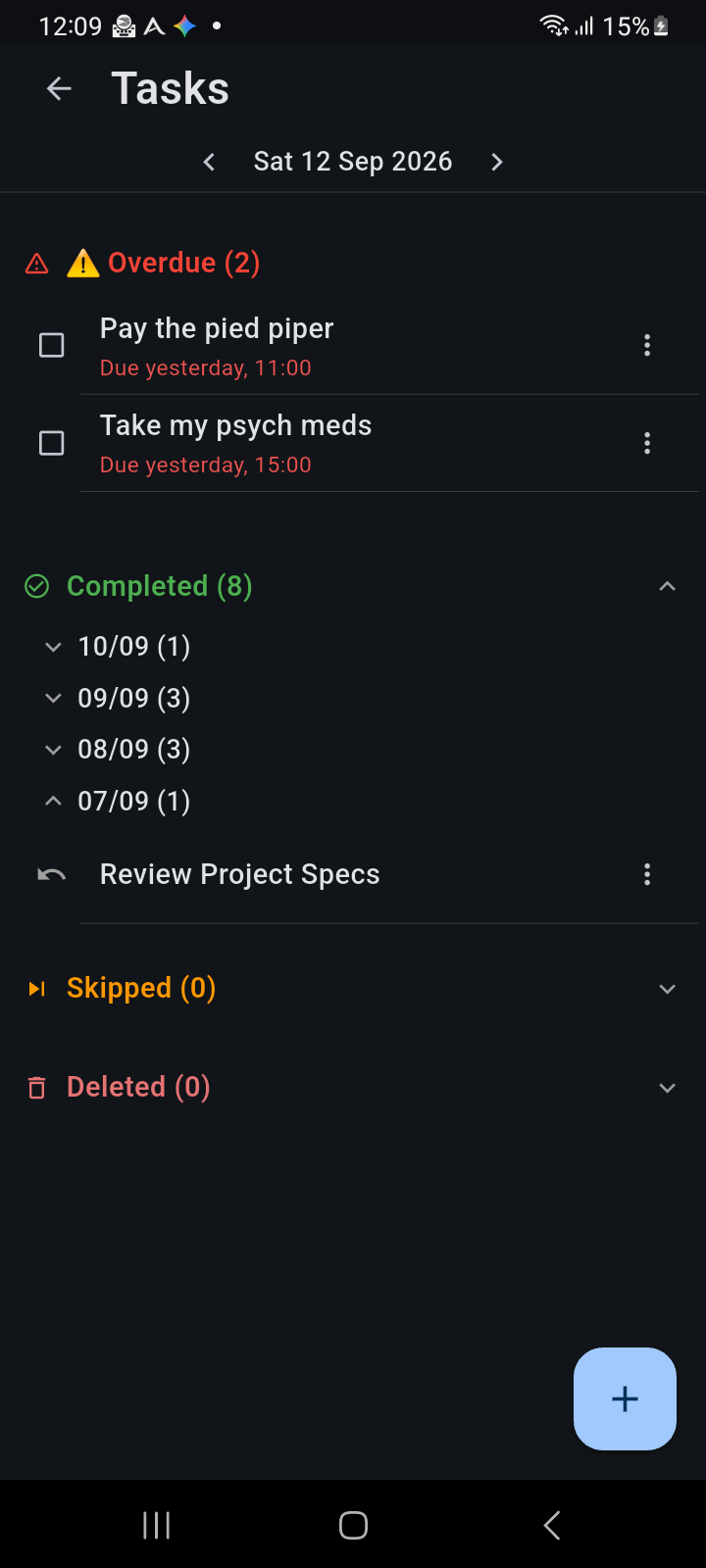
Figure 6.4: The Task Manager screen with an expanded Completed accordion, displaying past date groupings and the one-tap Undo action.
-
Overdue (Warning Triangle Badge):
Appears at the very top of the list whenever pending tasks have a due date prior to the currently viewed day. Overdue items display a prominent red warning icon, red overdue text, and relative due timestamps (e.g., Due yesterday, 11:00). Overdue tasks automatically roll forward day to day until explicitly completed, skipped, or rescheduled.
-
Pending:
Contains all active, uncompleted tasks scheduled specifically for the selected date. Each pending task displays an interactive checkbox on the left for one-tap completion, an activity category indicator, and optional due time badges.
-
Completed (Collapsible Accordion):
Houses all finished tasks. Tapping the green Completed header expands the section to reveal completed items grouped chronologically by their completion date (for example, 10/09 (1), 09/09 (3), 07/09 (1)). Each completed item features a dedicated Undo icon (↶) on the left: tapping Undo instantly returns the item to the active pending list.
-
Skipped (Collapsible Accordion):
Holds tasks that were intentionally bypassed for the selected date. Skipping maintains an accurate historical record of your planned versus executed activities without artificially inflating overdue counts.
-
Deleted (Collapsible Accordion):
Maintains soft-deleted task tombstones. Expanding this section displays deleted items alongside a Restore button (↺) to recover accidentally deleted tasks, and a permanent Delete button (🗑) to wipe the record completely.