
Planning and Managing Weekly Schedules
Effective weekly planning requires balancing commitments across multiple days while keeping daily tasks manageable. The Week View combines broad visual workload awareness with direct scheduling controls, allowing you to add, edit, and reorganize events across all seven days in one unified screen.
Evaluating Workload and Activity Balance
Because each scheduled commitment is color-coded by its activity category (such as Work, Fitness, Family, Personal, or Study), the Week View serves as a visual heatmap of your weekly balance:
- Identifying Busy Days: Columns crowded with colored blocks indicate heavy workload days, helping you avoid overbooking yourself.
- Balancing Commitments: Scanning colors across Monday through Friday allows you to ensure key habits (like exercise routines or family time) are evenly distributed rather than clustered together.
- Spotting Open Windows: Large empty gaps between blocks clearly reveal opportunities for focused deep work, rest, or spontaneous activities.
Scheduling Directly on the Week Grid
You can schedule new events for any day of the week without having to switch into Day View first:
- Locate the day column and time slot where you want to schedule an activity.
- Tap directly on the empty grid space within that day's column.
- Ancora opens the New Agenda Entry dialog pre-populated with that specific day's date and the tapped time.
- Enter your title, choose an activity category, confirm start and end times, and tap Save.
The new block appears immediately in that day's column, fully integrated into your weekly schedule.
Inspecting and Editing Events from Week View
To inspect an event's details or modify its timing while reviewing your week:
- Tap directly on any event block in any of the seven day columns.
- The Edit Agenda dialog opens, displaying the commitment's full details.
- You can adjust the title, switch between One-Time and Repeating, change the Activity Type, update start or end times, modify the status (
Pending,In Progress,Completed,Skipped), or choose a custom color accent. - Tap Save to commit your changes, or tap Delete (in red) to remove the entry.
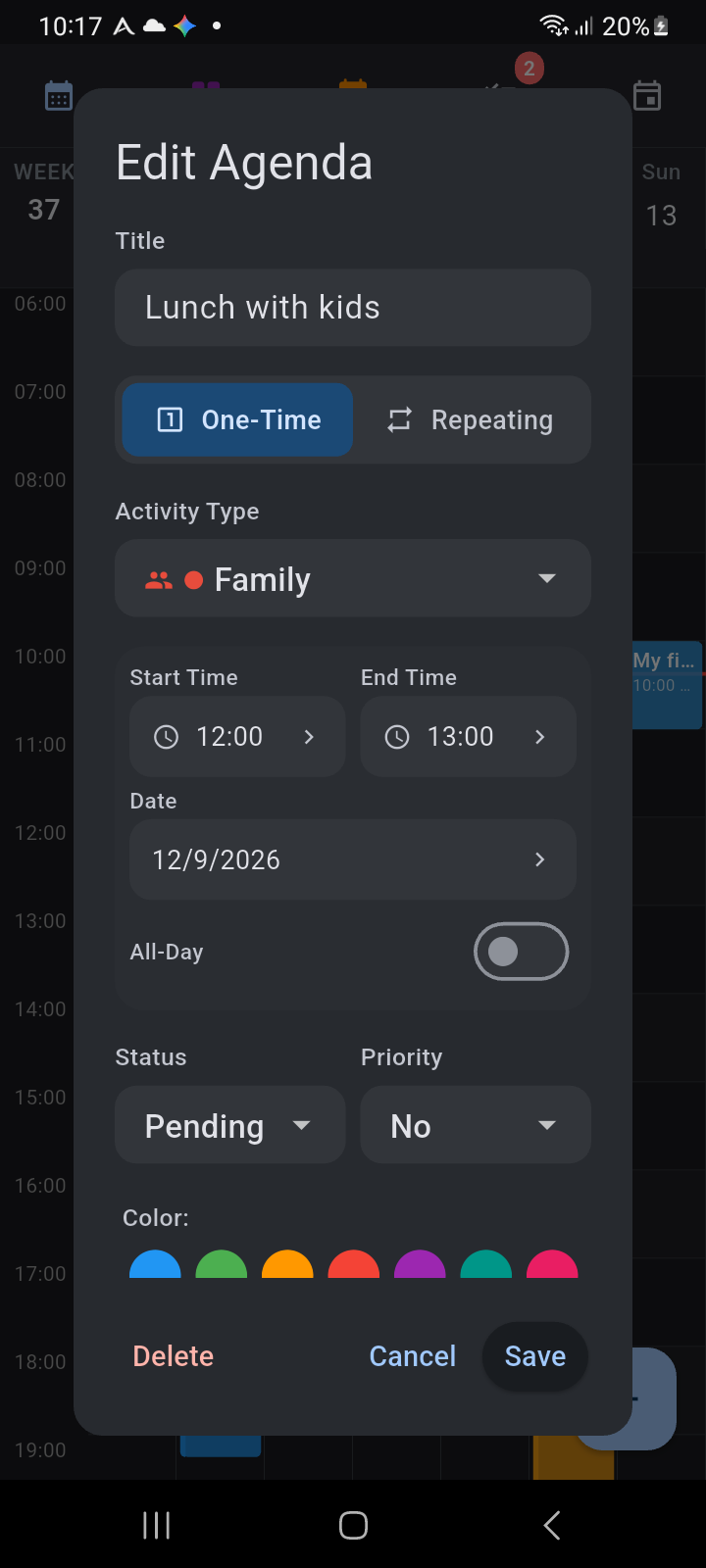
Figure 3.2: The Edit Agenda dialog opened directly from an event block on the Week View
When modifying an event that belongs to a recurring routine series, Ancora prompts you to choose an update scope:
- This Day Only: Saves your modification as a single-day exception, leaving the rest of the recurring series untouched.
- All Routine Days: Updates the time, title, or settings across all days on which the routine recurs.
Managing Daily Task Checklists
In addition to timeblocked calendar events, Ancora tracks dated to-do tasks. The Week View gives you direct access to these checklists through the header:
- In the top header, tap the Checklist button (☑), which displays the count of pending tasks in a red badge.
- The Tasks dialog opens for the active date.
- Review your checklist items, complete tasks by tapping their checkboxes, or tap the vertical three-dot menu on any task to edit or reschedule it.
- Tap Add Task to quickly create a new checklist item for that day.
- Tap Close to return to the week overview.
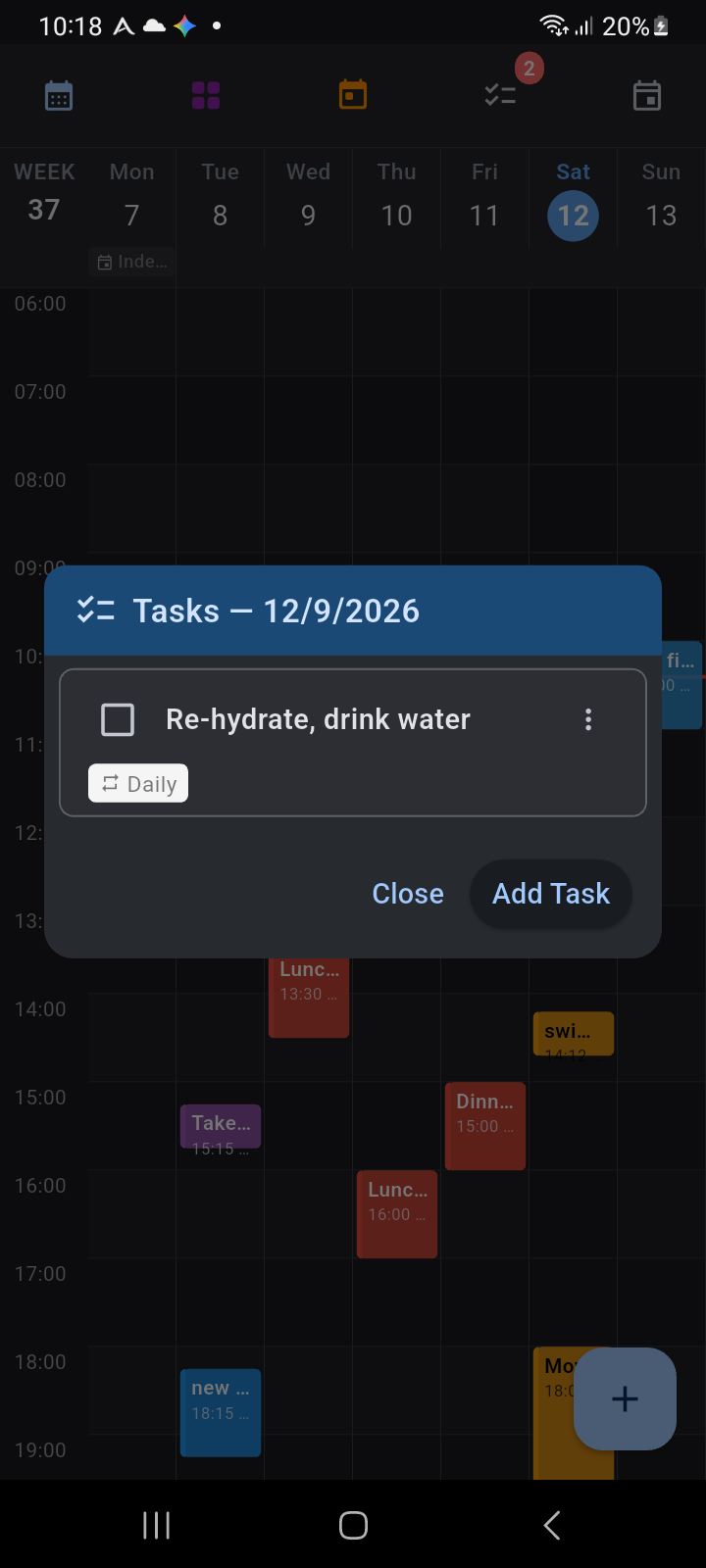
Figure 3.3: The Tasks dialog displaying checklist items, recurrence tags, and quick-add controls
Adding All-Day Awareness Events
For commitments that span entire days—such as conferences, vacations, birthdays, or public holidays:
- Tap the Add All-Day Event button (the calendar icon with a plus, 📅) in the top header.
- The creation dialog opens with the All-Day toggle pre-selected.
- Assign an awareness category (e.g., Birthday, Anniversary, Holiday, Travel, or Conference).
- Once saved, the item appears in the compact all-day header strip directly beneath the day's date number, leaving your hourly timeblocking grid clean and unobstructed. <