
Scheduling and Managing Timeline Items
Timeblocking is the practice of dedicating specific blocks of time to planned activities, tasks, and routines. In Ancora Planner, you can schedule new entries directly on the Day View timeline with a single tap, adjust timings with intuitive drag-and-drop gestures, and customize daily wake and sleep boundaries.
Creating an Agenda Entry from the Timeline
While you can always create items using the floating Quick Add (+) button in the bottom corner, the fastest way to timeblock your day is tapping directly on the timeline:
- Scroll to the desired hour on the Day View timeline.
- Tap directly on the empty time slot where you want your activity to begin.
- Ancora automatically rounds the start time to the nearest 15-minute interval (such as 09:00, 09:15, 09:30, or 09:45) and sets a convenient 1-hour duration by default.
- The New Agenda Entry dialog appears immediately, pre-populated with your selected date and time.
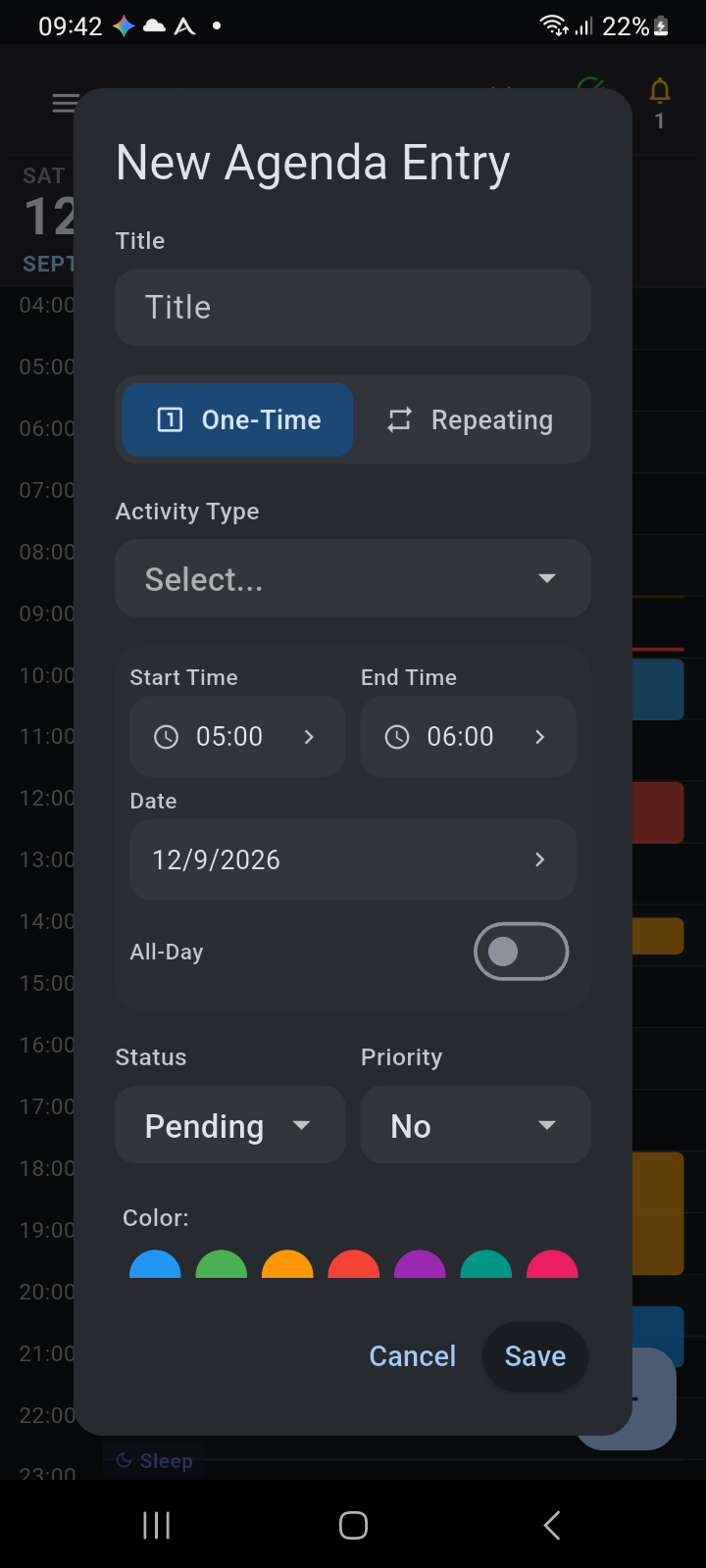
Figure 2.3: The New Agenda Entry dialog showing time selection, activity types, and recurrence controls
Configuring Agenda Entry Details
The New Agenda Entry dialog provides comprehensive scheduling controls:
- Title: Enter the name of your meeting, commitment, or activity.
- One-Time vs. Repeating: Choose whether this entry is a one-off event (One-Time) or a repeating habit that recurs on selected days of the week (Repeating).
- Activity Type: Assign an activity category (such as Work, Fitness, Personal, Study, or Meals). Activity types automatically apply your customized theme colors and default reminder preferences.
- Start & End Time: Tap either time chip to open the time picker and adjust your start or end times to any minute.
- Date & All-Day Toggle: Adjust the scheduled date, or turn on All-Day to display the item in the top all-day banner strip rather than occupying an hourly slot on the timeline.
- Status & Priority: Track execution progress using the Status dropdown (
Pending,In Progress,Completed, orSkipped) and flag importance with the Priority selector (No priority,Low,Medium, orHigh). - Color Override: Select one of seven preset color dots (Blue, Green, Orange, Red, Purple, Teal, or Pink) to customize the block's appearance on your timeline independently of its activity category.
- Reminders: Assign a reminder profile or add specific notification lead times (such as 10 minutes before, at start, or voice alerts).
Tap Save to commit the entry to your local database. The new block appears immediately on your timeline.
Understanding Timeline Event Blocks
Each scheduled item is rendered on the timeline as a distinct color-coded block with clear visual cues:
- Proportional Height: The height of the block corresponds directly to its scheduled duration, allowing you to gauge commitment lengths at a glance.
- Left Color Accent: A solid 3-pixel border along the left edge reinforces the item's activity color.
- Status Indicator Dot: A small circular dot indicates the item's execution state:
- Blue / Accent: Planned or pending execution.
- Amber / Orange: In progress.
- Green: Successfully completed.
- Grey: Skipped or cancelled.
- Item Label & Time Range: The title is displayed in bold alongside its current status label and exact time range (for example,
Pending 12:00 – 13:00).
Rescheduling via Drag-and-Drop
When your daily plans shift, you can reschedule any timed event directly on the timeline without opening an edit form:
- Press and Hold: Touch and hold your finger on the event block you wish to reschedule. The block activates for dragging.
- Drag to New Time: Keep your finger pressed down and drag vertically up or down. The event moves smoothly along the timeline, snapping automatically in 15-minute intervals.
- Release to Confirm: Lift your finger at the desired time slot. Ancora displays a Move Task confirmation dialog:
"Move [Title] from [Old Time] to [New Time]?" - Confirm Move: Tap Confirm to apply the new schedule. Ancora immediately updates the local database and recalibrates all associated reminder alarms. Tapping Cancel snaps the event back to its original slot.
Rescheduling Repeating Routines:
If you drag an event that belongs to a repeating routine series, Ancora presents an update scope choice:
- This Day Only: Creates an occurrence exception for the visible date, leaving the rest of your recurring series unchanged.
- All Routine Days: Updates the scheduled time across all days on which the routine recurs.
External Calendar Events:
You can also drag events synchronized from external calendars (such as Google Calendar). If the connected calendar is marked read-only or lacks write permissions, Ancora displays a notice: "This event is read-only" and returns the block to its original position.
Inspecting and Editing Existing Events
To view full event details, adjust notes, modify reminder offsets, or mark an item complete:
- Quick Tap: Tap briefly on any event block on the timeline.
- The entry details dialog opens, allowing you to edit any field, update its status, or delete the entry.
- Tapping an external calendar event opens the external event dialog, displaying location details, meeting links, and calendar account metadata.
Contextual Day Settings (Custom Daily Schedules)
Your weekly routine may vary on specific days—such as sleeping in on a public holiday or waking up early for a morning flight. Ancora lets you customize wake and bedtime hours for any individual date without changing your global profile defaults:
- Navigate to the date you want to adjust on the Day View timeline.
- Press and hold (long-press) on any empty area of the timeline (outside of existing event blocks).
- The Day Settings bottom sheet slides up from the bottom of the screen.
- Turn off the "Use default schedule" toggle switch.
- Tap Wake Time or Sleep Time to set custom hours for that specific date.
- Tap Save.
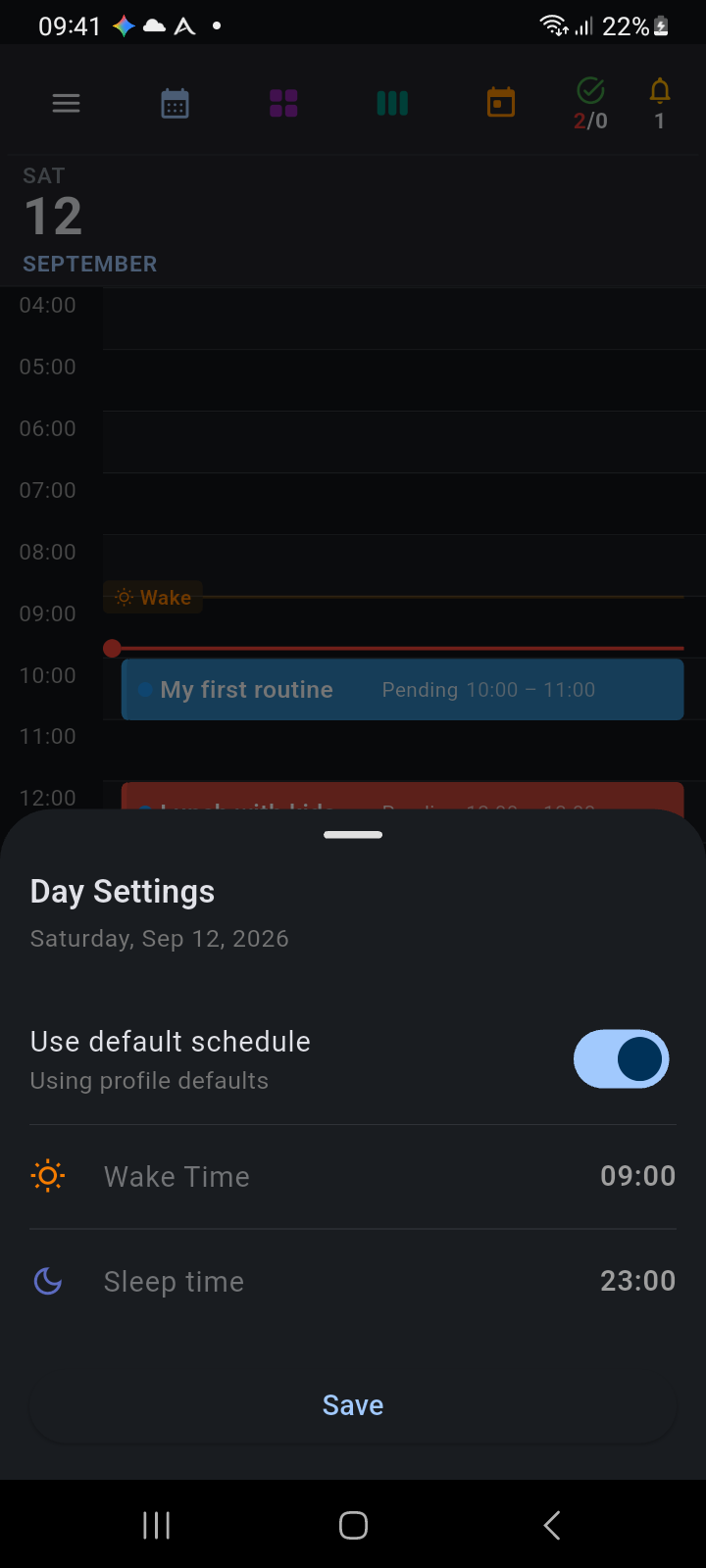
Figure 2.4: The Day Settings bottom sheet allowing day-specific wake and sleep overrides
Once saved, the amber Wake and indigo Sleep markers on your Day View timeline immediately shift to your custom hours, and any configured bedtime notifications automatically adjust to your new sleep schedule for that evening.