
Creating Recurring Daily Routines
Ancora allows you to structure your life with recurring habit blocks and routine calendar entries, establishing consistent daily rhythms without having to manually recreate appointments every day.
Routines vs. One-Time Events: Understanding Habit Blocks
Modern daily planning requires balancing dynamic one-off commitments with steady recurring rituals. In Ancora, these two concepts are treated with distinct elegance:
- One-Time Entries: Individual calendar items that exist on a single specific date (such as a doctor's visit or a client lunch).
- Routines (Habit Blocks): Foundational time blocks that repeat according to defined recurrence rules (such as morning exercise, deep work blocks, dog walking, or evening meditation). They form the backbone of your daily schedule, framing your day and visually displaying the available free time between your habitual activities.
Creating a New Routine Block
To create a recurring routine, start from the Day View timeline:
- Tap the blue floating action button (+) in the bottom-right corner of the Day View to open the New Agenda Entry dialog.
- At the very top of the editor, switch the segmented toggle from One-Time to Repeating.
The dialog instantly adapts into the routine schedule builder, revealing recurrence rules, frequency presets, and day selectors.
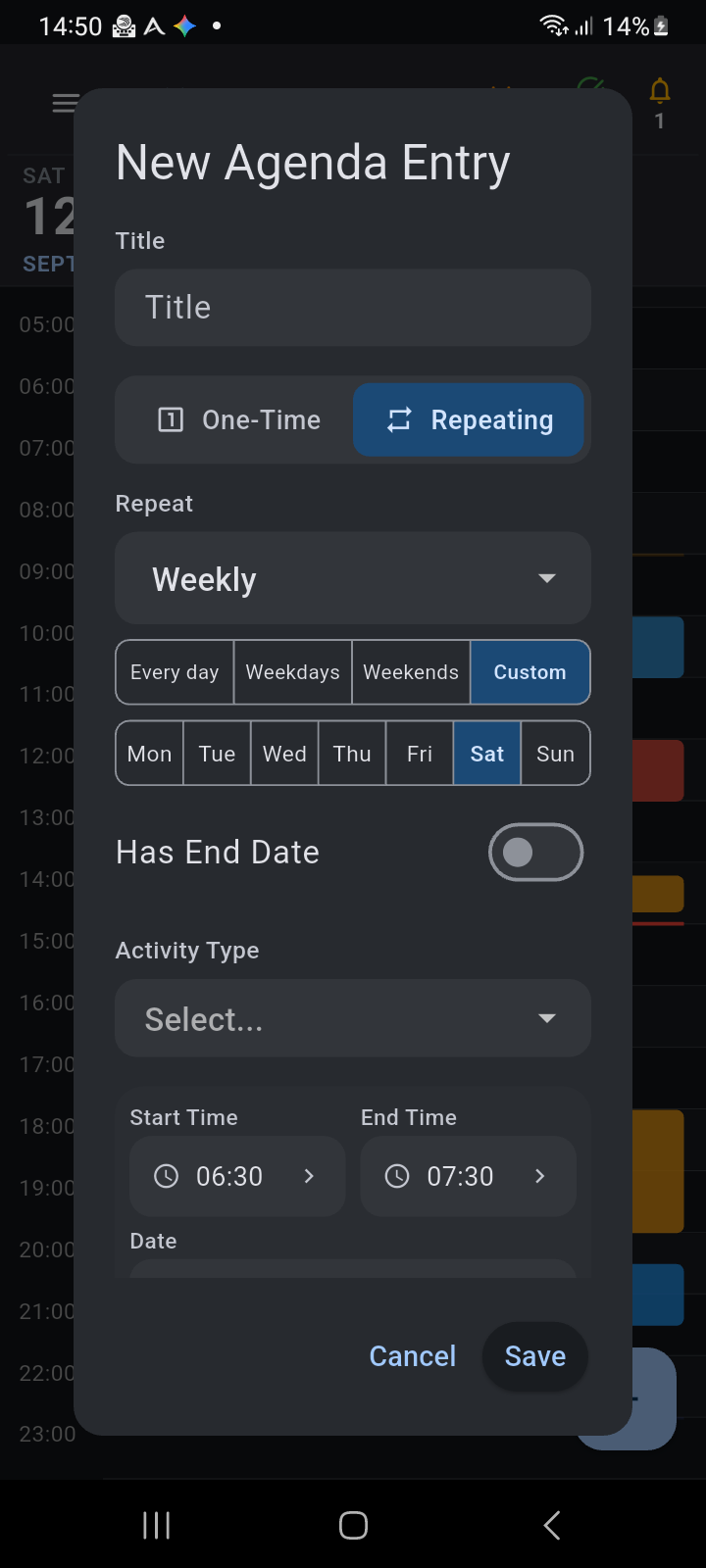
Figure 9.1: The New Agenda Entry dialog with the Repeating segment selected, frequency preset buttons, and day selector chips.
Configuring Recurrence Patterns & Presets
Ancora offers flexible recurrence scheduling options tailored for real-world habit formation:
- Frequency Selector: Choose between Weekly (standard daily/weekly habits), Monthly, or Yearly.
- Quick Recurrence Presets:
- Every day: Instantly selects Monday through Sunday for continuous daily routines (such as hydration prompts or morning meditation).
- Weekdays: Selects Monday through Friday, ideal for office work hours, school routines, or weekday commutes.
- Weekends: Selects Saturday and Sunday for leisure blocks, household chores, or sports.
- Custom: Allows manual selection of specific days.
- Weekday Selector Chips: Tap individual chips (Mon, Tue, Wed, Thu, Fri, Sat, Sun) to fine-tune your exact days of activity (for example, gym sessions on Monday, Wednesday, and Friday).
- Has End Date: Toggle this switch to set a definitive cutoff date for your routine. This is particularly useful for temporary regimens such as a 6-week fitness challenge, an academic course semester, or seasonal work shifts. When toggled off, the routine continues indefinitely.
Setting Block Details, Activity Types & Reminders
Scroll down within the editor to configure the operational parameters of your routine block:
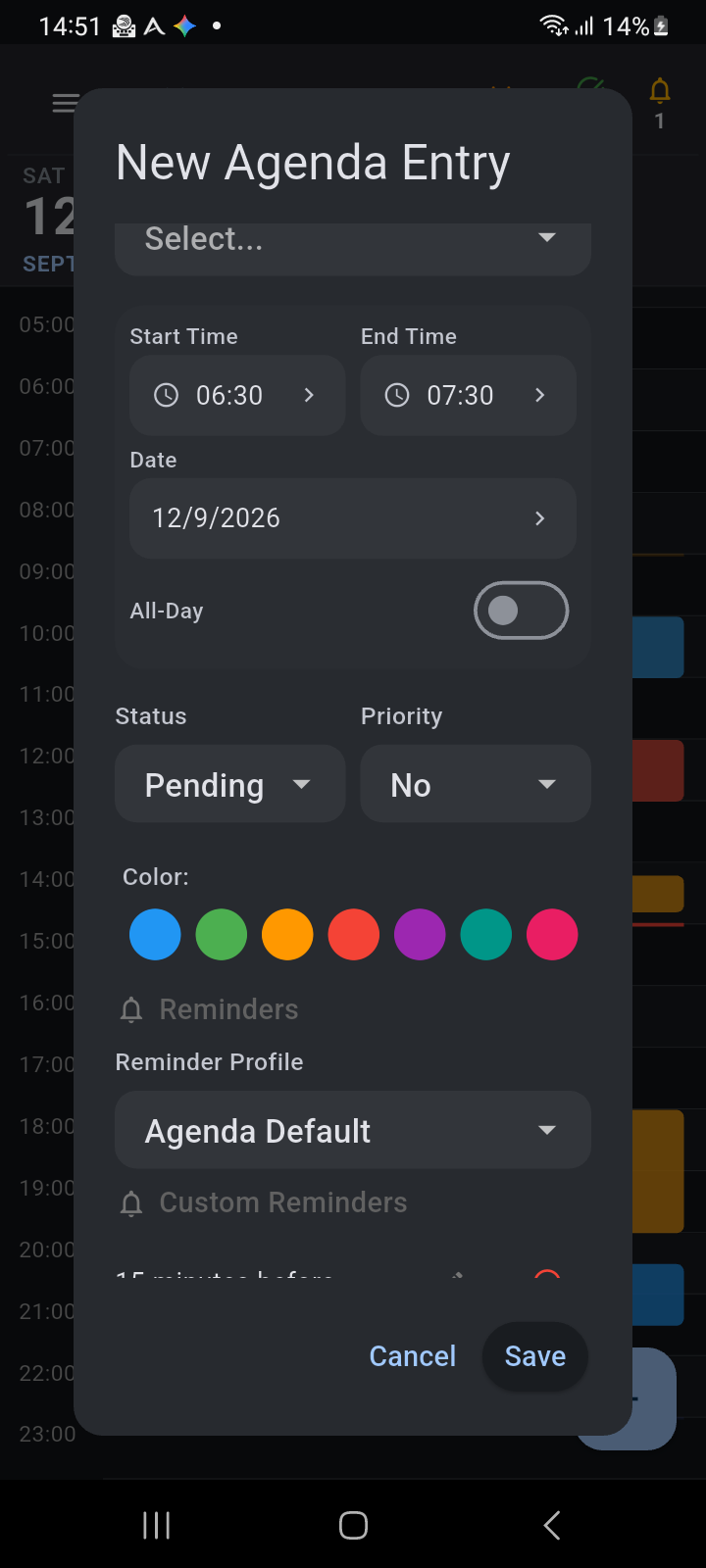
Figure 9.2: Routine block details showing Activity Type selection, Start/End times, color badge, and Reminder Profile assignment.
- Title & Notes: Enter a recognizable name for the routine (e.g., Deep Focus Work, Morning Run, or Evening Review) along with any reference details.
- Activity Type: Categorize the block under an established activity (such as Work, Health, Personal, Fitness, or Study). The selected activity automatically defines the card's accent color and icon.
- Start Time & End Time: Set the exact time window for the block. Ancora uses these boundaries to map the routine onto your visual 24-hour timeline.
- Color: Customize the color badge to visually separate this habit block from other activities on the calendar.
- Reminder Profile: Connect the routine to a chained reminder profile (such as Agenda Default). Ancora will then automatically fire your configured advance alerts, start-of-block alarms, and spoken voice announcements.
How Routines Appear on the Day View
Once saved, Ancora automatically projects your routines onto every matching calendar day. Unlike static calendar entries that clutter your database, Ancora calculates routine occurrences on the fly.
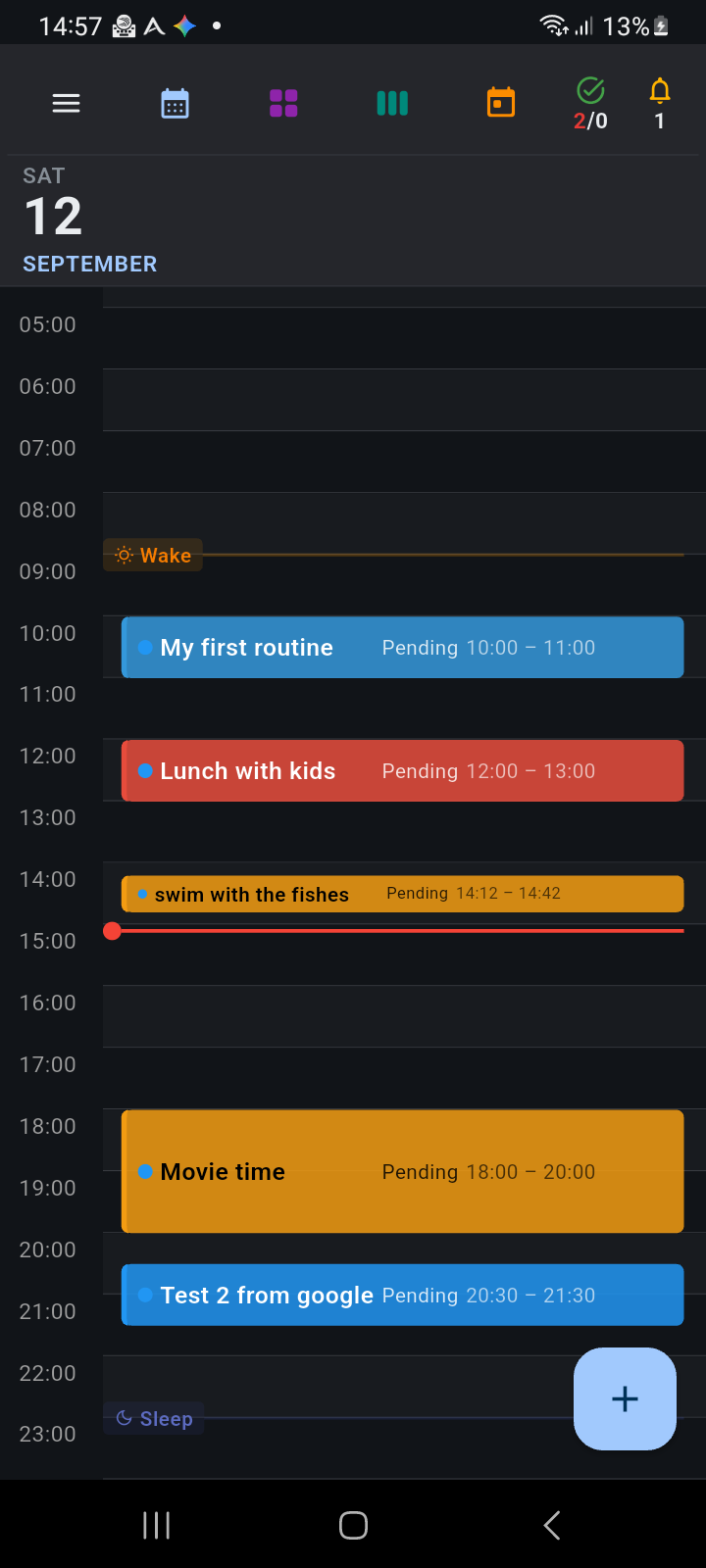
Figure 9.3: Day View calendar showing scheduled routine blocks integrated seamlessly alongside standalone agenda entries.
Routine blocks are integrated directly into the daily timeline with prominent visual indicators:
- A colored left border indicating the linked Activity Type.
- Start and end timestamps clearly displayed.
- Dynamic free-time gap cards between routine blocks indicating exactly how much open time you have available for ad-hoc tasks and unscheduled events.