
Reminder Profiles & Chained Alerts
Ancora's Chained Reminder Profiles allow you to automate multi-stage alert sequences across events, tasks, routines, and birthdays with customized lead times, vibration, alarm channels, and offline neural speech.
The Power of Chained Reminder Profiles
Standard calendar applications typically limit you to a single notification or force you to manually configure multiple alerts every time you schedule an appointment. Ancora solves this with Reminder Profiles—reusable alarm configurations that trigger a multi-alert cascade leading up to and following an event.
For instance, an executive meeting profile can automatically dispatch an initial heads-up 15 minutes before, a preparatory chime 5 minutes before, a persistent alarm at start, and a follow-up prompt 5 minutes after.
Accessing Reminder Profiles & System Defaults
To configure your reminder profiles, navigate to Settings from the side drawer, tap Notifications & Announcements, and select Scheduled Reminders.
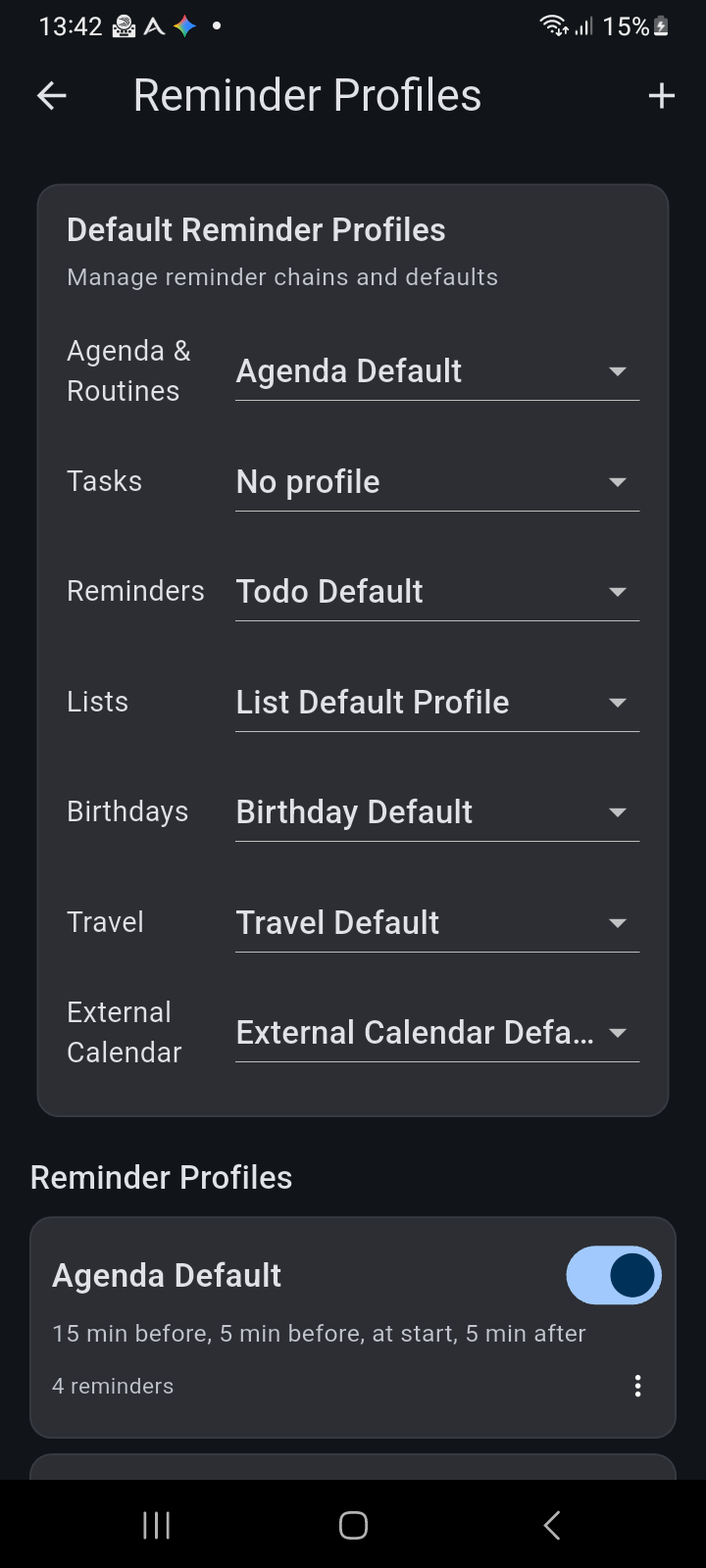
Figure 8.4: Reminder Profiles screen displaying default profile assignments across calendar entities and available profile cards.
The top section lets you map default profiles across different application categories:
- Agenda & Routines: The default chained profile applied to calendar events and daily routine habit blocks (e.g., Agenda Default).
- Tasks: Default profile for time-sensitive tasks. You can select No profile if you prefer tasks to remain silent until reviewed in the Task Manager.
- Reminders: Default profile for new standalone daily prompts (e.g., Todo Default).
- Lists: The profile assigned to time-targeted checklist deadlines.
- Birthdays: Advanced reminders designed to give you several days' advance notice before an annual milestone.
- Travel: Pre-configured buffers for transit, flights, and departure blocks.
- External Calendar: The profile applied to events imported via Google Calendar synchronization.
Editing Profile Chains
Under the Reminder Profiles header, tap any profile card to open the Edit Profile dialog:
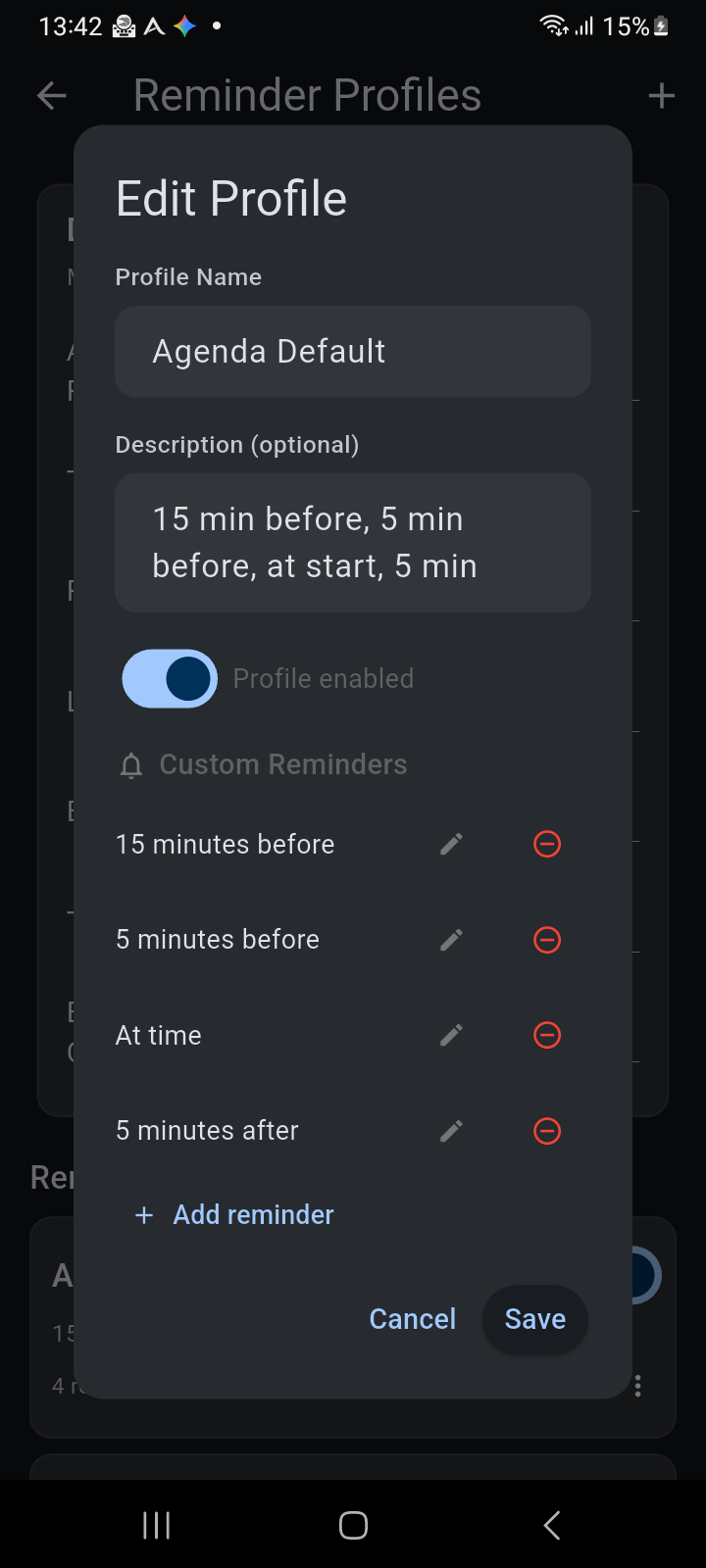
Figure 8.5: The Edit Profile dialog displaying the chained sequence: 15 minutes before, 5 minutes before, at time, and 5 minutes after.
- Profile Name & Description: Give your profile an identifiable label and summary notes describing its timing intent.
- Profile Enabled: Toggle the master switch to temporarily disable all reminders in this profile without deleting the chain.
- Custom Reminders Chain: Lists all configured alert offsets chronologically. You can tap the pencil icon to modify an alert, tap the red minus icon (⊖) to delete it, or tap + Add reminder to insert another alert offset into the sequence.
Configuring Individual Alert Offsets & Neural Voice
Tapping any offset in the chain opens the granular alert editor:
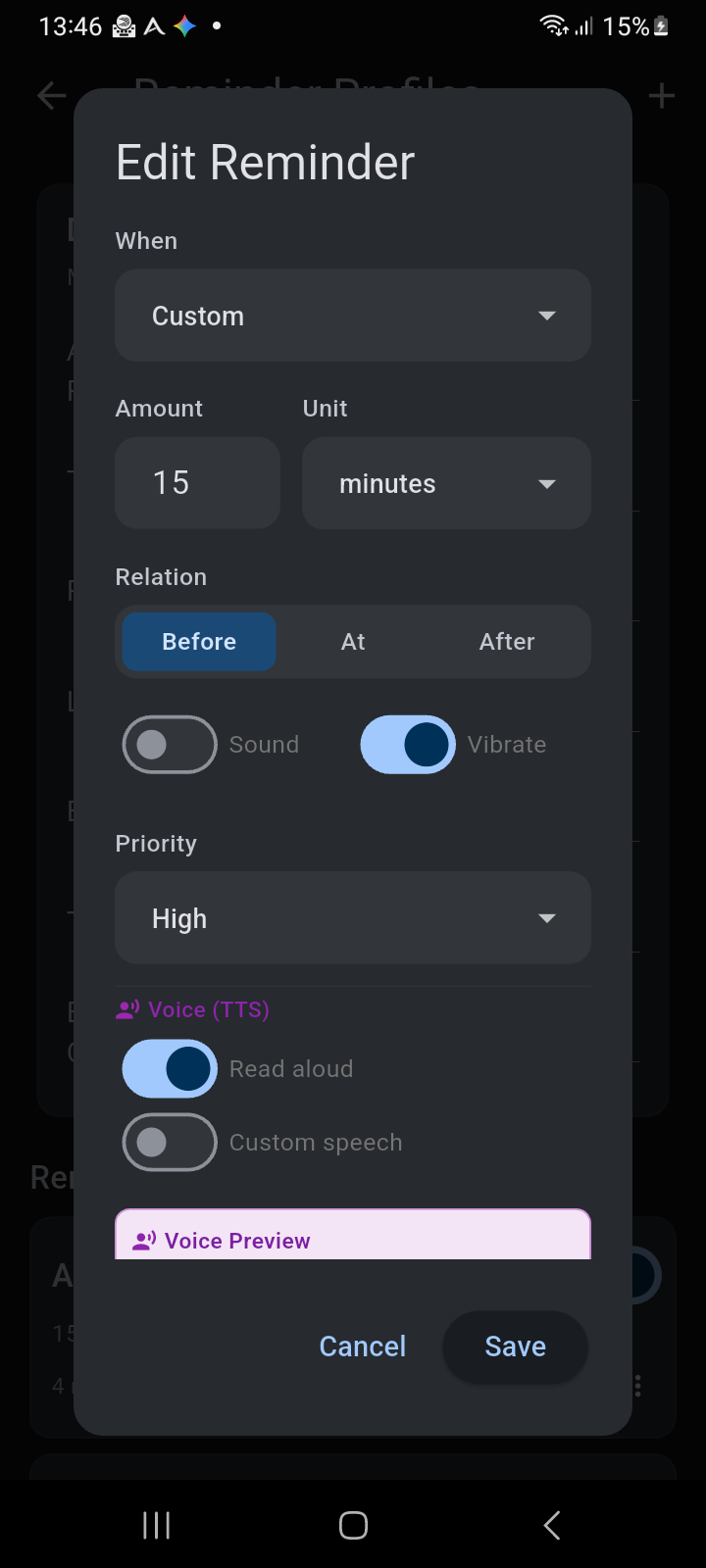
Figure 8.6: Granular alert offset dialog with timing offsets, sound/vibration toggles, priority selection, and neural voice TTS options.
Every alert in your chain can be fine-tuned with independent delivery mechanisms:
- When & Amount: Enter the numeric interval and choose the unit (minutes, hours, or days).
- Relation: Choose when the alert triggers relative to the target time: Before (advance notice), At (exact start time), or After (follow-up verification).
- Sound & Vibrate: Independent switches to control audio playback and haptic motor feedback.
- Priority: Choose between High, Normal, or Low. High-priority alerts break through system quiet modes and display heads-up banners.
- Voice (TTS) Spoken Announcements:
- Read aloud: When toggled on, Ancora utilizes its embedded offline neural speech engine (Piper ONNX) to vocalize the reminder aloud (e.g., "Meeting with Wendy starts in 15 minutes"). No internet connection or cloud service is required.
- Custom speech: Enable this to enter a specialized custom announcement template.
- Voice Preview: Tap this button to immediately audition the spoken voice output through your device speakers.