
Registering and First Login
Welcome to Ancora Planner
When you open Ancora Planner for the first time on your Android device, you are greeted by the sign-in screen. Ancora is built with a local-first architecture, ensuring your schedules and tasks are always stored securely on your device while synchronizing with the cloud.
The sign-in screen presents the following core elements:
- Application Branding: Displays the Ancora logo, application title, and the subtitle "Sign in to continue".
- Saved Credentials (When Enabled): If you have previously saved your password on this device, a prominent "Sign in with saved credentials" button appears at the top for instant one-tap access.
- Username & Password Fields: Form inputs for entering your registered username (or email) and password.
- Sign In Button: Submits your credentials to authenticate and load your local schedule database.
- Continue with Google Button: Provides one-tap authentication using your device's connected Google account.
- Create Account Link: Tapping "Don't have an account? Create one" navigates to the registration form.
- Privacy Note: Confirms that your data stays on your device and syncs securely.
- Skip for Now: Allows you to explore and use Ancora in local offline mode without creating an account immediately.
Creating an Account
To synchronize your calendar, tasks, and reminders across multiple devices or back up your data, you can register a new Ancora account. Ancora offers two registration methods: standard username and password registration, or Google Sign-In.
Option A: Registering with Username & Password
To create a standalone Ancora account:
- On the sign-in screen, tap "Don't have an account? Create one" to open the registration screen.
- Fill in the registration form fields:
- Your Name (optional): Enter the display name you would like used in the app greeting and user profile.
- Username (Required): Choose a unique username. Username availability is validated by the server when you submit the form. If your chosen username is already taken, an error message will prompt you to choose another name.
- Email Address (Optional): Providing an email address is optional. When entered, it is stored for account identification, recovery, and support communications. Ancora does not require an email address to create an account.
- Password (Required): Enter your desired password, then re-enter it in the Confirm Password field.
- Tap "Create Account" to complete registration.
Password Complexity Requirements:
Passwords must be at least 8 characters long and must contain:
- At least one uppercase letter (A–Z)
- At least one lowercase letter (a–z)
- At least one number (0–9)
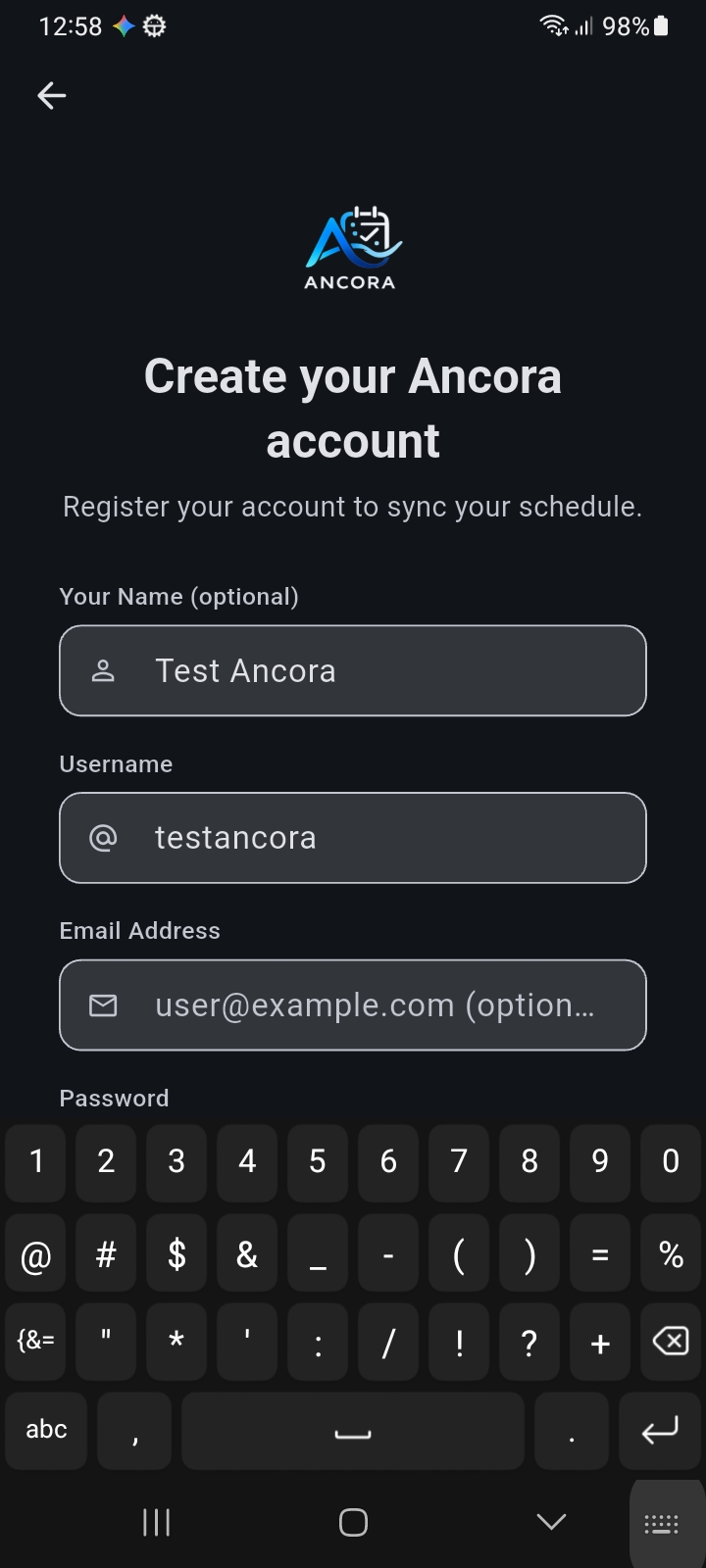
Figure 1.1: Registration Screen — Creating an Ancora Account
Option B: Registering with Google Sign-In
If you have a Google Account configured on your Android device, you can register using Google authentication for a faster setup:
- On either the sign-in screen or the registration screen, tap "Continue with Google".
- Select your desired Google account from the standard Android system account chooser.
- Your device authenticates securely with Google and completes account creation on the Ancora server using encrypted OAuth tokens.
- If your Google account does not yet have a complete profile, Ancora displays the Profile Completion screen, allowing you to choose a custom display name, an optional username handle, and an optional backup password.
Important Note on Google Accounts:
If you attempt to sign in using "Continue with Google" on the sign-in screen before your Google account has been registered or linked, the app displays a notice: "This Google account isn't connected to an Ancora account yet. If you already have an Ancora account, sign in with your username and password first, then connect this Google account from your account settings."
Your First Login
Immediately after successful authentication (whether via username/password registration or Google Sign-In), Ancora executes its automatic startup bootstrap:
- Local Database Initialization: The app initializes your local database on the device to store your tasks, daily rhythm schedules, and reminders.
- Background Services Setup: Ancora configures local notification channels, exact alarm timing services, and background data synchronization coordinators.
- Google Password Manager Prompt: On devices with Android Credential Manager active, Android displays a "Save password to Google?" bottom sheet. Tapping "Save" securely stores your credentials in Google Password Manager, enabling future one-tap sign-ins.
- Transition to Setup: Once bootstrap completes, Ancora automatically advances to Step 1 of the First-Run Onboarding Wizard ("Step 1 of 7 — Welcome to Ancora").
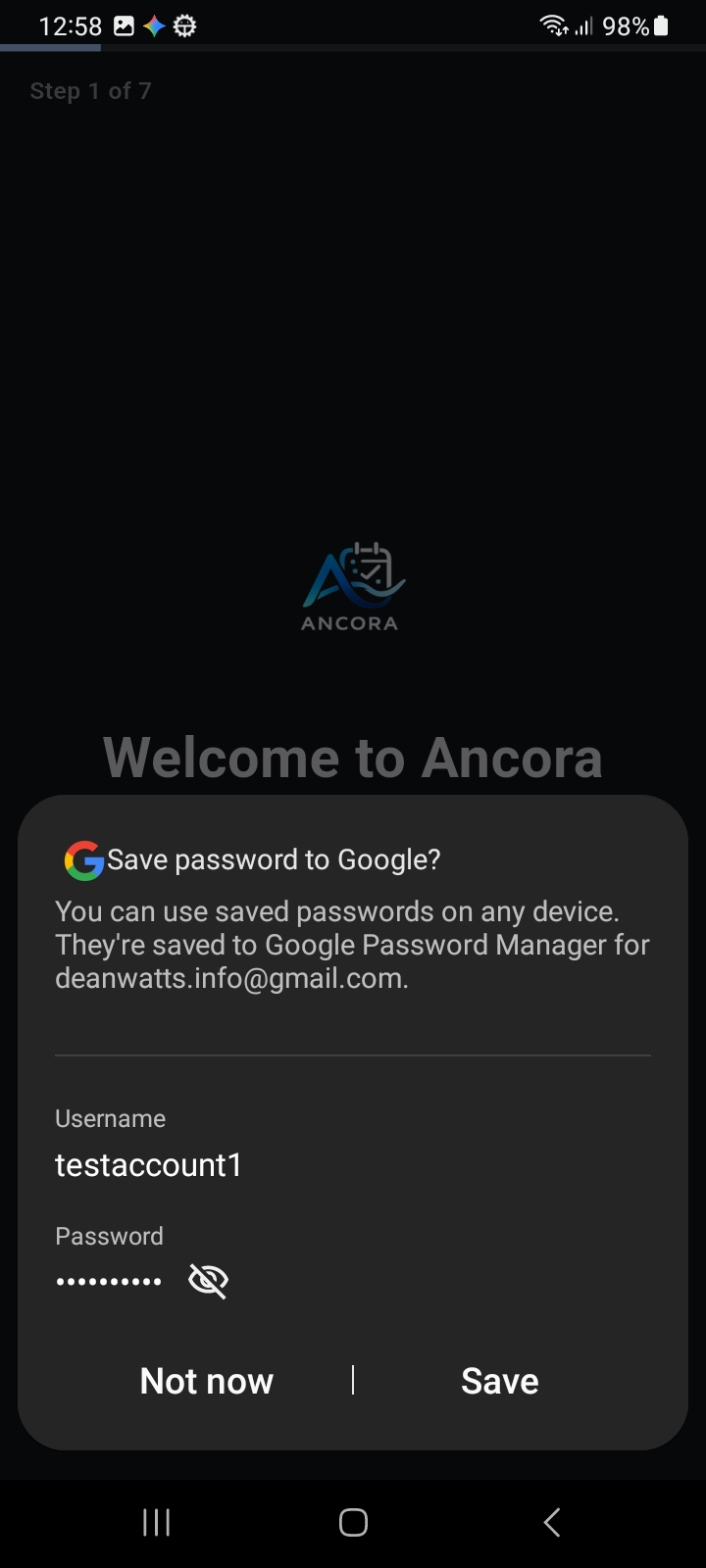
Figure 1.2: First Login — Transition to Onboarding & Credential Prompt
Next Step — Initial Setup:
Now that your account is registered and authenticated, proceed to the next guide to complete your initial preferences, daily sleep/wake rhythms, voice reminder settings, and Android permissions:
→ Continue to Initial Setup and Permissions.
Saving Login Credentials
To make signing in quick and frictionless on returning visits, Ancora Planner integrates with Android Credential Manager. You can manage this convenience feature at any time:
- Open Ancora Planner and navigate to Settings from the side drawer or navigation menu.
- Locate the "Save login credentials" preference item under Account settings.
- Turn on the toggle switch to allow Android Credential Manager to securely remember your login credentials.
When credential saving is enabled, returning to the sign-in screen displays a "Sign in with saved credentials" button for instant, passwordless access.
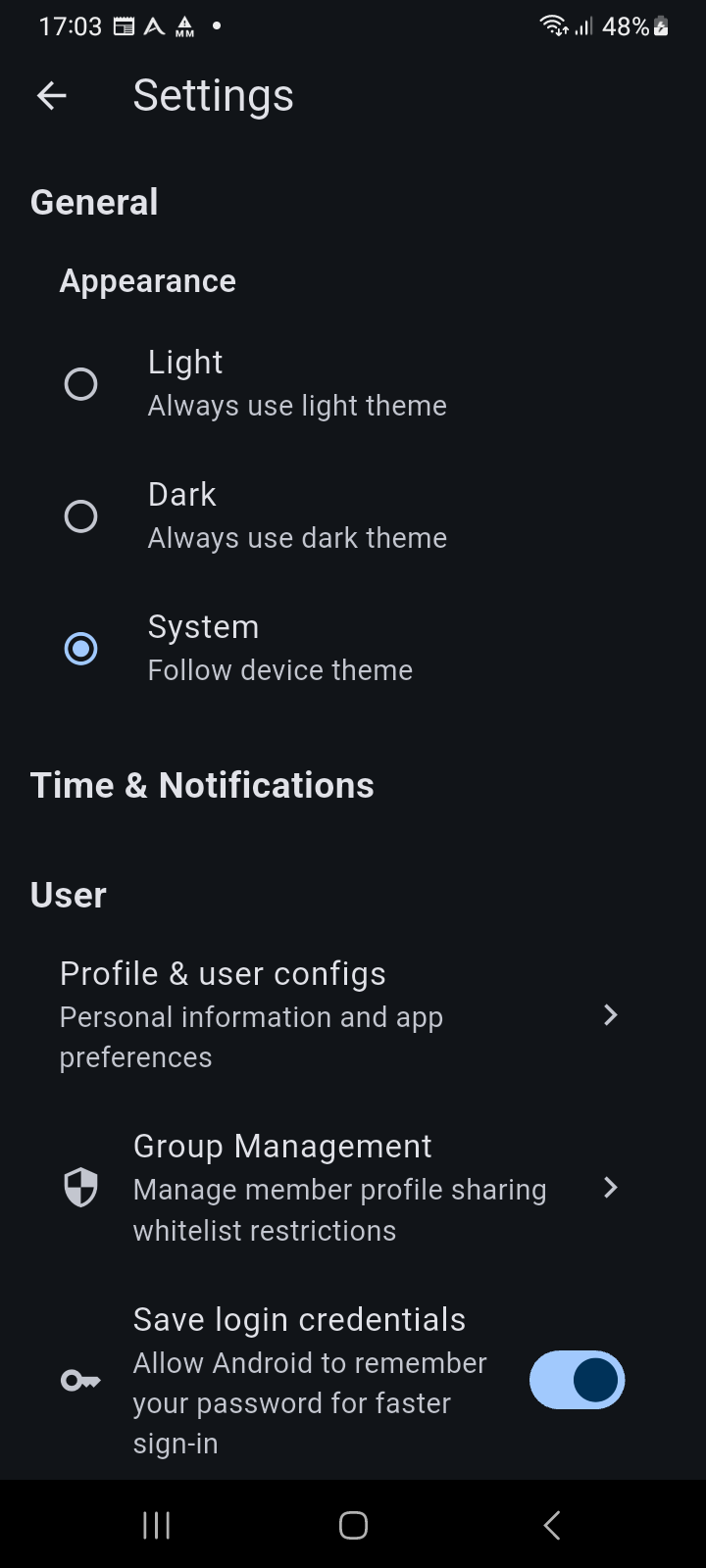
Figure 1.3: Settings screen — Save login credentials
Using Ancora Without an Account
If you prefer to start planning immediately without creating an account or providing an email address, tap "Skip for now" at the bottom of the sign-in screen.
What happens when you skip:
- Ancora initializes a local offline database on your device running on the local Free Tier.
- You can create tasks, customize daily wake/sleep rhythms, and receive local alarm reminders entirely offline.
- Your data remains solely on your physical device; cloud synchronization and Google Calendar integration are not active in offline mode.
- You can register or sign in to a cloud account at any time later by navigating to Settings > Account without losing your existing local planner data.