
Managing Routines & Occurrence Overrides
Life is dynamic; even the most consistent routines encounter unexpected disruptions. Ancora provides intelligent occurrence overrides, allowing you to modify or cancel a single day's routine without altering your master recurring schedule.
Interacting with a Projected Routine
When viewing your Day View, every routine block appears in its designated time slot. Tapping any routine block opens the Edit Routine dialog, where you can adjust scheduled times, update notes, change activity categories, or delete the block.
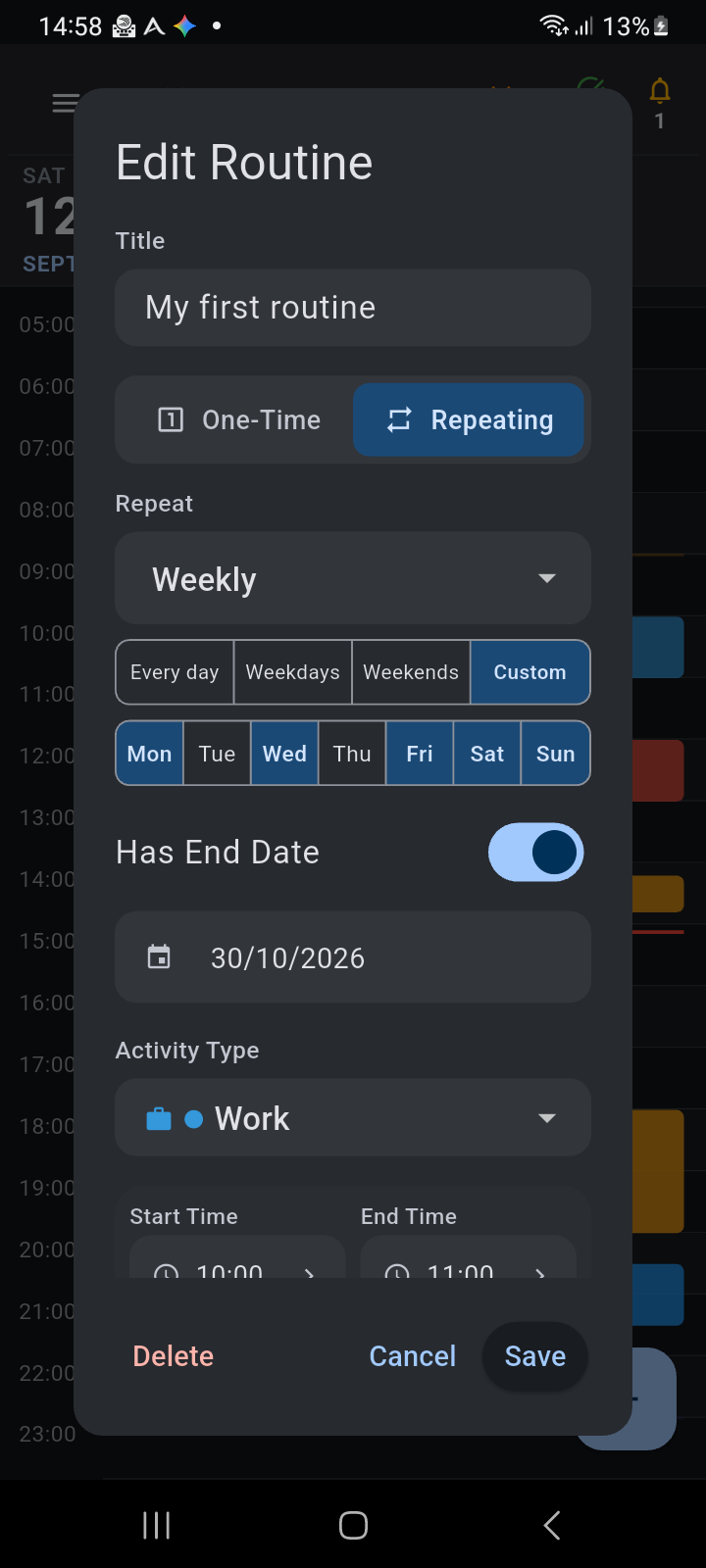
Figure 9.4: The Edit Routine dialog displaying active recurrence rules, scheduled times, activity category, and action buttons.
Occurrence Overrides vs. Master Pattern Updates
When modifying or deleting a routine block from the Day View timeline, Ancora prompts you to specify the scope of the modification:
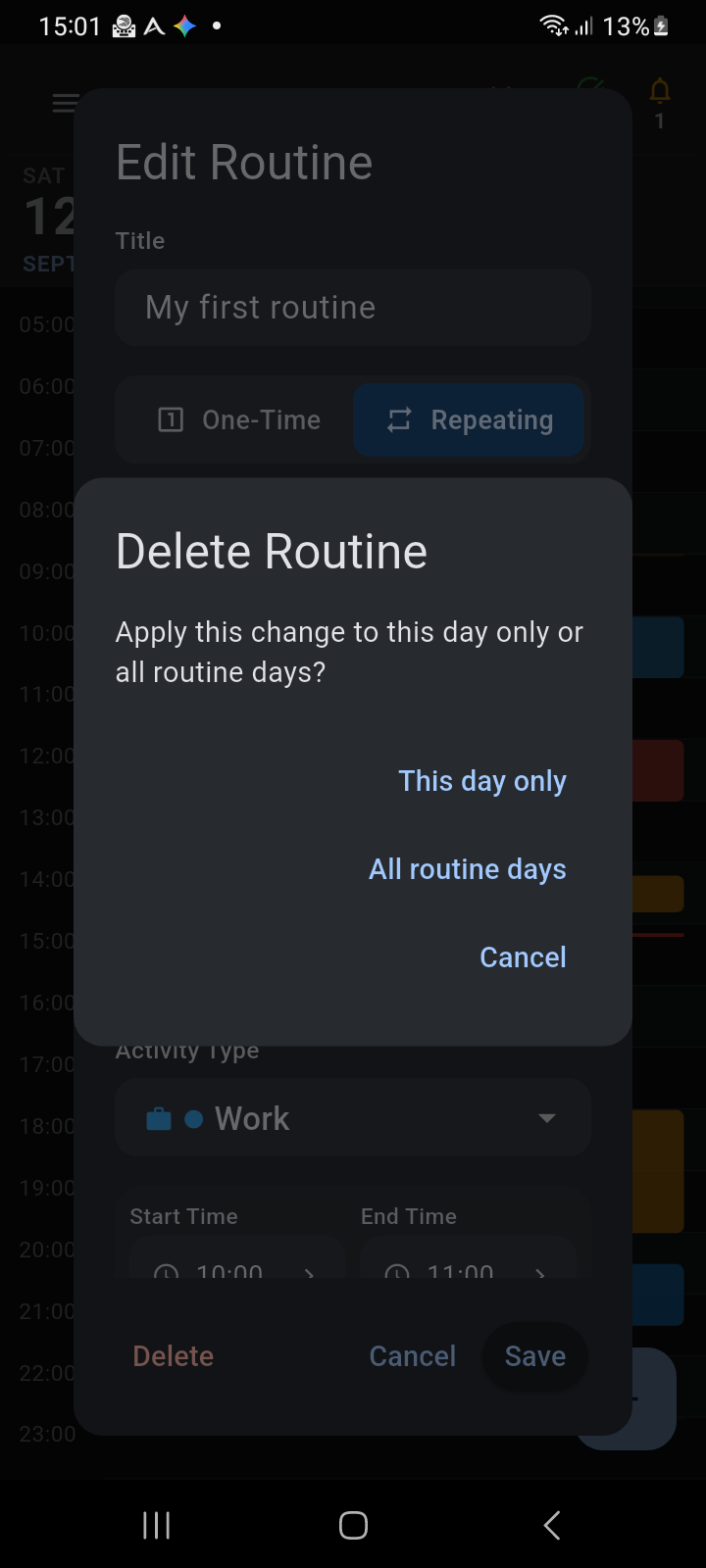
Figure 9.5: Scope selection prompt asking whether changes apply to "This day only" or "All routine days".
1. "This day only" (Single-Day Override / Exception)
Selecting This day only creates a single-day exception without touching your future schedule:
- Time or Detail Adjustment: If you need to shift your morning gym session from 07:00 to 08:30 today because of a late night, saving for "This day only" creates an isolated occurrence override. Tomorrow's gym session remains firmly locked at 07:00.
- Single-Day Deletion: If you are traveling or taking a sick day and tap Delete → This day only, today's occurrence is suppressed. Your master routine pattern is unaffected, and the routine will reappear automatically on its next scheduled day.
2. "All routine days" (Master Definition Update)
Selecting All routine days updates the master RoutineBlock definition:
- Use this when your lifestyle or work schedule has permanently changed (for example, your daily standup meeting permanently moved from 09:00 to 09:30, or you want to add Friday to your workout routine).
- Modifying or deleting across all routine days updates the recurrence rules across past and future calendar projections.
3. Restoring an Override
If you previously altered or deleted a routine occurrence for a specific date and later wish to revert that change, open the entry dialog for that day. Ancora recognizes that an active override exists and presents a dedicated Restore Routine option, instantly snapping the occurrence back to its original master schedule.
Managing Activity Types & Visual Styling
Routines in Ancora are closely tied to Activity Types. Activity Types provide the color palette, custom icons, default reminder profiles, and spoken speech templates that bring your schedule to life.
To inspect and customize your activities, open the side navigation drawer (☰), tap Settings, and select Activities ("Manage activity types and reminder profiles").
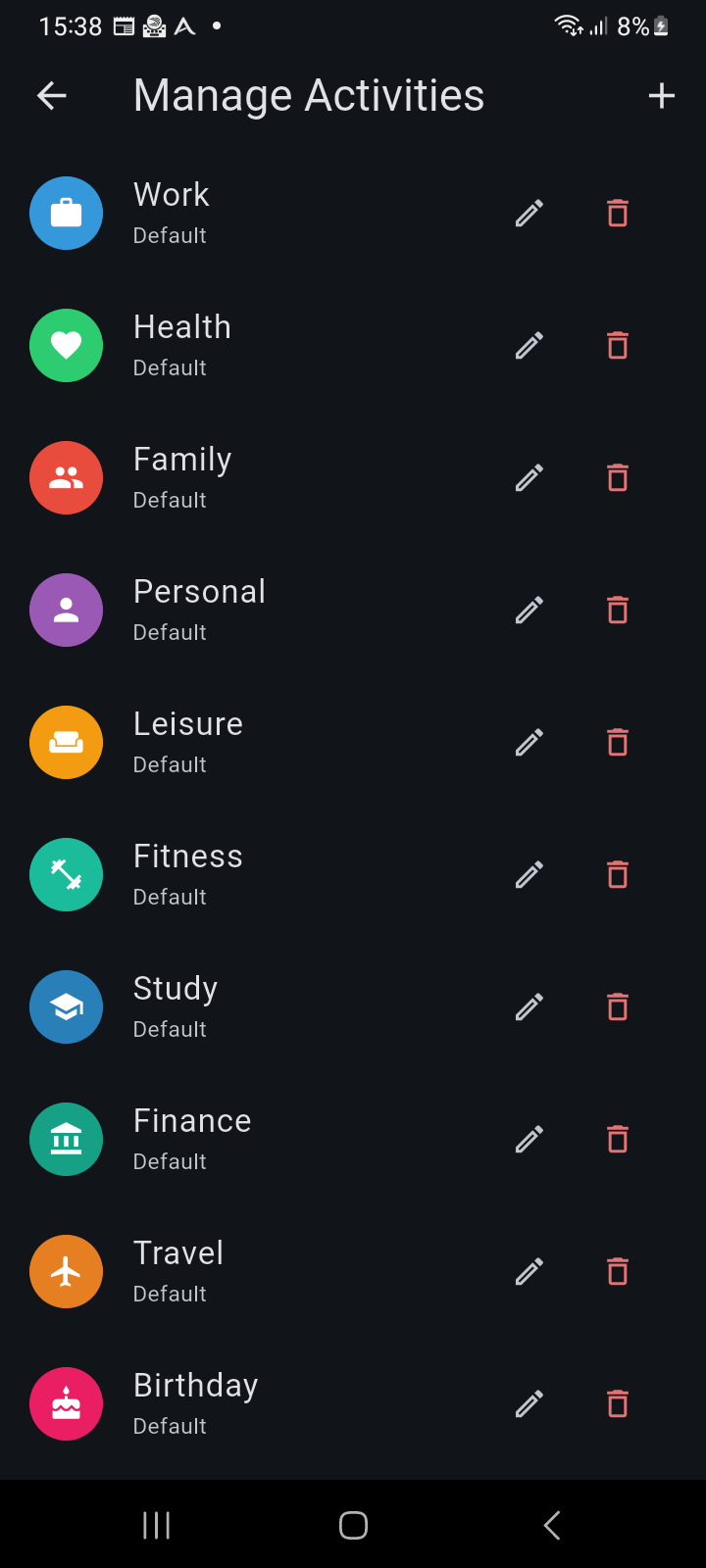
Figure 9.6: The Manage Activities screen displaying customizable categories, color palettes, icons, and linked reminder profiles.
The screen lists all available activity categories: Work, Health, Family, Personal, Leisure, Fitness, Study, Finance, Travel, and Birthday.
Customizing Activity Properties & Neural Speech
Tapping any activity in the list opens the comprehensive Edit Activity dialog:
Figure 9.7: Edit Activity dialog showing custom activity naming, 20 curated icons, palette color picker, and default speech templates.
- Activity Name: Update the display name to reflect your personal terminology.
- Palette Colors: Choose from 10 distinct Material palette colors (Blue, Green, Orange, Red, Purple, Teal, Pink, Indigo, Cyan, Amber) to visually categorize entries across Day and Week views.
- Curated Icon Picker: Select from 20 purpose-built icons representing work, fitness, education, finance, medical care, travel, dining, family, hobbies, and home life.
- Default Reminder Profile: Assign the default chained reminder profile that should automatically accompany this activity whenever a new routine or event is created.
- Speech Templates: Configure custom offline neural TTS announcement templates. You can define what the voice synthesizer announces before start, at start, and after start (e.g. "Time for your daily workout. Hydrate and get moving!").