
Configuring Alert Channels & Notification Settings
Ancora Planner integrates deeply with Android's system notification channels to provide reliable, non-intrusive alert delivery while granting you surgical control over how and when alerts appear on your device.
Android System Notification Types & Privacy
On modern Android devices (Android 8.0 through Android 14+), notifications are divided into system-level display styles that control where alerts can appear:
- Lock Screen Notifications: Controls whether alerts appear on your lock screen when the device is locked. You can choose to Show content for full preview, Hide content for sensitive privacy, or suppress lock screen alerts entirely.
- App Icon Badge: Displays a subtle badge dot or count on the Ancora home screen app icon, notifying you that unread alerts or overdue tasks require attention.
- Pop-up (Heads-Up Banners): High-priority visual banners that float across the top of your screen while using other applications, ensuring you never miss a time-critical departure or medication alarm.
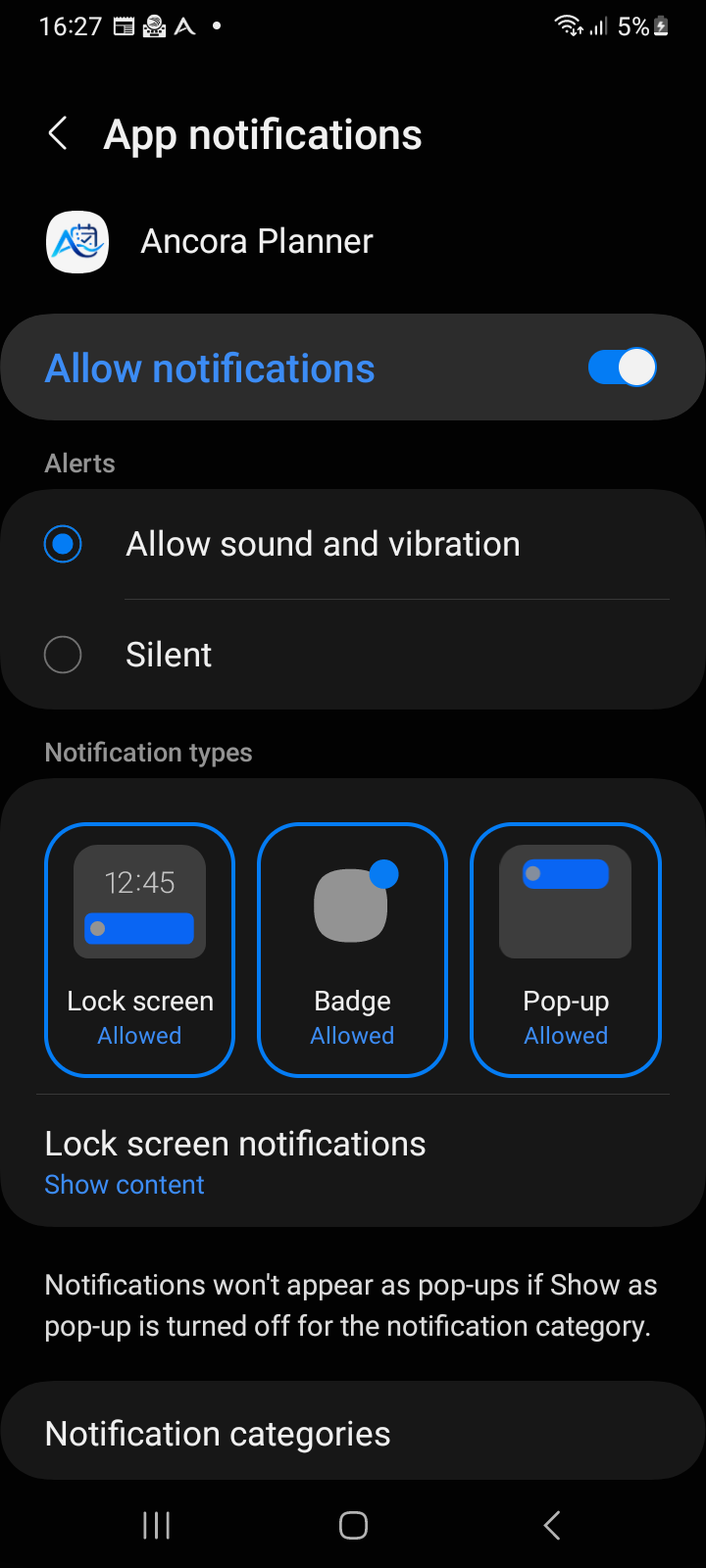
Figure 10.1: Ancora App notifications screen in Android Settings showing master toggle, alert styles, and notification types.
The 6 Dedicated Notification Channels
Rather than dumping all alerts into a single generic bucket, Ancora creates six dedicated, versioned notification channels within the Android operating system. This architecture ensures that changing the sound or behavior of one alert type never compromises your other notifications.
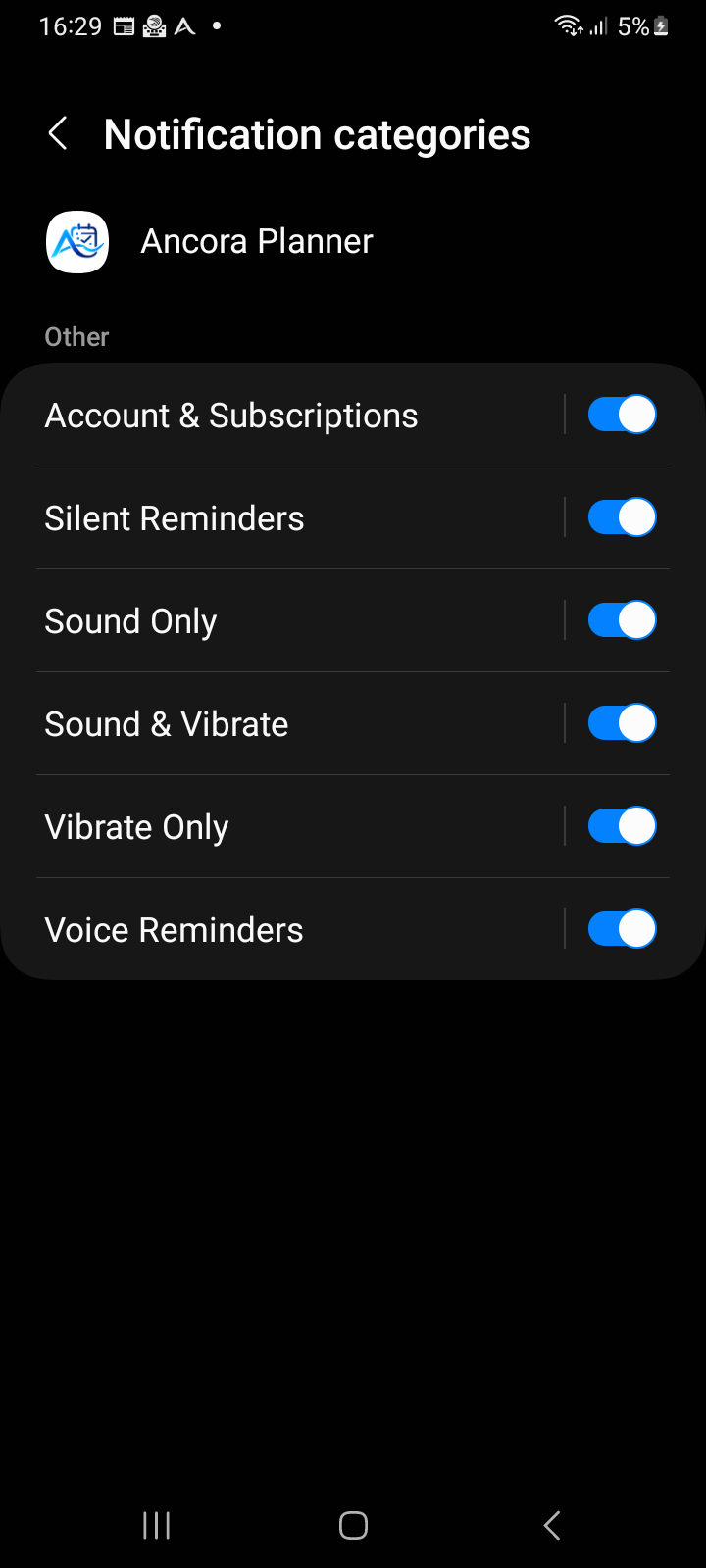
Figure 10.2: Android Notification categories for Ancora Planner displaying all 6 dedicated system channels.
The six channels serve distinct operational roles:
- Sound & Vibrate (
reminders_sound_vibrate): The standard channel for calendar agenda events, daily routine habit blocks, and actionable due tasks. Delivers high-importance audible alerts accompanied by tactile vibration. - Sound Only (
reminders_sound_only): Emits an audible chime without activating the device vibration motor, ideal for quiet desk environments where vibration buzzes against furniture. - Vibrate Only (
reminders_vibrate_only): Triggers physical vibration pulses without playing audio ringtones, tailored for meetings, libraries, or classrooms. - Voice Reminders (
reminders_voice): A specialized channel configured with high importance for heads-up and lock screen visibility, but kept silent at the Android OS audio level. This allows Ancora's offline Piper neural text-to-speech engine to speak the reminder message aloud through device speakers or connected Bluetooth headsets without conflicting audio overlap. - Silent Reminders (
reminders_silent): A low-importance channel that posts quiet visual cards directly to your notification shade without playing sound, vibrating, or interrupting active screen workflows. - Account & Subscriptions (
ancora_account): Dedicated to vital administrative notices, such as password updates, subscription renewal receipts, and family group sharing invitations.
Granular Per-Channel Customization
Because Ancora uses native Android channels, you can customize each category independently directly from your device settings:
- Open Android Settings → Apps → Ancora Planner → Notifications.
- Tap Notification categories at the bottom of the screen.
- Tap the specific channel you want to fine-tune (e.g., Sound & Vibrate or Account & Subscriptions).
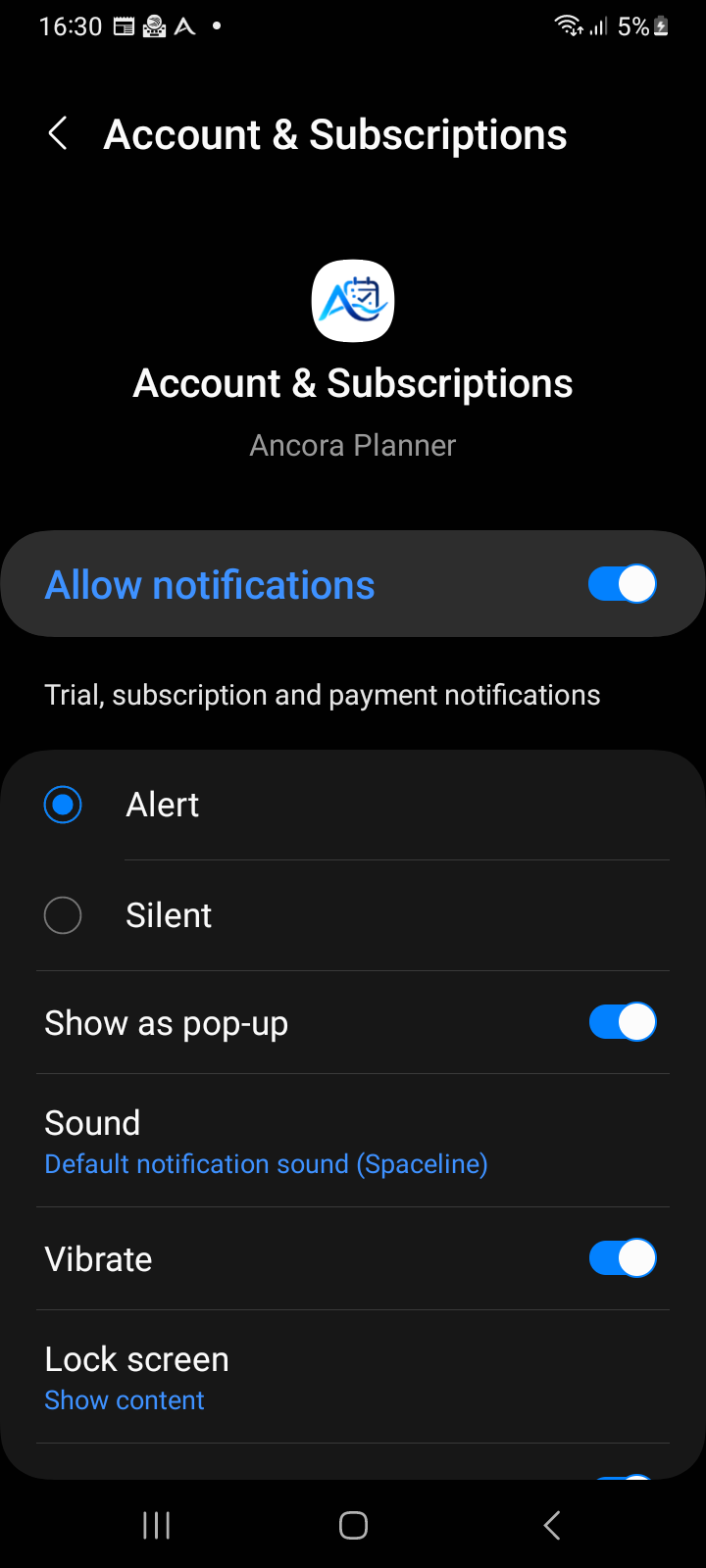
Figure 10.3: Granular Android notification channel settings showing alert mode, pop-up banner, custom sound, and vibration switches.
Within each channel's detail screen, you can adjust:
- Alert vs. Silent: Convert an entire channel to silent without turning off notifications altogether.
- Show as pop-up: Toggle floating heads-up alert banners on or off.
- Sound: Tap Sound to pick a specific ringtone from your phone's media library, giving different Ancora alerts unique tones.
- Vibrate: Enable or disable haptic feedback for this channel.
- Lock screen: Set individual privacy visibility for this channel independently of global lock screen rules.