
Connecting Google Calendar via OAuth
Ancora Planner connects seamlessly with Google Calendar using secure OAuth 2.0 authorization, allowing you to bring your work, family, and personal Google events directly into your unified offline timeline.
Secure OAuth 2.0 Authorization
Ancora prioritizes account security and privacy. When you link Google Calendar, the connection is authenticated directly through Google's official OAuth 2.0 protocol:
- Zero Password Exposure: Ancora never asks for, sees, or stores your Google password. Authentication takes place within Google's secure system authorization flow.
- Granular Calendar Permissions: Ancora requests standard calendar synchronization scopes to read and write your schedule while keeping other Google services (Gmail, Drive, Contacts) completely untouched.
- Encrypted Local Tokens: Refresh and access tokens are securely managed on your device, allowing automatic background synchronization without frequent re-login prompts.
Connecting Your Google Account
To connect Google Calendar to Ancora Planner:
- Open the side navigation drawer (☰) and tap your user avatar or name at the top (or select Account).
- In the Account Panel, tap Profile to open the Edit Profile dialog.
- Scroll down to the CONNECTED SERVICES section and tap Google Calendar.
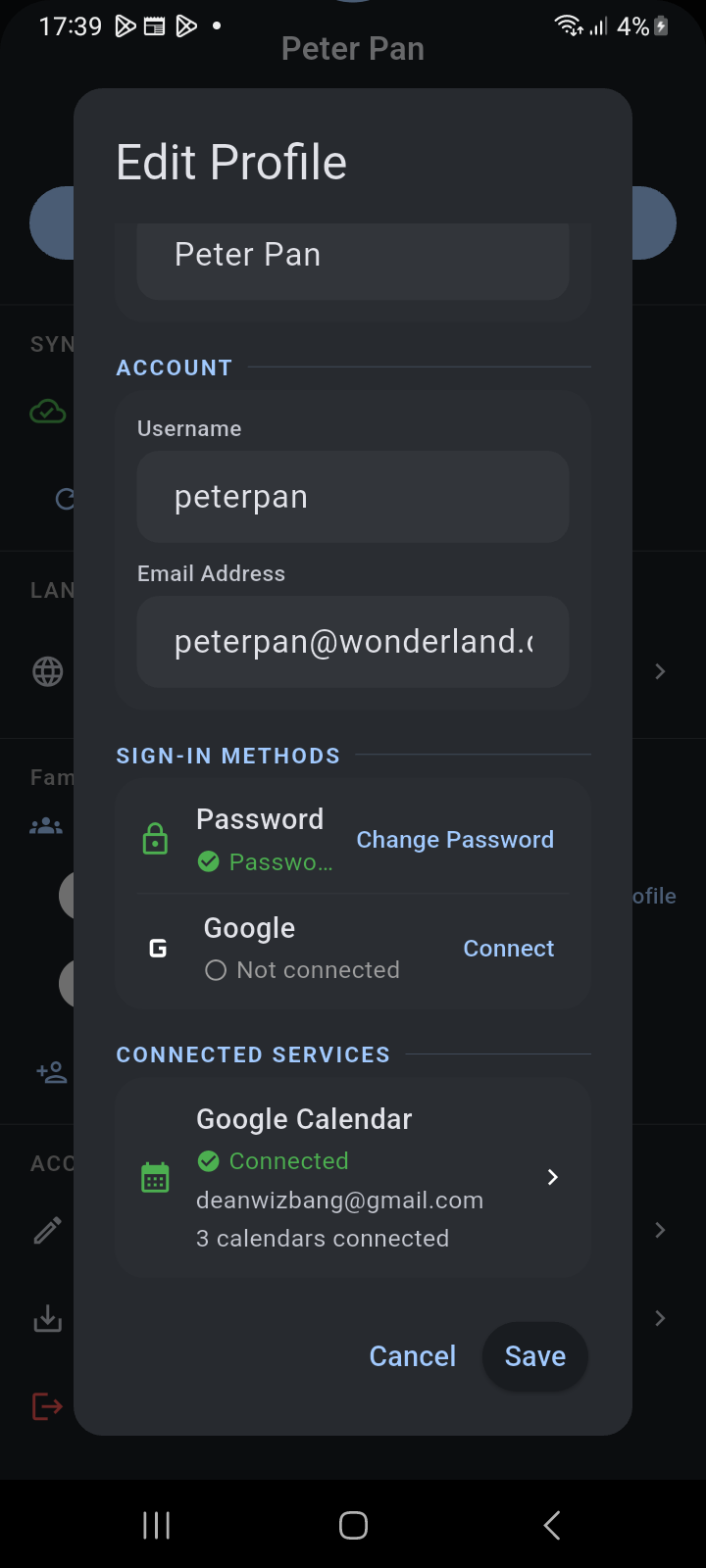
Figure 12.1: Edit Profile dialog showing Connected Services and the Google Calendar integration tile.
- On the External Calendars screen, tap Connect Google Calendar.
- Select your preferred Google account from the standard Android system account chooser and grant calendar access.
- Ancora will progress through connection stages (Connecting... → Connected → Downloading your calendars...) and display your linked email address.
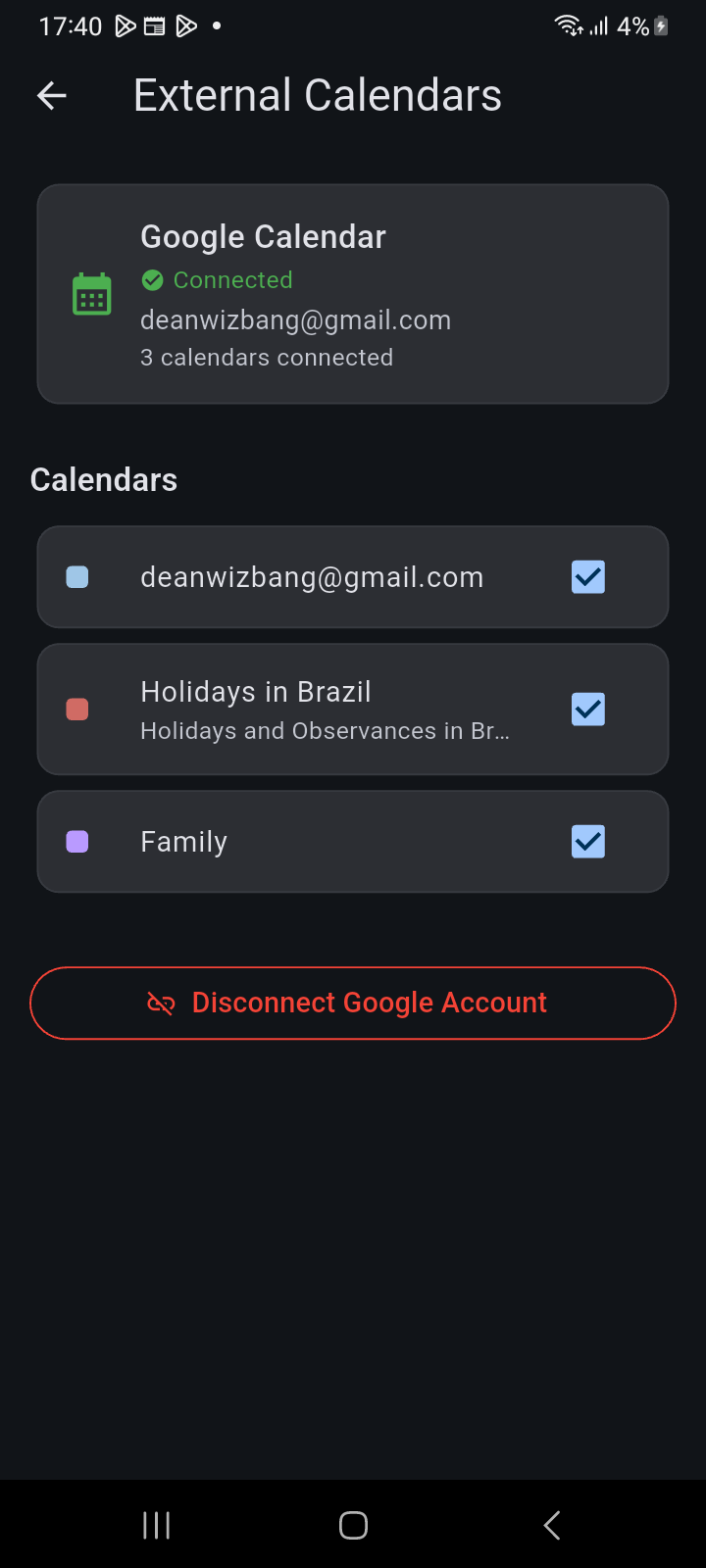
Figure 12.2: External Calendars manager with Google connection status, detected calendars list, and Disconnect action.
Automatic Discovery & Per-Calendar Sync Toggles
Once linked, Ancora queries Google Calendar and populates the Calendars list with every calendar associated with your Google account:
- Primary Personal Calendar: Your main Google calendar (labeled with your Google email address).
- Secondary Calendars: Any custom calendars you created in Google (e.g., Work, Family, Projects).
- Subscribed Calendars: Public holiday or observances calendars (e.g., Holidays in Brazil, UK Holidays).
Each calendar card includes a checkbox switch (Sync this calendar). Tap the switch to enable or disable synchronization for that specific feed. Disabling sync pauses automatic event downloads for that calendar while keeping other calendars active.
Disconnecting Google Calendar
If you switch Google accounts or wish to remove external calendar integration:
- Navigate to External Calendars.
- Scroll to the bottom and tap Disconnect Google Account.
- A confirmation dialog appears: "Are you sure you want to disconnect your Google Calendar? Your synced events will remain in the app."
- Tap Disconnect to confirm.
Related Articles
Keywords: