
Setting Notification & Alarm Reminders
Ancora provides dedicated time-based reminders for medication, hydration, recurring habits, and daily check-ins without creating task backlog debt.
Tasks vs. Reminders: Understanding the Difference
While standard productivity apps often conflate todo tasks and calendar notifications, Ancora makes a purposeful distinction between two operational models:
- Tasks (Actionable Backlog): Items that represent actionable work requiring explicit completion. They appear in the Task Manager, carry checkable state, and if not finished, can roll over or be tracked as overdue.
- Reminders (Time-Based Prompts): Timed informational alerts, health nudges, or schedule prompts that do not burden you with completion tracking. Once the time passes or you acknowledge the alert, there is no unfinished backlog cluttering your day.
Accessing the Reminders View
You can access your scheduled reminders from two convenient locations:
- Side Navigation Drawer: Tap the menu icon (☰) in the top-left of the Day View and select Reminders (marked by the bell icon).
- Day View Header Badge: The top-right header of your daily calendar displays an orange bell badge with the count of active reminders scheduled for today. Tapping this badge navigates straight to the Reminders screen.
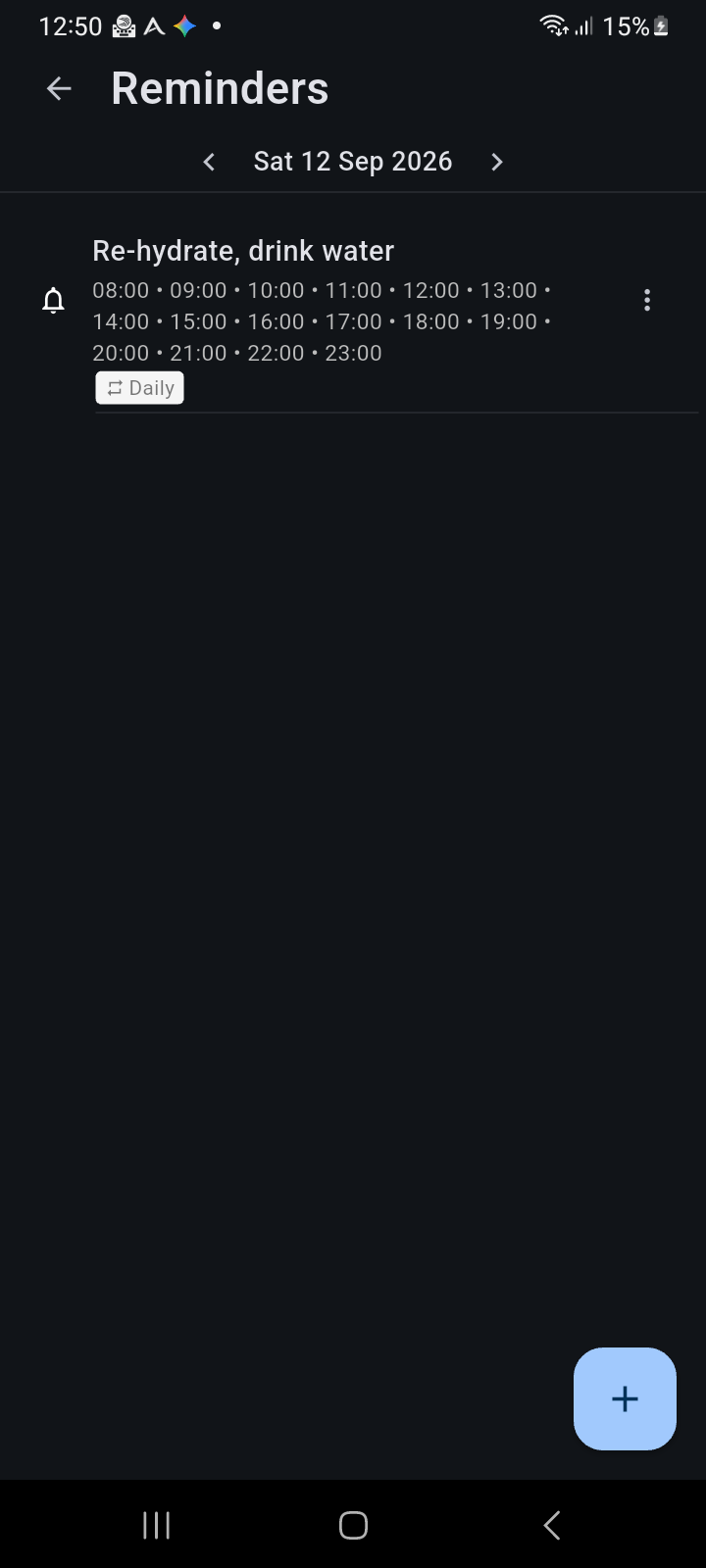
Figure 8.1: The Reminders screen displaying active daily reminders, multi-time intervals, recurrence badges, and the date navigator.
Creating and Scheduling a Reminder
To schedule a new reminder, tap the blue floating action button (+) in the bottom-right corner of the Reminders screen. The reminder editor allows you to configure comprehensive scheduling parameters:
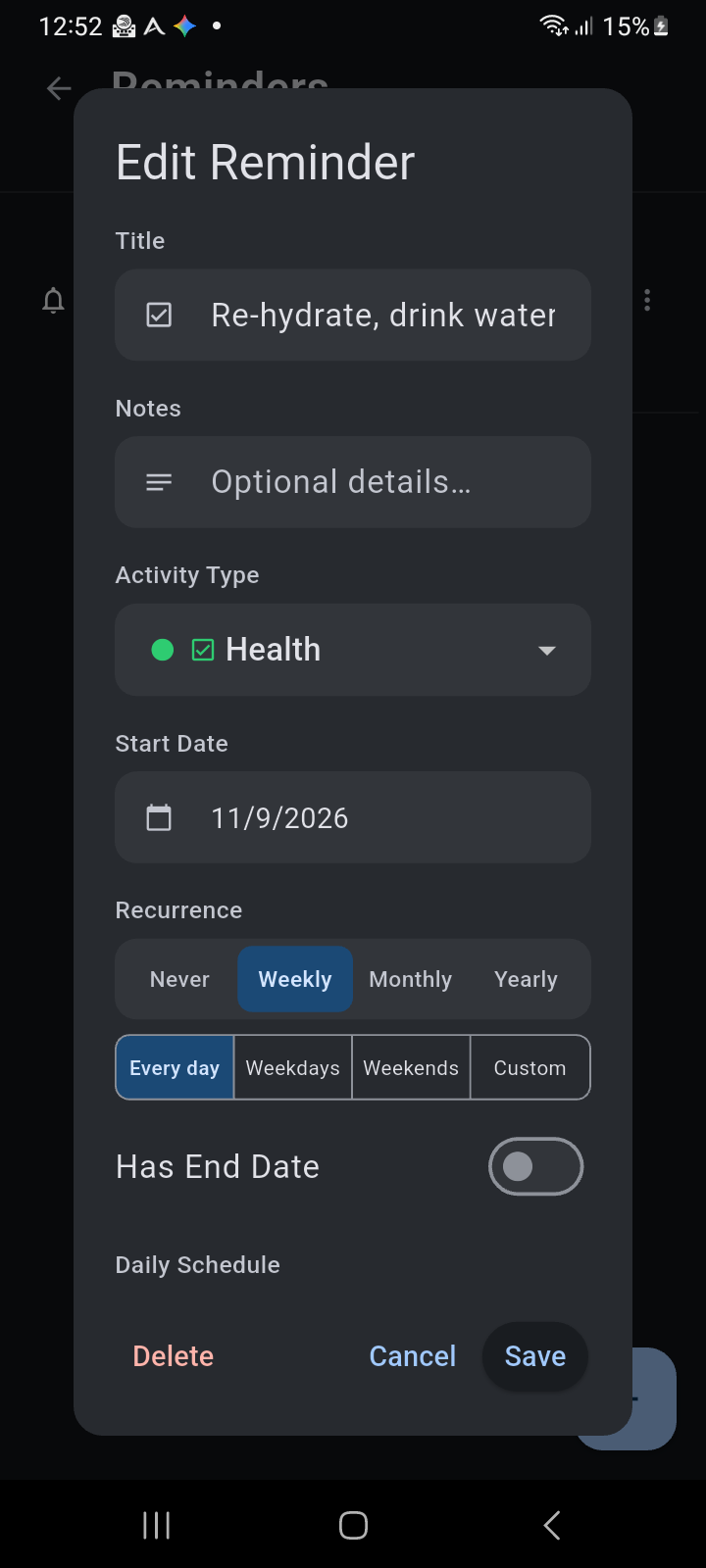
Figure 8.2: The Edit Reminder dialog showing title input, notes field, activity category selection, and recurrence rules.
- Title & Notes: Enter the reminder prompt (such as Re-hydrate, drink water or Take evening vitamins) and any optional instructional details.
- Activity Type: Assign an activity category (e.g., Health, Personal, Work) to color-code the reminder throughout your agenda.
- Start Date: The initial calendar day on which the reminder sequence begins.
- Recurrence Patterns: Choose how frequently the reminder repeats:
- Never: A one-shot reminder for a specific date.
- Weekly / Daily: Choose between Every day, Weekdays, Weekends, or pick Custom specific days of the week.
- Monthly / Yearly: Set regular monthly intervals or annual milestone reminders.
- Has End Date: Toggle to set a cutoff date when a temporary reminder regimen concludes.
- Daily Schedule (Multi-Time Intervals): For habits that require multiple prompts per day (such as hourly hydration or posture resets), configure a multi-time schedule (e.g. 08:00 through 23:00). This eliminates the need to create separate entries for each hour.
Managing Reminders: The Quick Actions Menu
Every reminder row provides immediate management controls. Tapping the three vertical dots (⋮) or long-pressing a reminder card opens the quick actions sheet:
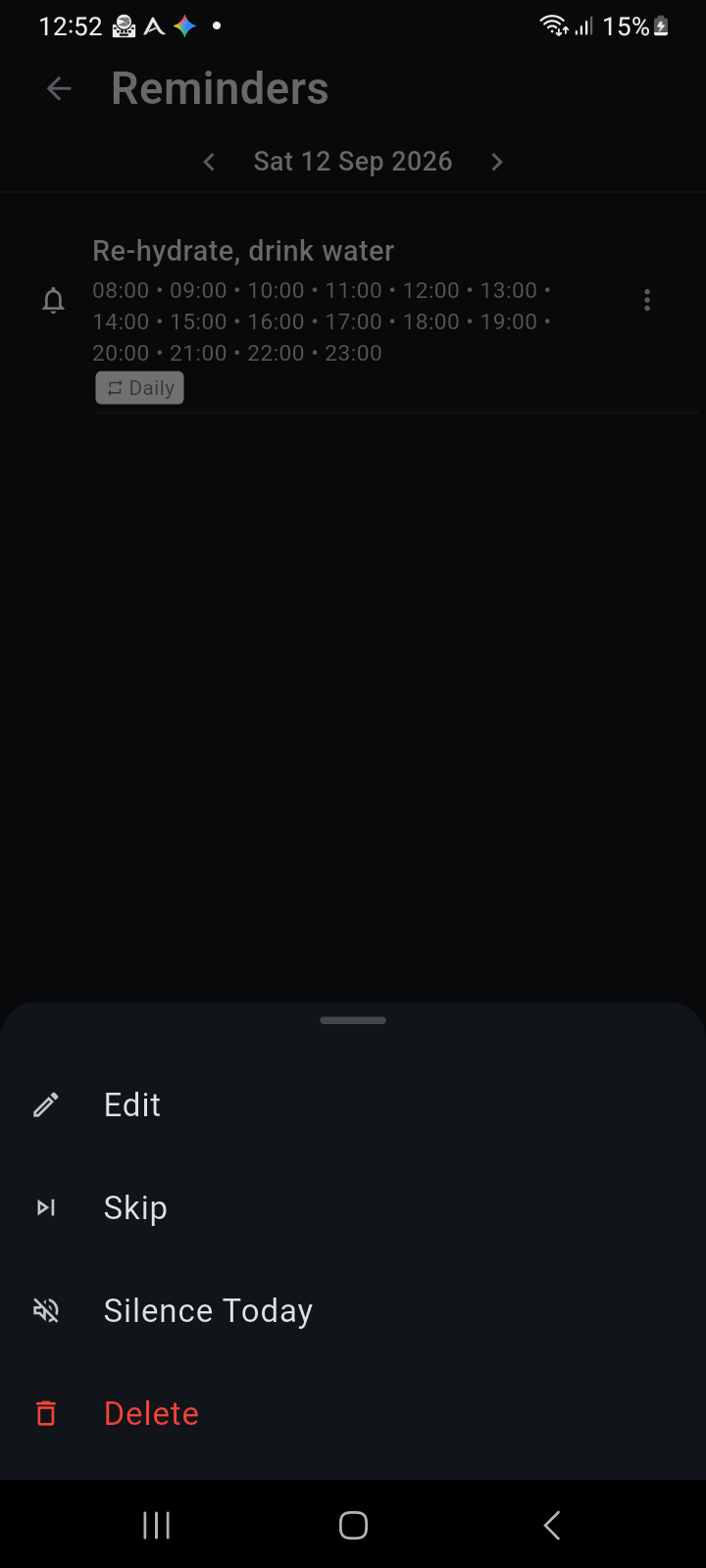
Figure 8.3: Reminder action menu with options to Edit, Skip, Silence Today, or Delete.
- Edit: Reopens the full configuration sheet to update times, notes, or category details.
- Skip: Bypasses the reminder for the current day without modifying future repeating occurrences. If a skipped item is needed again, the menu provides a Restore option.
- Silence Today: Mutes all notifications, alarms, and spoken voice announcements for this specific item for the remainder of today. The bell icon changes to an orange muted bell (🔕) to indicate silenced status.
- Delete: Permanently removes the reminder. For recurring reminders, Ancora asks whether you wish to delete This day only or All occurrences.