
Managing External Calendars & Read-Only Protections
Customize the display names and notification alerts of your synced Google calendars, toggle calendar visibility directly from the navigation drawer, edit external events on your timeline, and understand collaborative sharing boundaries.
Drawer-Level Visibility Controls
You do not need to dive into system settings every time you want to declutter your timeline. Ancora embeds instant visibility toggles right inside the slide-out navigation drawer (☰):
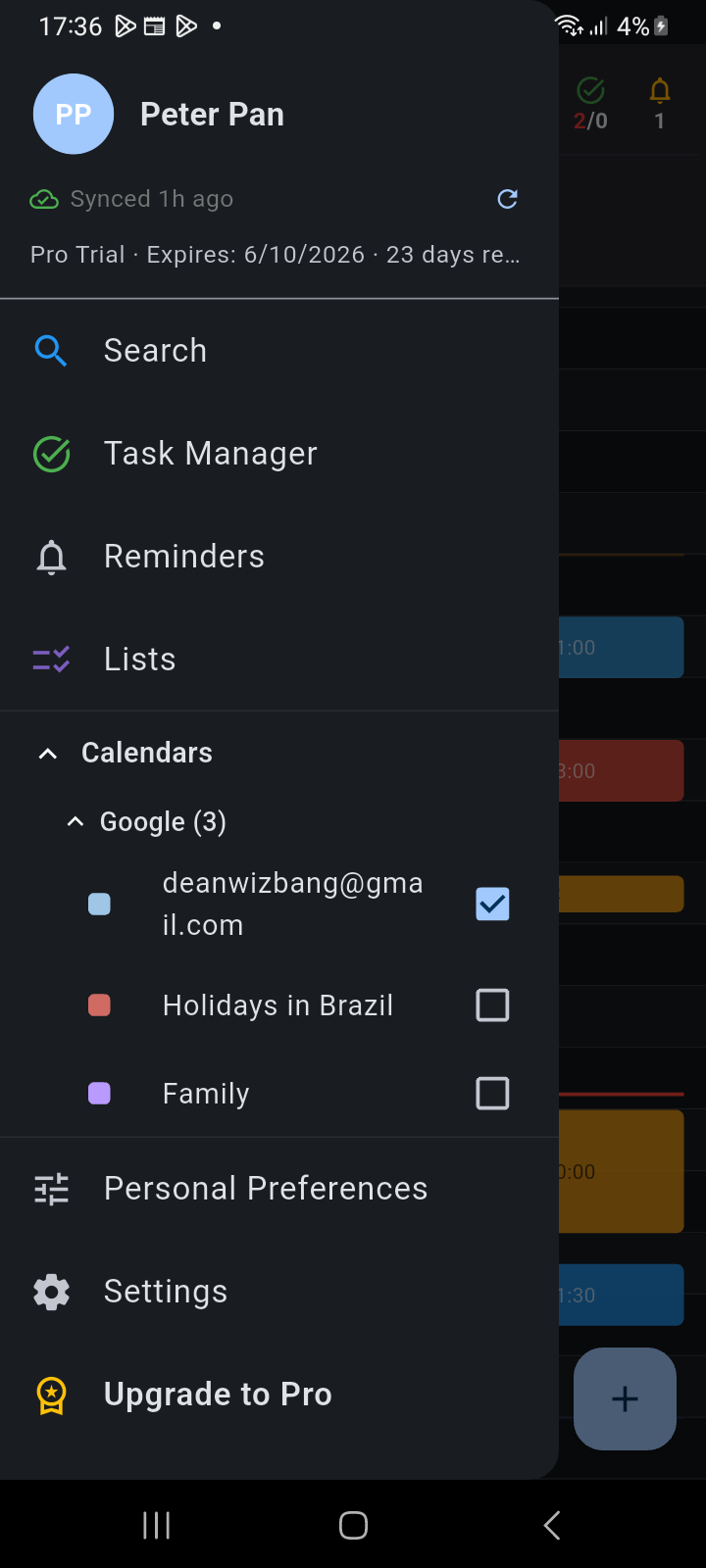
Figure 12.3: Navigation drawer showing the expanded Google provider section with color indicators and visibility toggles.
Under the Calendars header, you will find the Google provider section with an indicator count (e.g., Google (3)):
- Expand / Collapse: Tap the Google header to show or hide the list of synced calendars.
- Color Swatches: Each calendar displays a colored square swatch matching its imported Google calendar color or custom Ancora hue.
- Instant Visibility Toggles: Tap the checkbox next to any calendar name to instantly toggle its events on or off across your Day, Week, and Month views. Unchecking a calendar simply hides its visual blocks without disabling background synchronization or wiping local data.
Per-Calendar Settings & Reminders
Ancora allows you to fine-tune each external calendar independently. In the External Calendars management screen, long-press any calendar card to open the Calendar Settings dialog:
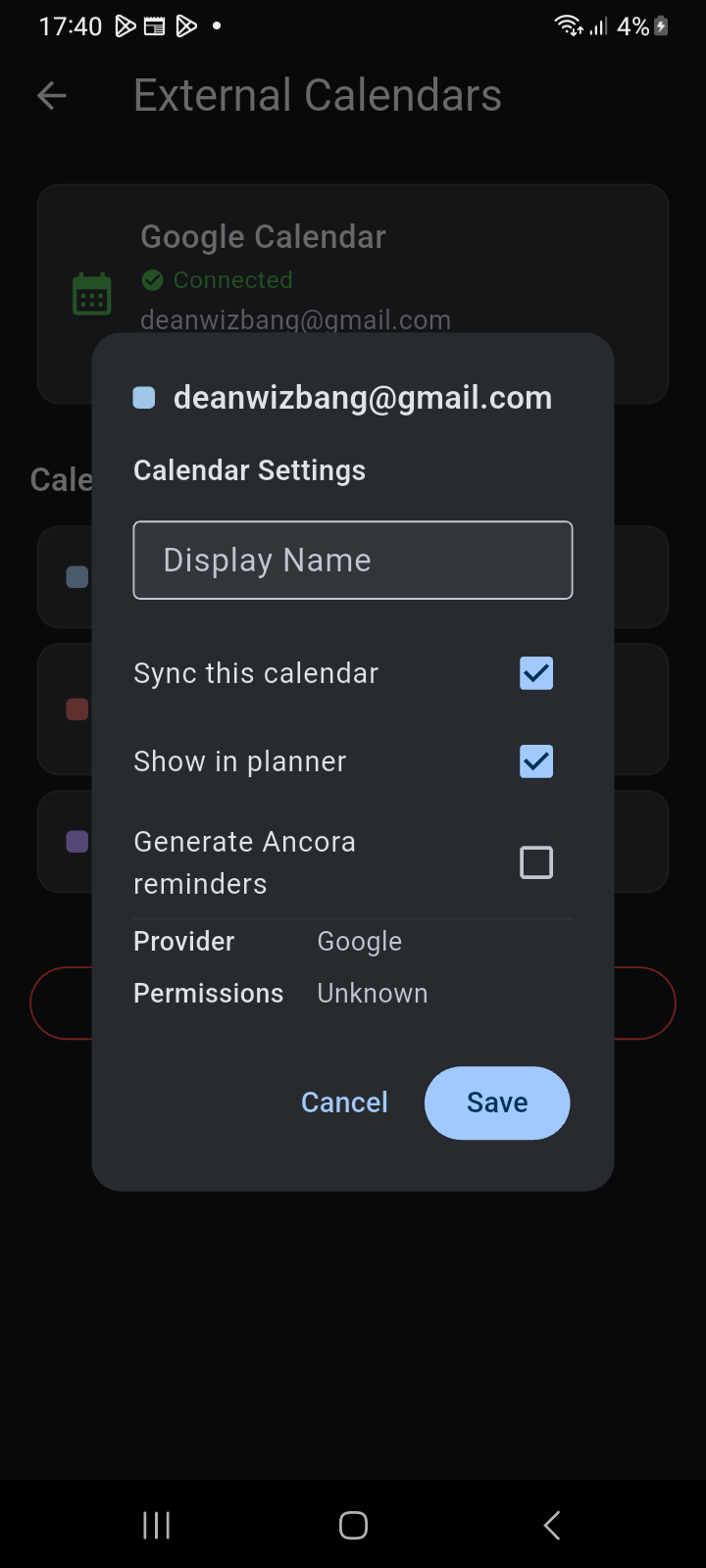
Figure 12.4: Calendar Settings dialog showing sync, planner visibility, and reminder generation options.
Within this dialog, you can configure:
- Display Name: Override verbose email titles with a friendly nickname (e.g., renaming [email protected] to Main Work).
- Sync this calendar: Master switch controlling whether new and updated events are downloaded from Google.
- Show in planner: Sets default visibility on your visual timeline.
- Generate Ancora reminders: When enabled, Ancora schedules native Android alarms and spoken voice reminders for events on this calendar, ensuring you never miss external appointments.
- Provider & Permissions: Displays connection metadata including provider (Google) and your access role (Owner, Writer, Reader, or Free/Busy Reader).
Editing Google Events on the Timeline
External calendar events appear on your Day, Week, and Month views with dedicated calendar color borders alongside your Ancora routines and tasks. Tapping an external event opens the Edit Google Calendar dialog:
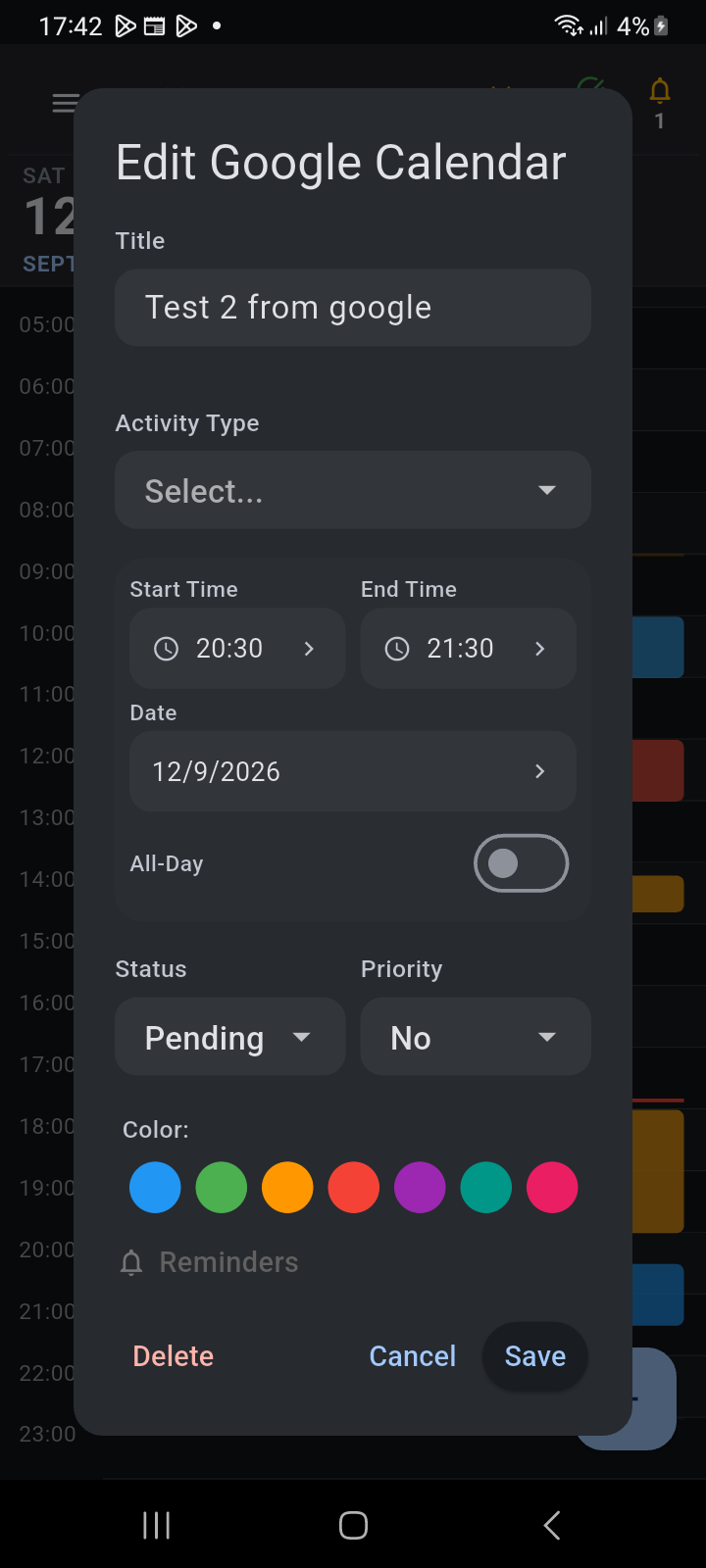
Figure 12.5: Edit Google Calendar modal showing Google-synced fields and Ancora-specific category/reminder settings.
The editor provides full bi-directional synchronization while respecting data ownership:
- Google-Synced Fields: Title, Notes/Description, Location, Start Time, End Time, Date, and All-Day toggle. Changes made to these fields are synchronized upstream to your Google account.
- Ancora-Managed Fields: Activity Type category, custom Color override, and chained Reminder Profiles. These enrich your scheduling experience locally in Ancora without altering external Google settings.
- Recurring Series & Exception Handling: If the event is part of a recurring Google series, the dialog title displays Edit Google Recurring Event with details on the recurrence rule (
RRULE) or single modified exception instance.
Related Articles
Keywords: