
Creating and Managing Family Groups
Coordinate schedules, sync routines, and manage household members seamlessly with Ancora Planner Family Groups. Learn how to establish a family group, provision dependent accounts, invite existing users, and administer granular group permissions.
Overview of Family Groups
Ancora Planner Family Groups allow households and teams to collaborate effortlessly while keeping individual privacy intact. Under a family group structure:
- Subscription Sharing: Pro and Premium subscription benefits are inherited by all active members of the family group from the group owner.
- Role Separation: Members hold distinct roles (Owner, Active Member, or Allowed Member) determining administrative capabilities.
- Isolated Workspaces: Each member maintains their own personal calendar, routine schedule, tasks, and private lists by default.
- Granular Item Sharing: Members can selectively share specific agenda entries, tasks, and checklists with chosen family members.
Accessing Group Management
To view and administer your household group:
- Open the side navigation drawer (☰) from the main calendar view.
- Tap Settings.
- Scroll to the User section and tap Group Management (accompanied by the shield icon 🛡).
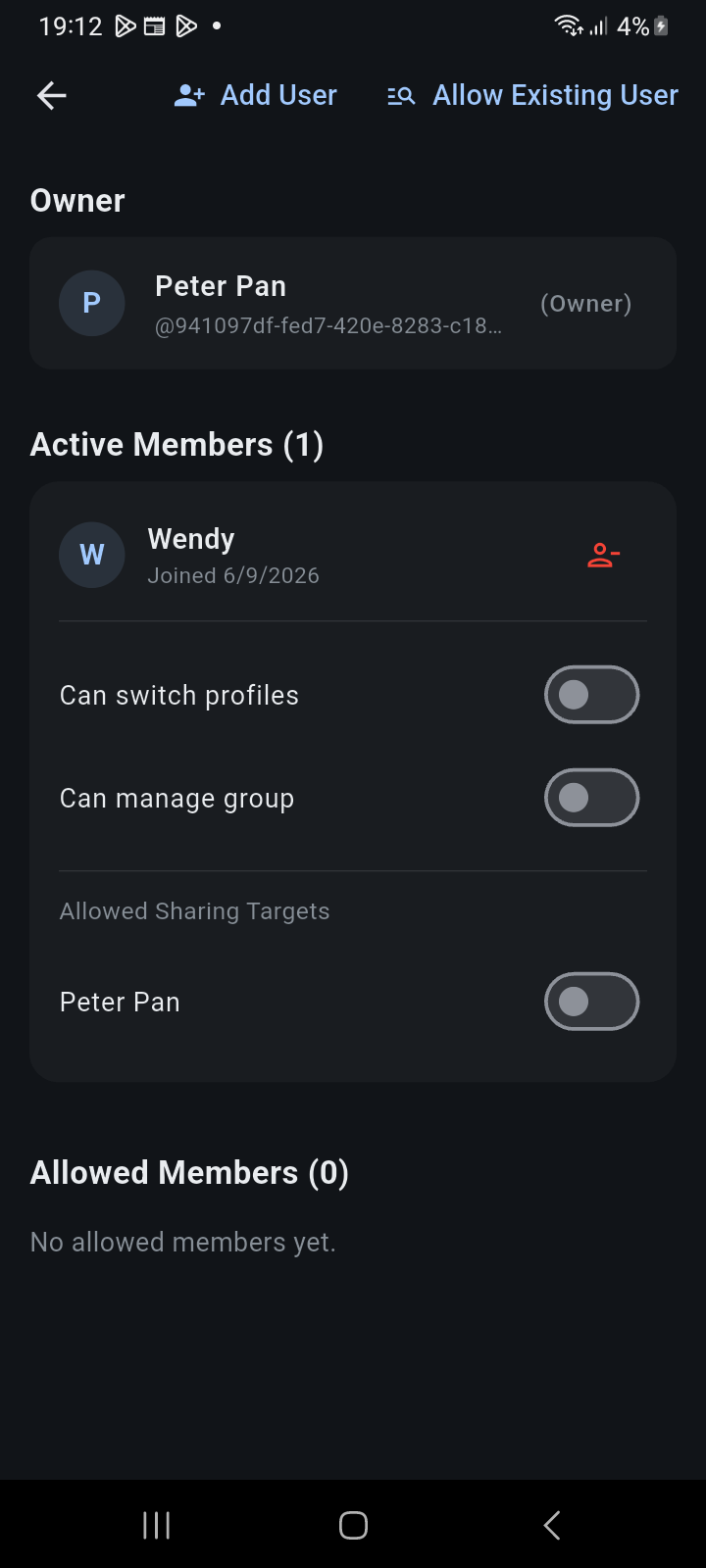
Figure 14.1: Group Management screen displaying the Owner card, Active Members roster with permission toggles, and Allowed Members section.
Membership Roles & Lifecycles
Ancora classifies group participants into three distinct statuses:
- Owner: The primary account holder who created the family group. The owner controls subscription sharing, can provision dependent accounts, invite existing accounts, adjust permissions, and remove members.
- Active Member: A participating member whose membership has been confirmed. Active members enjoy group subscription benefits and can participate in shared items.
- Allowed Member: An external Ancora account that has been invited by the group owner. Allowed members must accept the invitation from their own account before becoming active.
Adding Members to Your Family Group
The group owner can add participants through two distinct mechanisms depending on whether the individual already has an Ancora account:
1. Provisioning Dependent Accounts (Add User)
For children, dependents, or family members who do not yet have an Ancora account, the owner can create a fully provisioned account directly inside the group:
- On the Group Management screen, tap + Add User in the top app bar.
- Enter the member's Display Name (e.g., Wendy).
- Specify a unique Username (e.g., jamie).
- Enter an optional Email address for account recovery.
- Assign a temporary Password (minimum 8 characters).
- Tap Create.
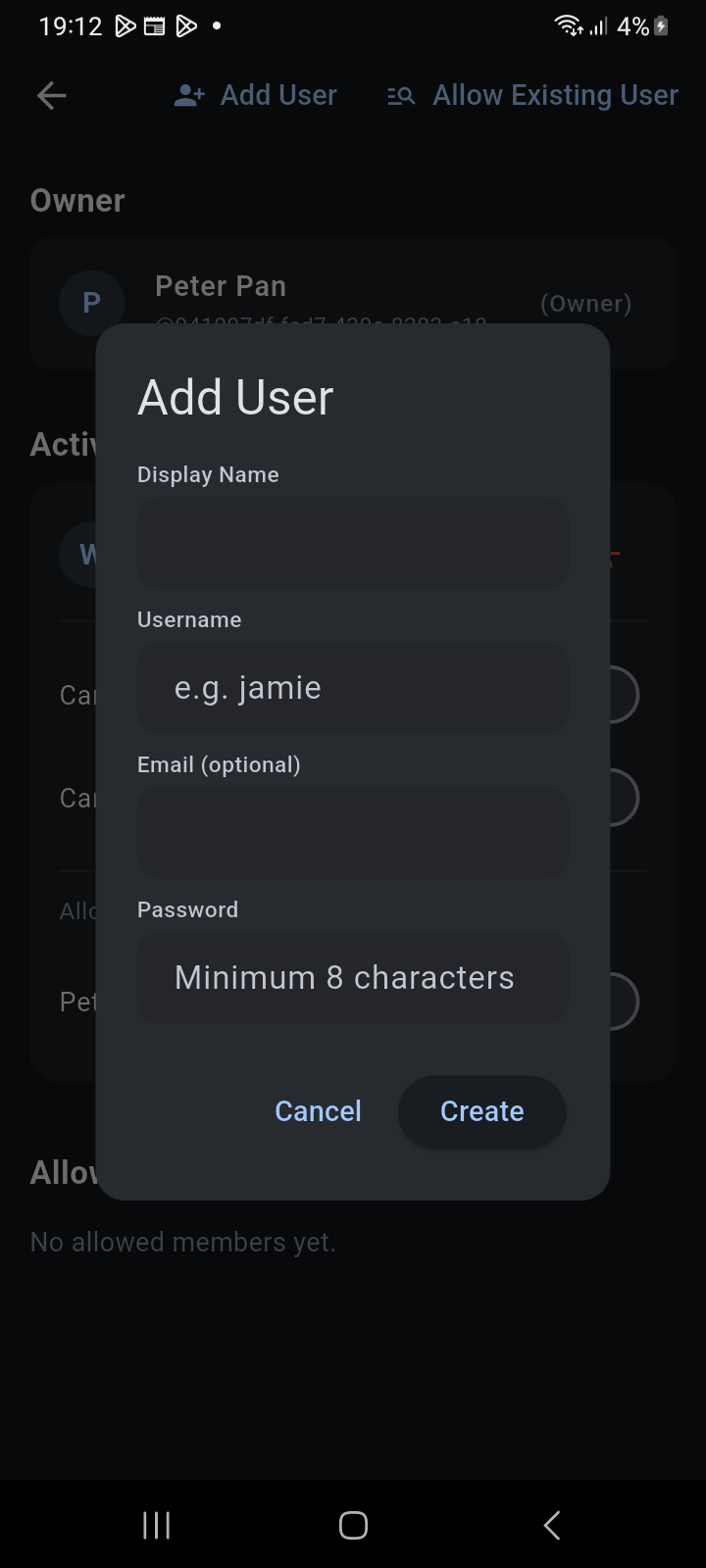
Figure 14.2: Add User dialog for provisioning a dependent household member account.
2. Inviting Registered Users (Allow Existing User)
If your family member already owns an independent Ancora account:
- Tap Allow Existing User in the top app bar.
- Enter the exact Username of the registered user.
- Tap Find User to verify the account and issue the membership grant.
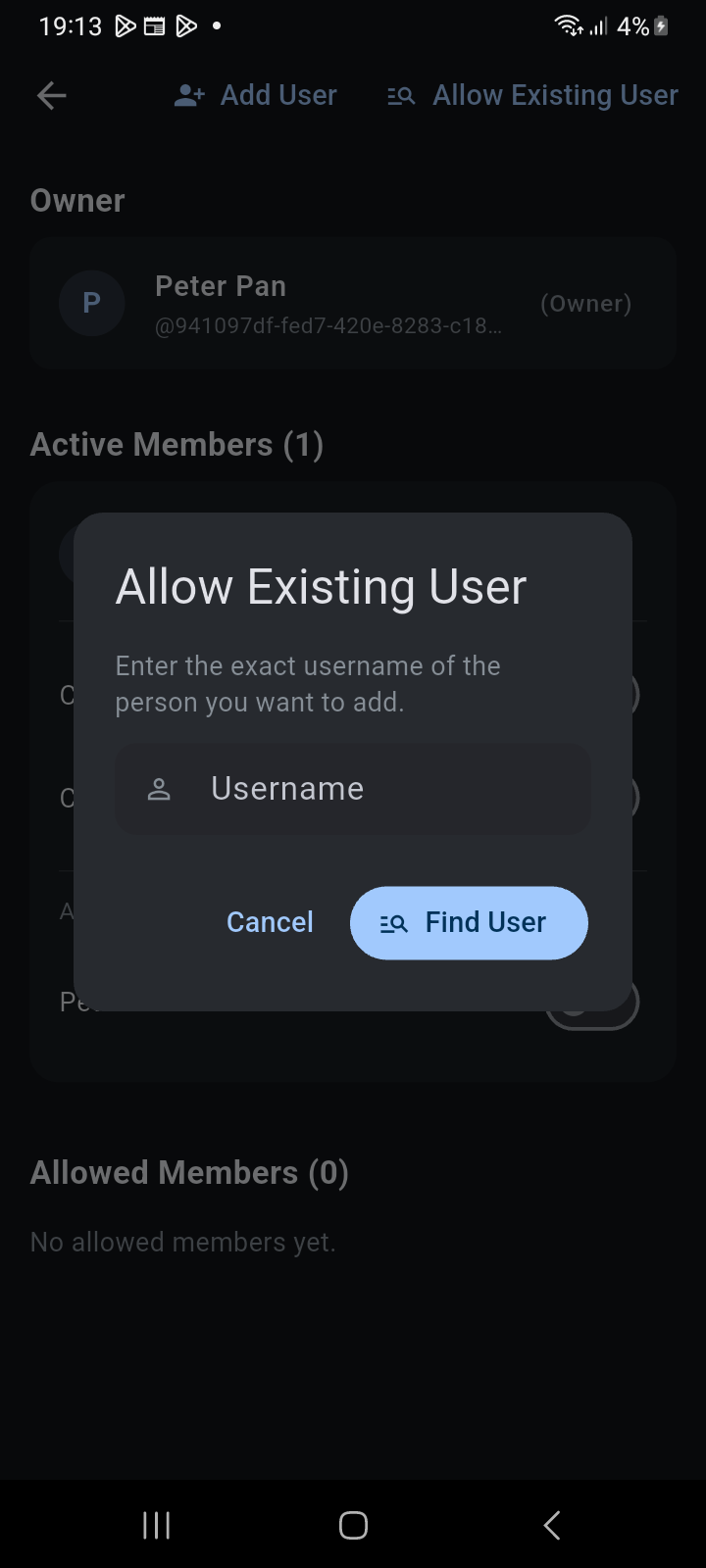
Figure 14.3: Allow Existing User dialog for inviting registered Ancora users by exact username.
The invited user will see a family group invitation card under their Account Panel. Once they tap Join Family Group, their status transitions to Active and their device synchronizes with group resources.
Administering Member Permissions
The group owner can configure specific permissions for each active member directly from the member's card on the Group Management screen:
- Can switch profiles: Enables this member to switch between profiles on a shared household device without entering account credentials.
- Can manage group: Grants administrative authority to invite new members, provision dependent accounts, and configure sharing settings.
- Allowed Sharing Targets: Controls which specific household members this user is permitted to share schedule items and tasks with (see Article 14.2).
Removing a Member
To remove a member from the family group:
- Locate the member under Active Members or Allowed Members.
- Tap the red remove icon (−) next to their name.
- Confirm the removal when prompted. Once removed, the member immediately loses access to shared items and inherited subscription entitlements.
Related Articles
Keywords: