
User Profiles & Account Credentials
Personalize your Ancora Planner experience by customizing your user profile, setting a custom circular avatar photo, maintaining account security credentials, and linking third-party authentication methods like Google Sign-In.
Accessing Profile Settings
You can view and manage your profile details at any time through the slide-out navigation drawer:
- Open the side navigation drawer (☰) from any primary screen (Day, Week, Month, or Agenda).
- Tap your profile avatar or display name at the top of the drawer (or scroll down and select Account).
- In the Account Panel, scroll to the ACCOUNT section and tap Profile.
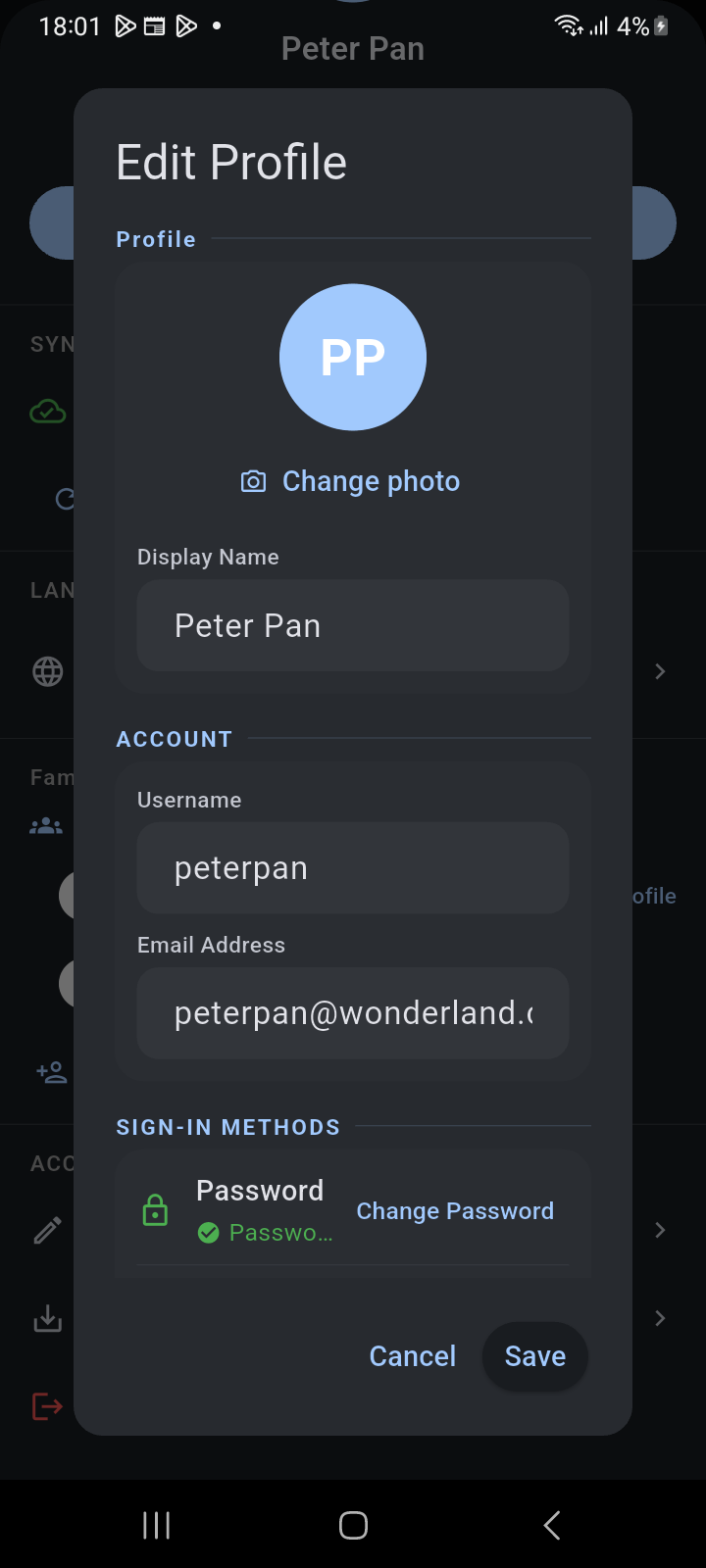
Figure 13.1: Edit Profile dialog displaying user avatar, Change photo action, Display Name, Username, Email Address, and Sign-in Methods.
Customizing Your Profile Identity & Avatar
The Edit Profile dialog allows you to tailor how you appear throughout Ancora Planner:
- Circular Photo Avatar: Tap Change photo below your current avatar circle. Ancora opens the system media picker allowing you to select an existing image or take a new photo with your camera. An integrated circular cropping tool (1:1 aspect ratio) lets you center and scale your image perfectly. Your photo is securely stored on-device and automatically synchronized to your account profile across devices.
- Display Name: The friendly name shown in the drawer header, timeline reminders, speech notifications, and family group rosters. Tap the Display Name field to edit your preferred name.
- Username: Your unique account handle used for direct account lookup and family group invitations. This is established during account registration.
- Email Address: The primary contact email associated with your sync account, used for password recovery, account notifications, and cloud synchronization.
Configuring Sign-In Methods
Ancora supports multiple authentication methods so you can choose between traditional password credentials and modern federated identity:
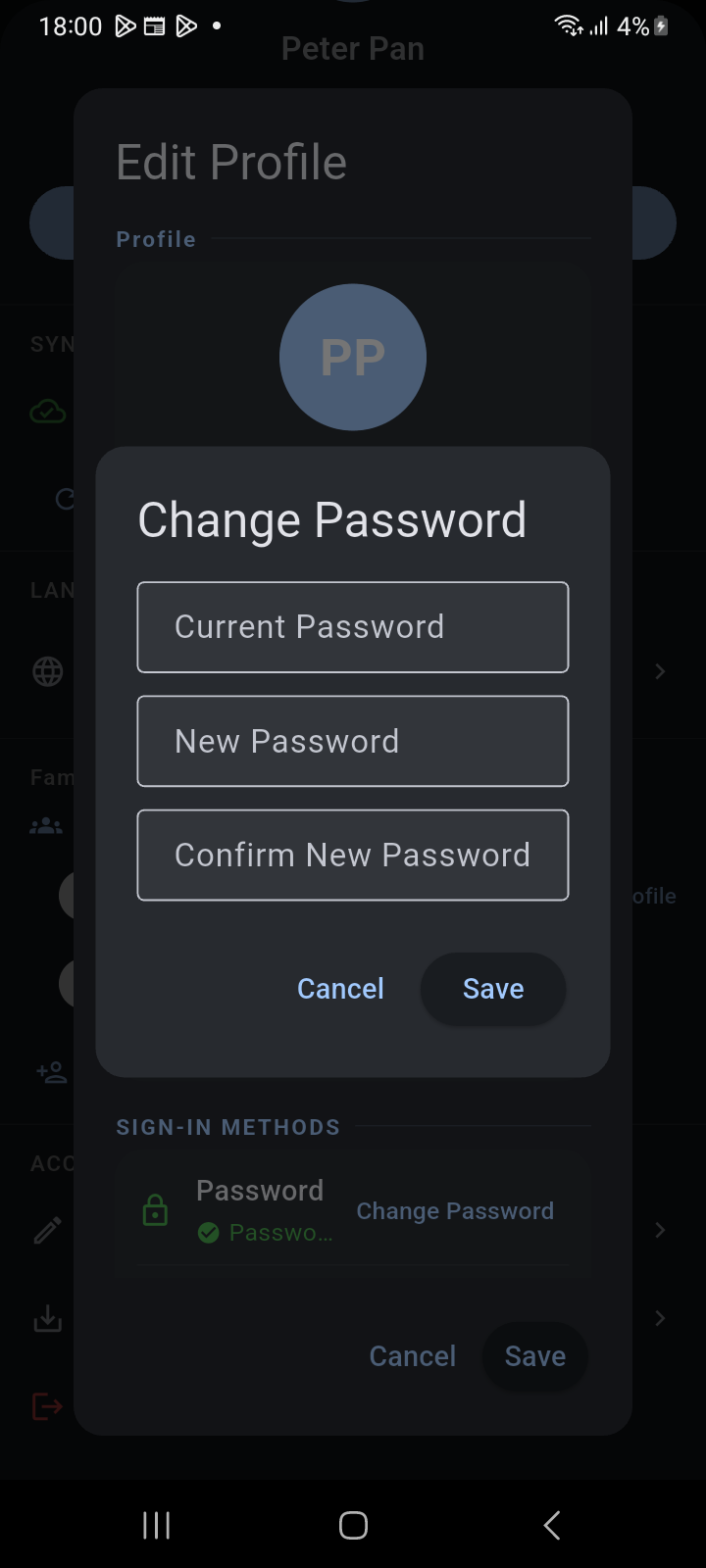
Figure 13.2: Change Password modal prompting for Current Password, New Password, and Confirm New Password.
Password Login
The Password tile under Sign-In Methods indicates your current credential state (Password login enabled or Not configured):
- Tap Change Password (or Add Password if not previously configured).
- In the modal dialog, enter your Current Password to verify your identity.
- Enter your New Password and re-enter it in Confirm New Password to prevent typos.
- Tap Save. Your credentials update securely on the server and are automatically updated in Android Credential Manager for autofill.
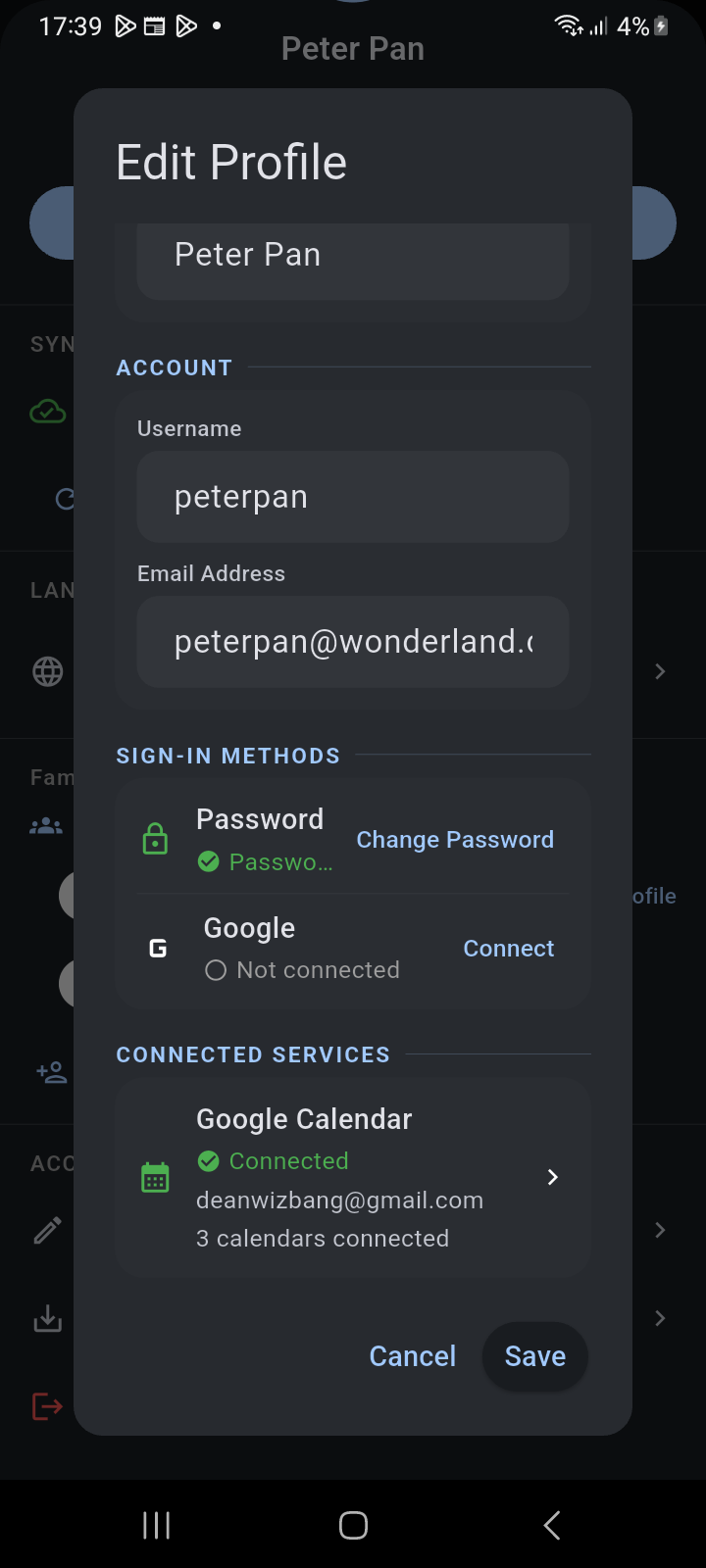
Figure 13.3: Scrolled Edit Profile dialog showing Google identity connection status and Connected Services tile.
Google Sign-In Linking
If you prefer signing in with Google, you can connect your Google account directly to your existing Ancora identity:
- Tap Connect next to the Google logo.
- Select your Google account from the standard Android system account chooser.
- Once authenticated via OAuth 2.0, your Google email appears with a green checkmark indicating successful connection.
- You can now sign in using either your username and password or the Continue with Google button.
- To unlink your Google account, tap Disconnect at any time.