
Multi-User Profile Switching & Privacy Controls
Ancora Planner is built for real families and shared households. With multi-user profile switching, household members and caregivers can alternate between dependent schedules on a single device without logging out or sharing sensitive account passwords.
Shared Household Architecture
In many homes, a shared tablet in the kitchen or a parent’s phone is used to manage schedules for children, elderly parents, or partners. Rather than requiring users to log out and re-authenticate every time they want to check another person’s schedule, Ancora features a decoupled Active Account Service:
| Role | Description | Lifespan |
|---|---|---|
| Authenticated Account | The registered user who authenticated with JWT credentials on the physical device (the device owner). | Persistent across sessions until explicit Sign Out. |
| Active Profile | The household member whose timeline, routines, lists, and tasks are currently displayed on the screen. | Dynamic session state; safely resets to the authenticated user on cold start. |
The Account Panel Overview
The Account Panel acts as your central hub for profile status, family groups, and sync health:
- Open the side navigation drawer (☰).
- Tap your profile avatar or the Account menu tile.
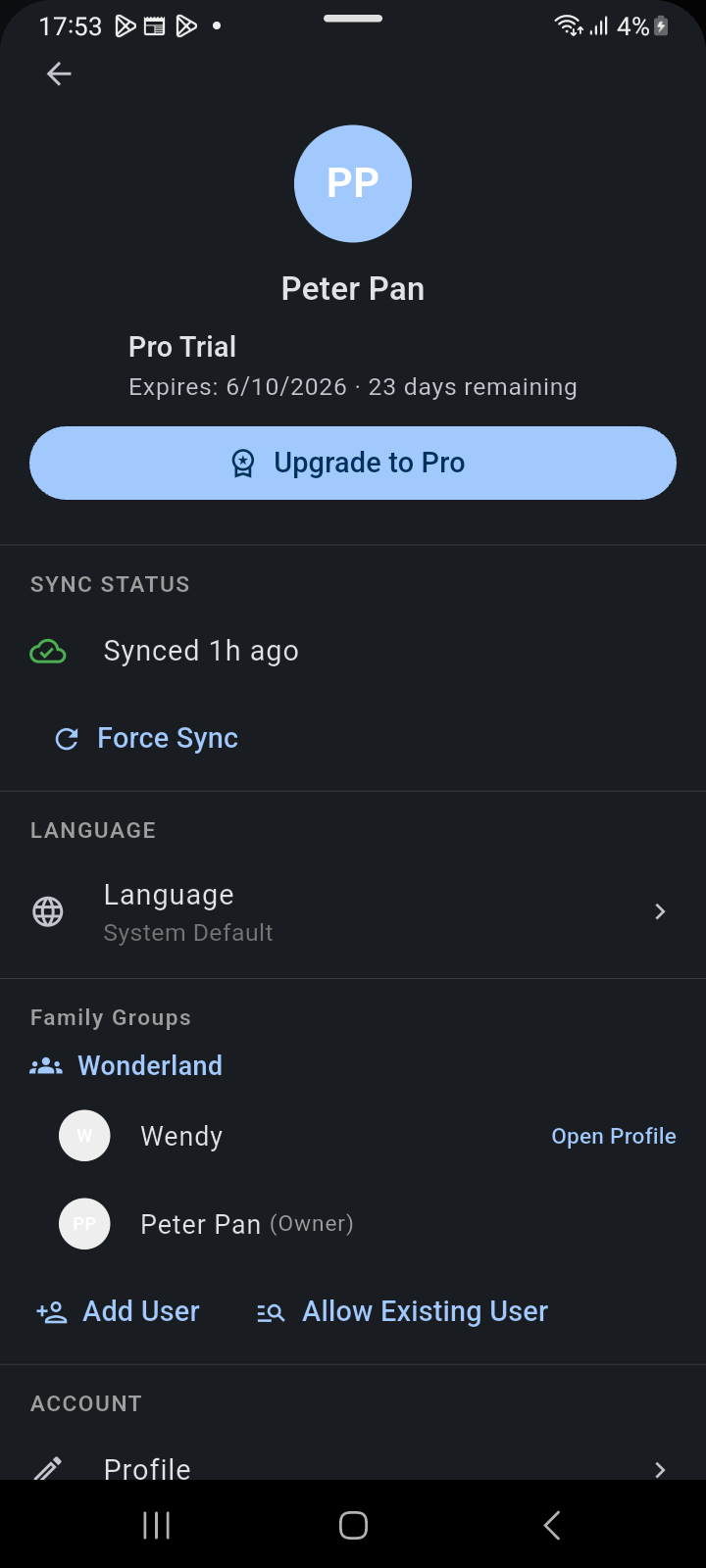
Figure 13.4: Account Panel overview displaying primary profile, subscription tier, sync status, and Family Groups roster.
The panel provides an immediate overview of:
- Subscription Tier: Displays your active plan (e.g., Pro Trial · Expires in 23 days) and the Upgrade to Pro action.
- Sync Status: Shows the timestamp of the last cloud sync (e.g., Synced just now) and includes a Force Sync button to trigger immediate data refresh.
- Language Selection: Change the active application interface language independently of system locale.
- Family Groups Roster: Shows your family group (e.g., Wonderland) with each member listed alongside their role (Owner, Member, Allowed).
Switching to a Member Profile
To view and manage a dependent family member’s schedule:
- Locate the member in the Family Groups roster (e.g., Wendy).
- Tap Open Profile next to their name.
- Ancora immediately switches the planner context and closes the bottom sheet.
- The side navigation drawer header updates instantly with the active member’s avatar and name.
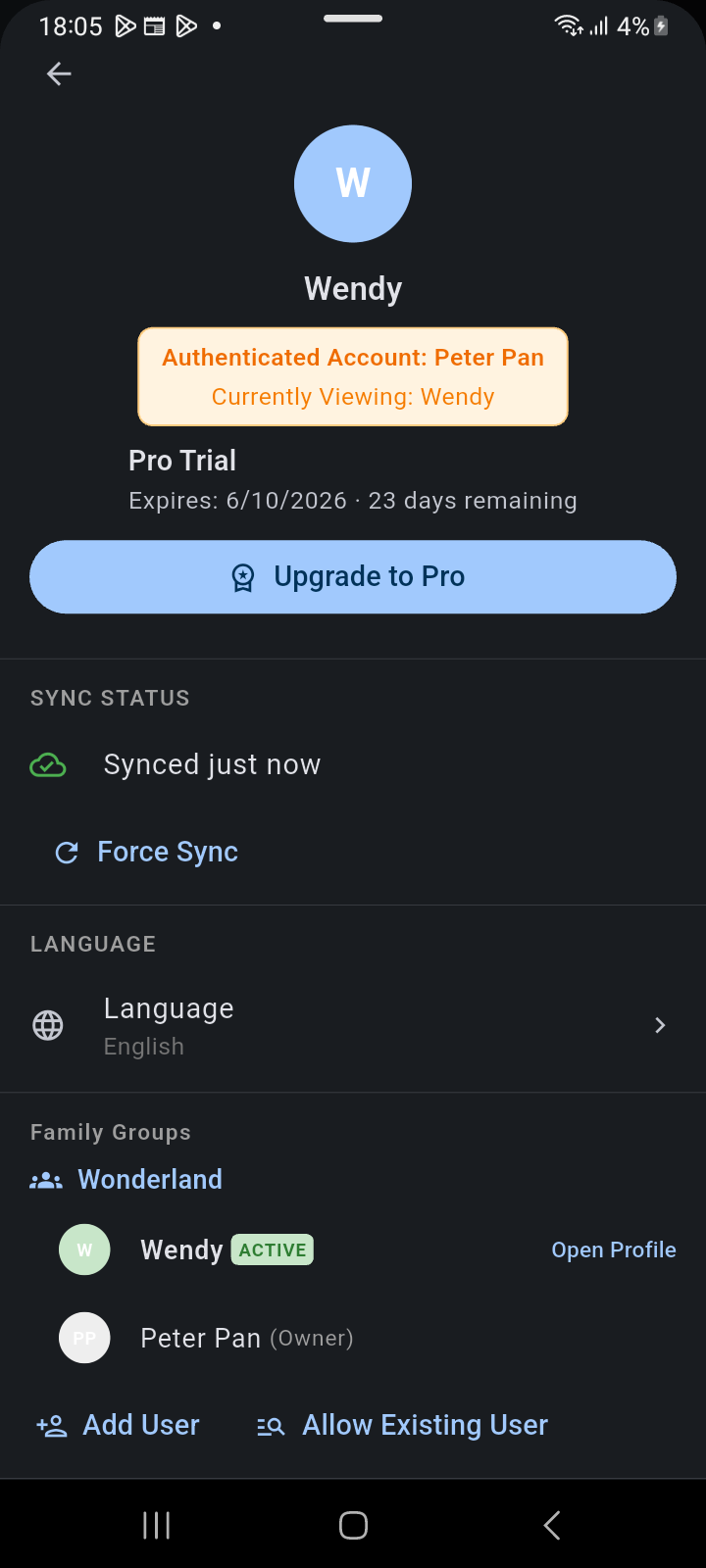
Figure 13.5: Account Panel in member view mode highlighting the Authenticated Account vs Currently Viewing banner and ACTIVE member tag.
Session Awareness & Context Indicators
Whenever you are viewing a member profile, Ancora provides clear visual indicators to prevent accidental schedule changes:
- Dual-Session Status Banner: Opening the Account Panel displays a prominent amber badge showing both identities:
- Authenticated Account: [Primary User] (e.g., Peter Pan)
- Currently Viewing: [Member] (e.g., Wendy)
- ACTIVE Tag: In the Family Groups list, the active member profile displays a prominent green ACTIVE badge.
- Drawer Avatar: The top drawer header reflects the member avatar (e.g., W for Wendy) to confirm whose schedule is visible.
Localized Data Segregation & Privacy
Ancora strictly segregates data by profile UUID within its local storage:
- Timeline Events & Routines: Switching to a member profile filters the timeline to show only events, habits, and routines owned by or shared with that specific member.
- Task & List Segregation: The Task Manager and Checklist views display items assigned to the active member.
- Security Gates: Sensitive account operations (changing master passwords, connecting Google accounts, or purchasing subscriptions) are restricted to the authenticated primary account holder.
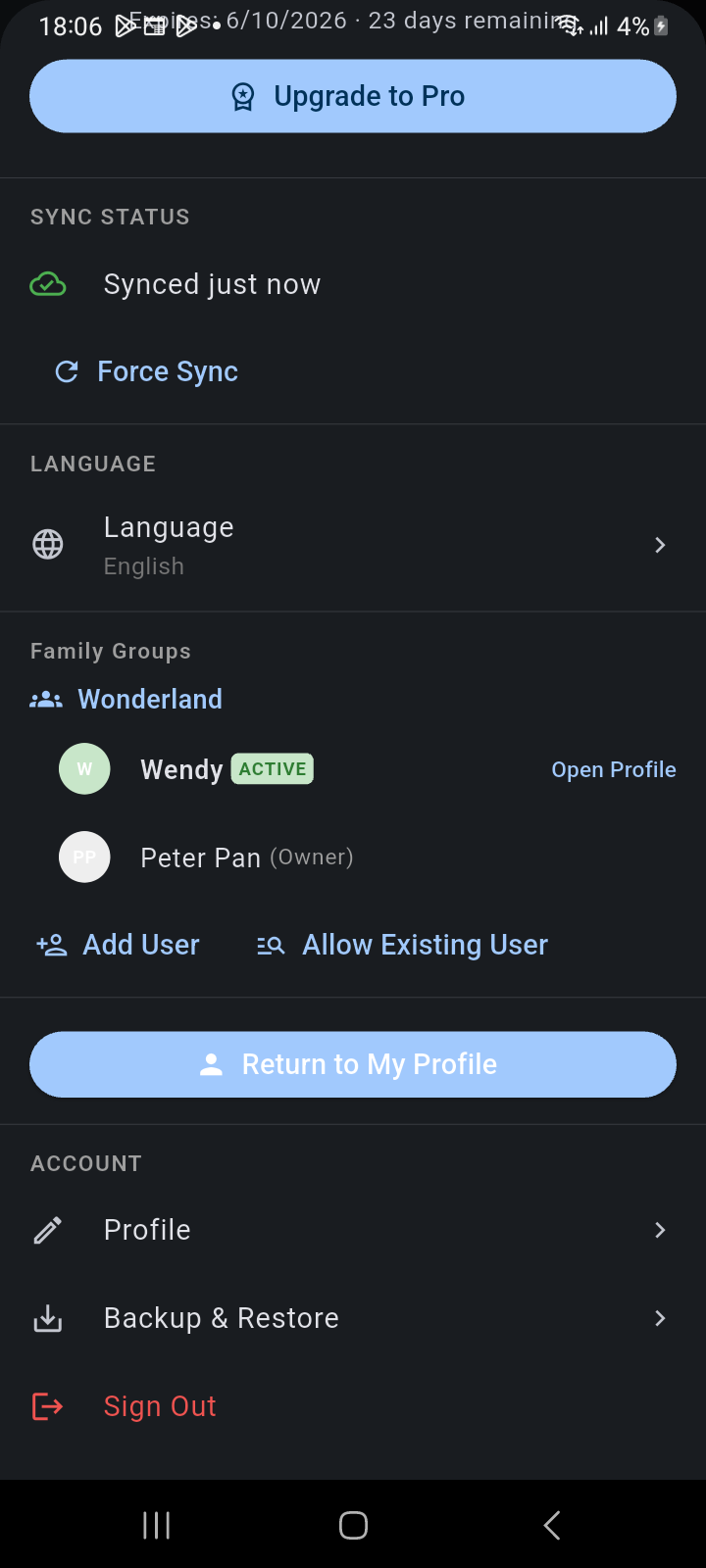
Figure 13.6: Account Panel showing the Return to My Profile action button for one-tap restoration.
Returning to Your Own Profile
When you have finished reviewing or editing a member’s schedule, returning to your personal view is effortless:
- Open the side navigation drawer and tap the avatar header (or Account).
- In the Account Panel, scroll down and tap the prominent blue Return to My Profile button.
- Ancora immediately restores your primary account context, updates the drawer header, and returns your planner timeline to your personal events.