
Personal Preferences (Habits & Display)
Tailor your Ancora Planner to your biological rhythm and visual style. Discover how to configure weekday and weekend circadian wake/sleep schedules, manage bedtime reminders, choose your interface theme, and customize time formats and accent colors.
Accessing Personal Preferences
Unlike system-wide app configurations, Personal Preferences are tied directly to your active user profile. To access them:
- Open the side navigation drawer (☰) from any primary calendar view.
- Tap Personal Preferences (located just above Settings).
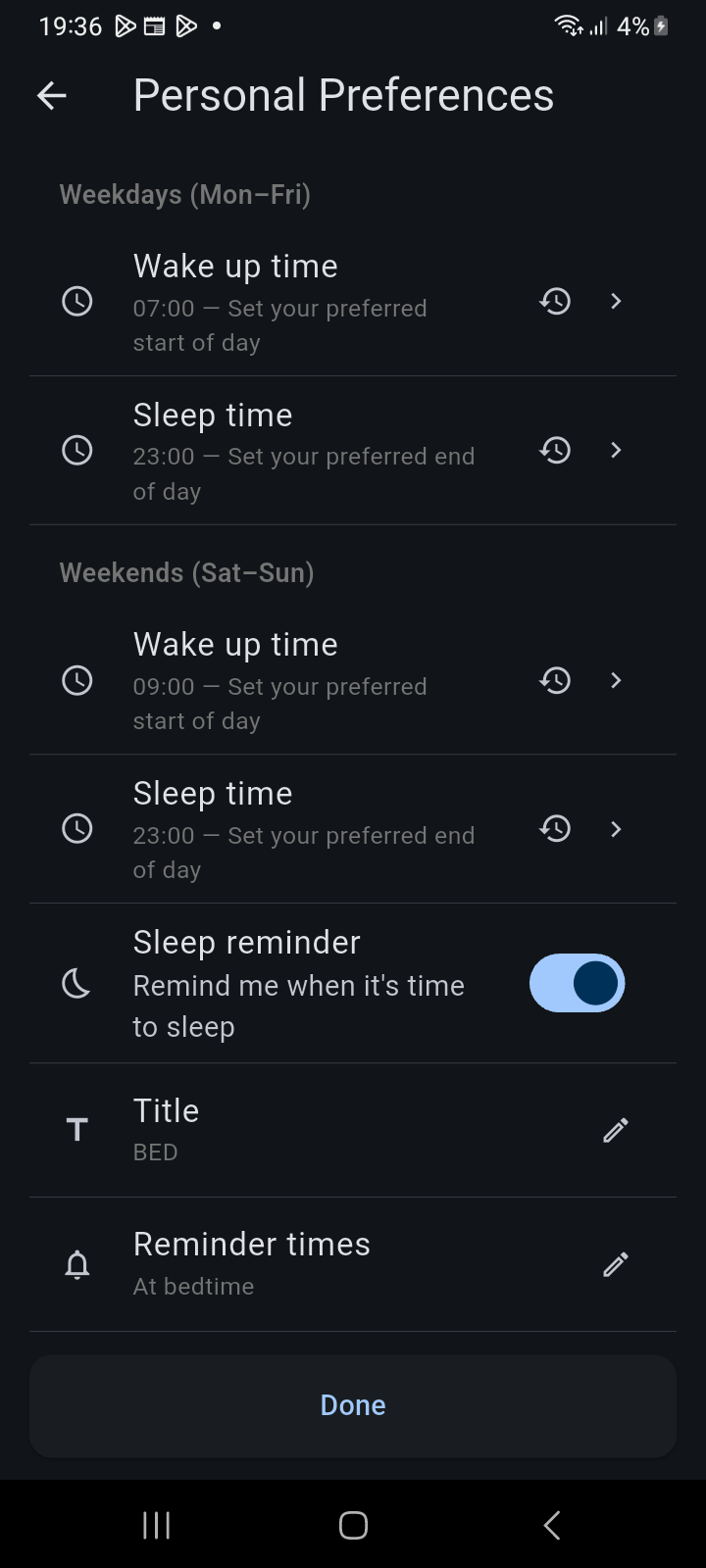
Figure 15.1: Personal Preferences screen displaying weekday and weekend circadian wake-up and sleep schedule configurations.
Circadian Sleep and Wake Schedules
Ancora Planner utilizes your wake and sleep times to structure the 24-hour Day View timeline, calculate available productive hours, and contextualize daily routines:
- Weekdays (Mon–Fri):
- Wake up time: Default is 07:00. Tap the row to pick a custom time, or tap the reset icon (↺) to restore the default.
- Sleep time: Default is 23:00. Establishes your targeted bedtime and evening boundary.
- Weekends (Sat–Sun):
- Wake up time: Default is 09:00, allowing for later weekend mornings.
- Sleep time: Default is 23:00.
Sleep Reminders & Bedtime Alerts
To support consistent sleep hygiene, Ancora can notify you as bedtime approaches:
- Toggle Sleep reminder to ON.
- Tap Title to customize the notification text (default is BED).
- Tap Reminder times to select your alert lead time (such as At bedtime, 15 minutes before, or 30 minutes before).
Language & Speech Style
Scroll down past the circadian rhythm settings to customize linguistic preferences:
- Language: Select your preferred interface language (English, Spanish, Italian, Portuguese) or adhere to the system default.
- Speech Style: Select the phrasing style used for spoken audio reminders and announcements (e.g., Default, Concise, or Enthusiastic).
- Voice Reminders: Direct shortcut to the offline TTS voice engine configuration screen.
Personalization: Theme, Time & Colors
The Personalization section at the bottom of the screen controls the visual aesthetics of the planner:
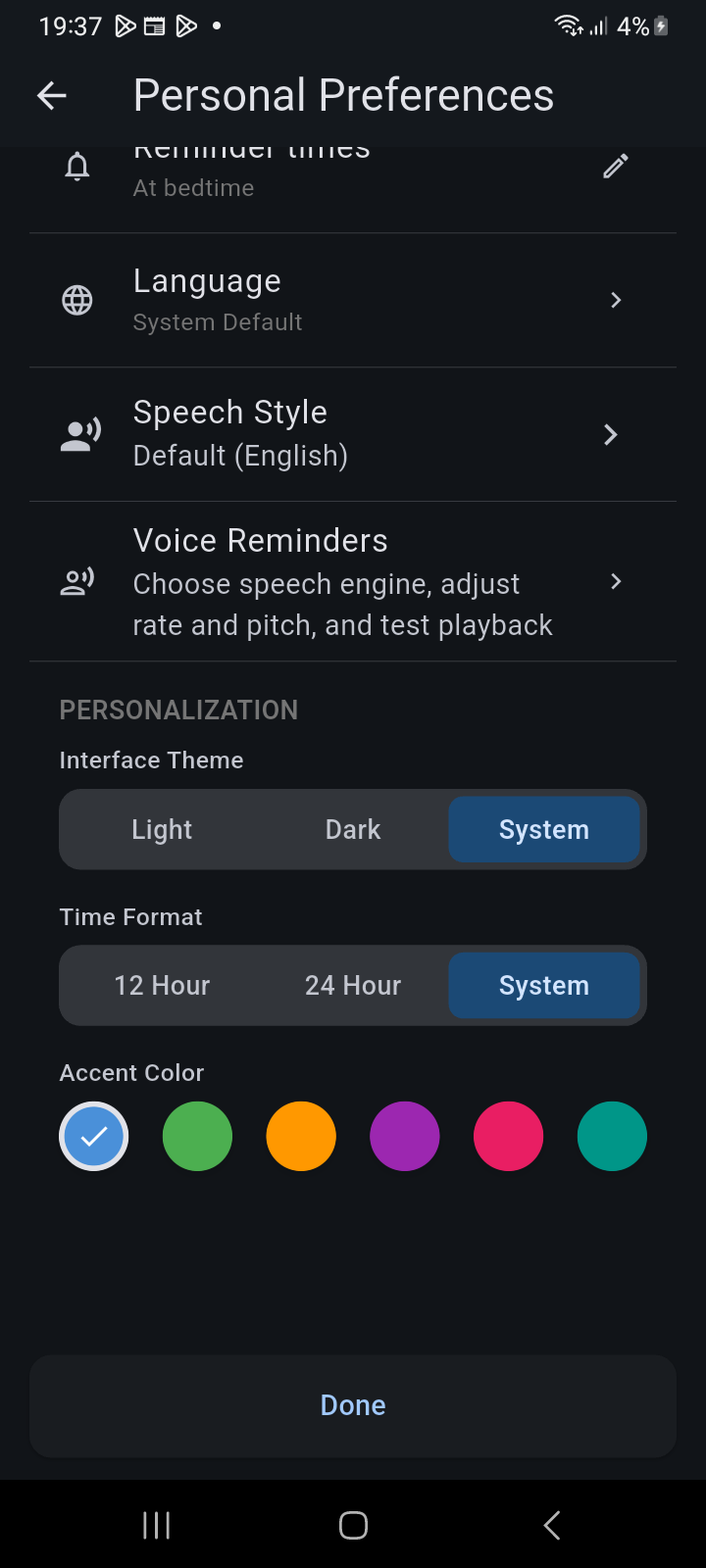
Figure 15.2: Personalization section displaying Interface Theme segmented control, Time Format selector, and Accent Color palette circles.
Interface Theme
Switch themes seamlessly using the flat segmented bar:
- Light: Crisp high-contrast light surfaces for bright environments.
- Dark: Deep AMOLED-friendly dark palette minimizing eye strain.
- System: Automatically adapts to your Android device's system-wide dark/light schedule.
Time Format
Choose your preferred time representation across all calendar grids, timelines, and reminder pickers:
- 12 Hour: Standard 12-hour format with AM/PM indicators (e.g., 2:30 PM).
- 24 Hour: Military/international 24-hour notation (e.g., 14:30).
- System: Matches your Android device's locale time format setting.
Accent Color Palette
Customize the primary interactive accent color used for active tabs, selected dates, checkmarks, and primary buttons. Select from six curated palette choices:
- ● Default Blue (#4A90D9)
- ● Fresh Green (#4CAF50)
- ● Warm Orange (#FF9800)
- ● Royal Purple (#9C27B0)
- ● Deep Pink (#E91E63)
- ● Vivid Teal (#009688)
When you finish tailoring your preferences, tap the Done button at the bottom of the screen to save and return to the main calendar.
Related Articles
Keywords: