
System Settings, Backup & Data Privacy
Explore system-wide configurations, Android Credential Manager security, activity submodules, and local database backup procedures to ensure your planning data remains safe, synchronized, and resilient.
Overview of System Settings
While Personal Preferences cater to individual schedules and styles, the Settings screen manages application-wide infrastructure, security credentials, activity registries, and notification services.
To access system settings, open the side navigation drawer (☰) and select Settings.
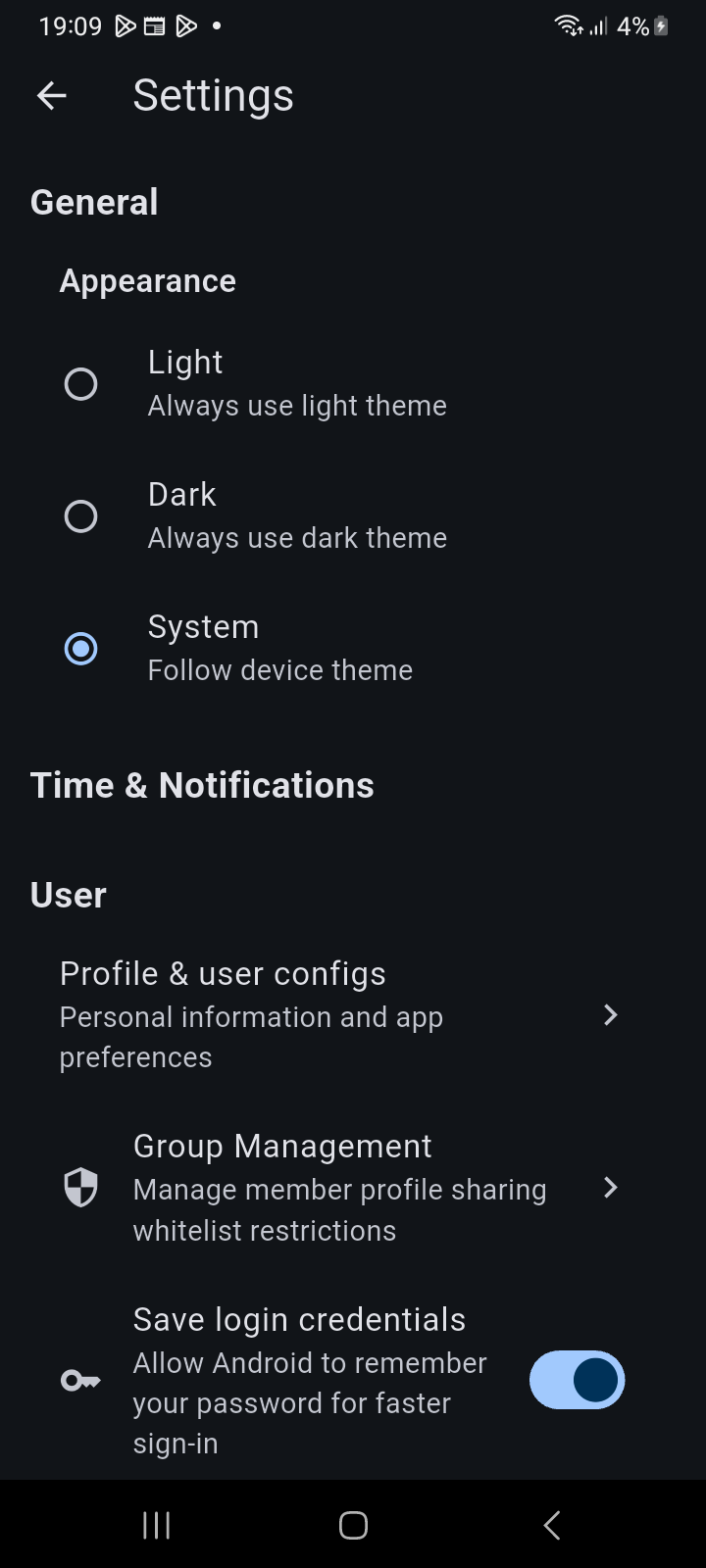
Figure 15.3: Main Settings screen displaying theme mode radio selectors and user management tiles.
Appearance & Theme Mode
Under the General → Appearance section, choose how Ancora renders across the entire operating environment:
- Light: Always use light theme across all dialogs, drawers, and timelines.
- Dark: Always use dark theme, saving battery on OLED displays.
- System: Follow device theme, dynamically transitioning with Android's system schedule.
Android Credential Manager Integration
On Android 14+ devices, Ancora Planner seamlessly integrates with the Android Credential Manager framework:
- Save login credentials: When this toggle is enabled, Android's system password manager securely remembers your username and password upon manual login.
- Fast Sign-In: On future logins, a biometric or screen lock prompt allows instant one-tap authentication without typing your password.
- Device-Local Storage: This setting is stored strictly on your physical device in hardware-backed encrypted storage and is never uploaded or synchronized to the cloud.
System Submodules
Scrolling down reveals specialized administrative modules that govern core application behaviors:
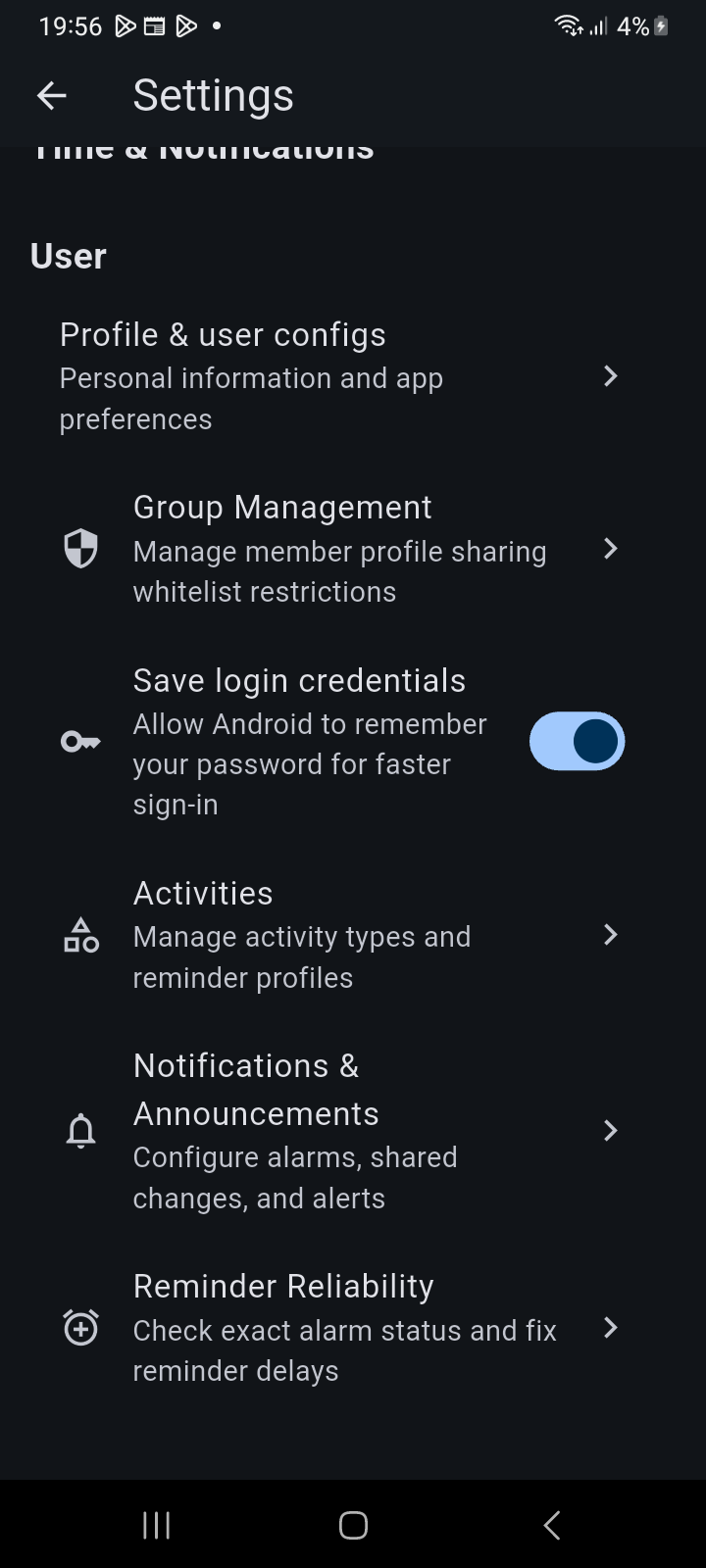
Figure 15.4: System configurations showing Android Credential Manager login toggle, Activities, Notifications & Announcements, and Reminder Reliability.
- Activities: Open the Activity Management console to create custom activity types, assign default colors, and configure chained reminder profiles.
- Notifications & Announcements: Configure notification channels, speech announcement intervals, quiet hours, and shared change alerts.
- Reminder Reliability: Verify that Android's exact alarm permission (SCHEDULE_EXACT_ALARM) is granted and verify battery optimization exemptions.
Local Backup & Restore
In addition to real-time cloud synchronization, Ancora Planner empowers you with complete data sovereignty through local file backups.
Accessing Backup & Restore
- Open the side drawer and select Account.
- Scroll to the bottom of the Account Panel and tap Backup & Restore.
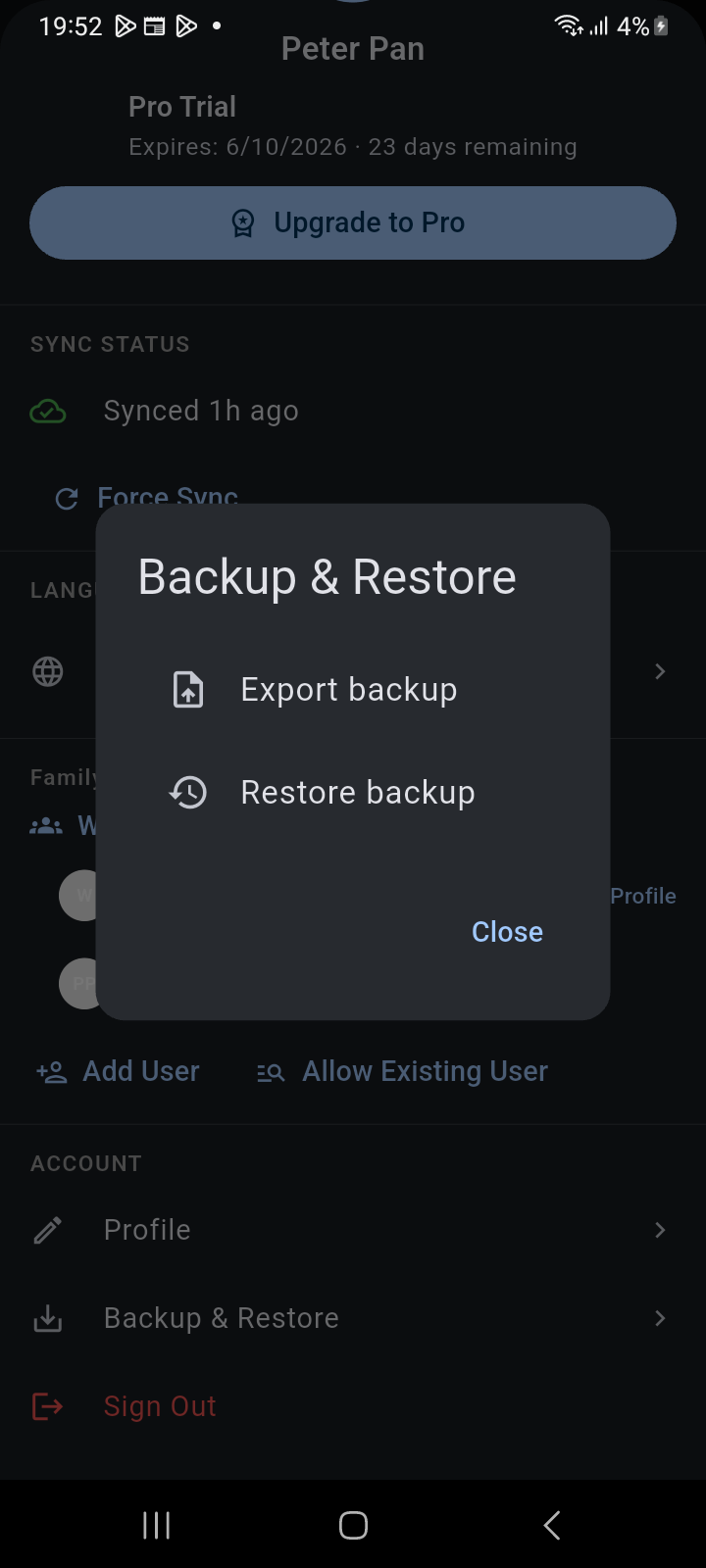
Figure 15.5: Backup & Restore modal dialog showing Export backup and Restore backup actions.
Exporting a Backup
- Tap Export backup.
- Ancora compiles your complete schedule, user routines, tasks, checklists, and local preferences into a portable .ancora archive.
- Choose your desired destination folder using the Android system file picker (or save to device storage).
- A confirmation message indicates successful export. Store this file safely or transfer it to another device when migrating.
Restoring from a Backup
- Tap Restore backup.
- Select a previously generated .ancora backup file using the file browser.
- Confirm the restore operation. Ancora validates and imports all calendar entries, routines, and configurations.
Data Privacy & Security
Ancora Planner is architected with a local-first philosophy:
- Your schedule and planning data are stored locally within the app's secure private sandbox on your device.
- Sync communication with Ancora Cloud servers is secured via TLS 1.3 encryption.
- Third-party calendar credentials (such as Google OAuth tokens) reside in the secure Android keystore and are never stored in plain text.
Related Articles
Keywords: