
Sync Diagnostics & System Reliability
Maintain real-time calendar synchronization across all household devices. Learn how to verify cloud synchronization health, initiate manual syncs, resolve Google Calendar OAuth connection issues, and troubleshoot offline synchronization queues.
Ancora's Offline-First Sync Architecture
Ancora Planner is built with an offline-first architecture. All database transactions—including event creation, task completions, checklist edits, and routine overrides—are written immediately to your device's local offline storage. Changes are queued locally and synchronized with the Ancora Cloud server in the background whenever an active Internet connection is available.
This ensures you can freely plan your day without network connectivity, while guaranteeing seamless reconciliation once reconnected.
Checking Cloud Synchronization Health
You can monitor synchronization status in real time from the Account Panel:
- Open the side navigation drawer (☰).
- Tap your profile avatar or select Account.
- Locate the SYNC STATUS section.
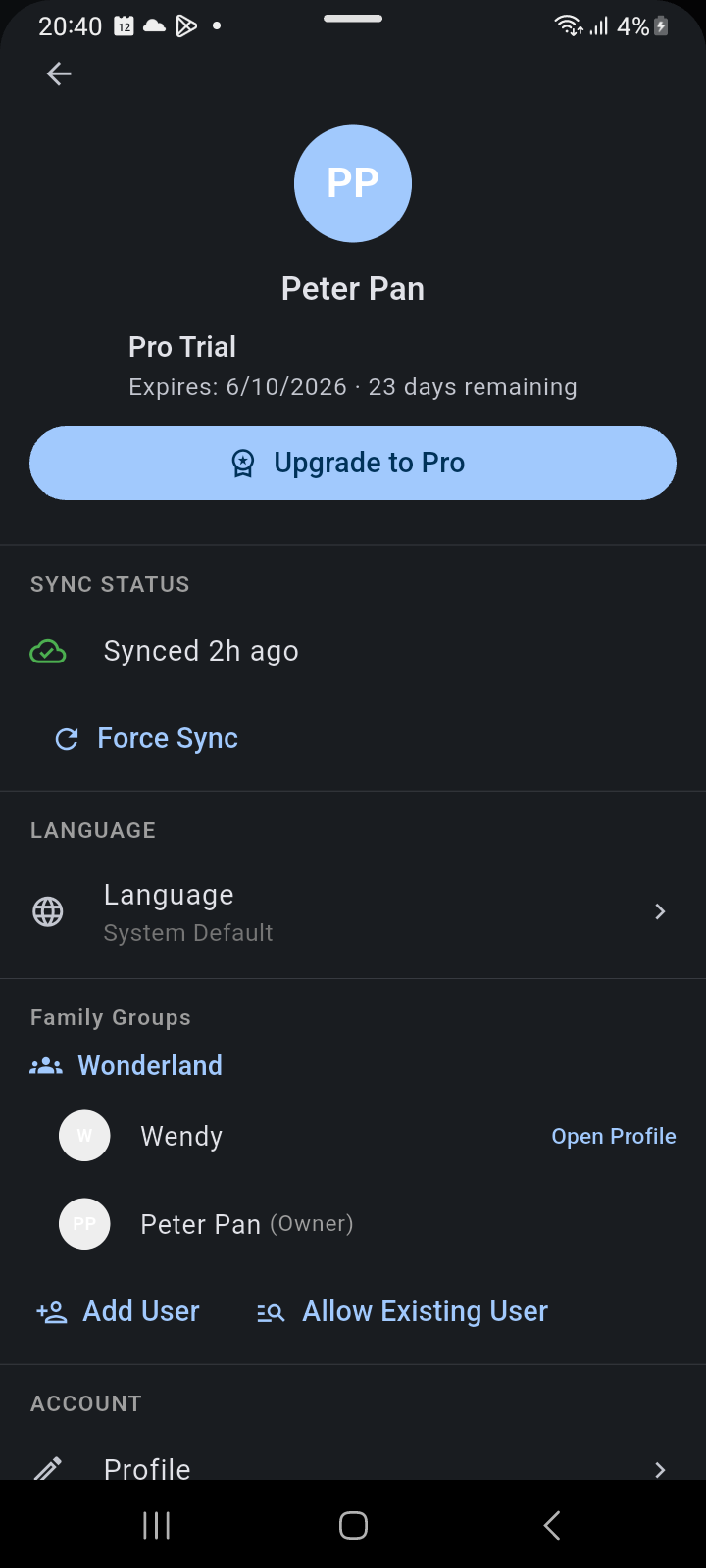
Figure 16.3: Account Panel showing real-time cloud sync status, last synced timestamp, and Force Sync control.
Understanding Sync Indicators
- ☁ Green Cloud (Synced): Displays how recently a successful synchronization cycle completed (e.g., Synced just now or Synced 10m ago). Your local schedule matches cloud servers.
- ↻ Force Sync: Tap this action to immediately trigger an on-demand reconciliation cycle. This pushes pending local changes and pulls updates made by family group members on other devices.
Troubleshooting Google Calendar Sync
If external Google Calendar events fail to appear on your timeline:
- Verify Calendar Visibility: Open the side drawer and expand Google. Check that the checkbox next to each calendar is ticked. If a calendar is unticked, its events are hidden from view.
- Refresh OAuth Tokens: Google security tokens occasionally expire or are revoked during password changes. Navigate to Drawer → Account → Profile → Connected Services. If a reconnection alert is displayed, tap Connect to re-authenticate with Google.
- Check Network Permissions: Ensure your device does not restrict background data usage for Ancora Planner under Android Settings → Apps → Ancora → Mobile data & Wi-Fi.
Resolving Conflict & Offline Queues
When multiple family members edit shared items simultaneously while offline, Ancora utilizes deterministic server timestamp resolution:
- The latest valid edit based on high-resolution server timestamps prevails for conflicting field updates.
- Checklists and shopping lists merge item additions additively, ensuring items created on different phones are never dropped.
- Deleted items are marked with tombstone flags and removed across all synchronized devices upon the next sync cycle.
Disaster Recovery via Local Backups
If you encounter database inconsistencies or migrate to a replacement phone, you can restore all planning history using local backup archives:
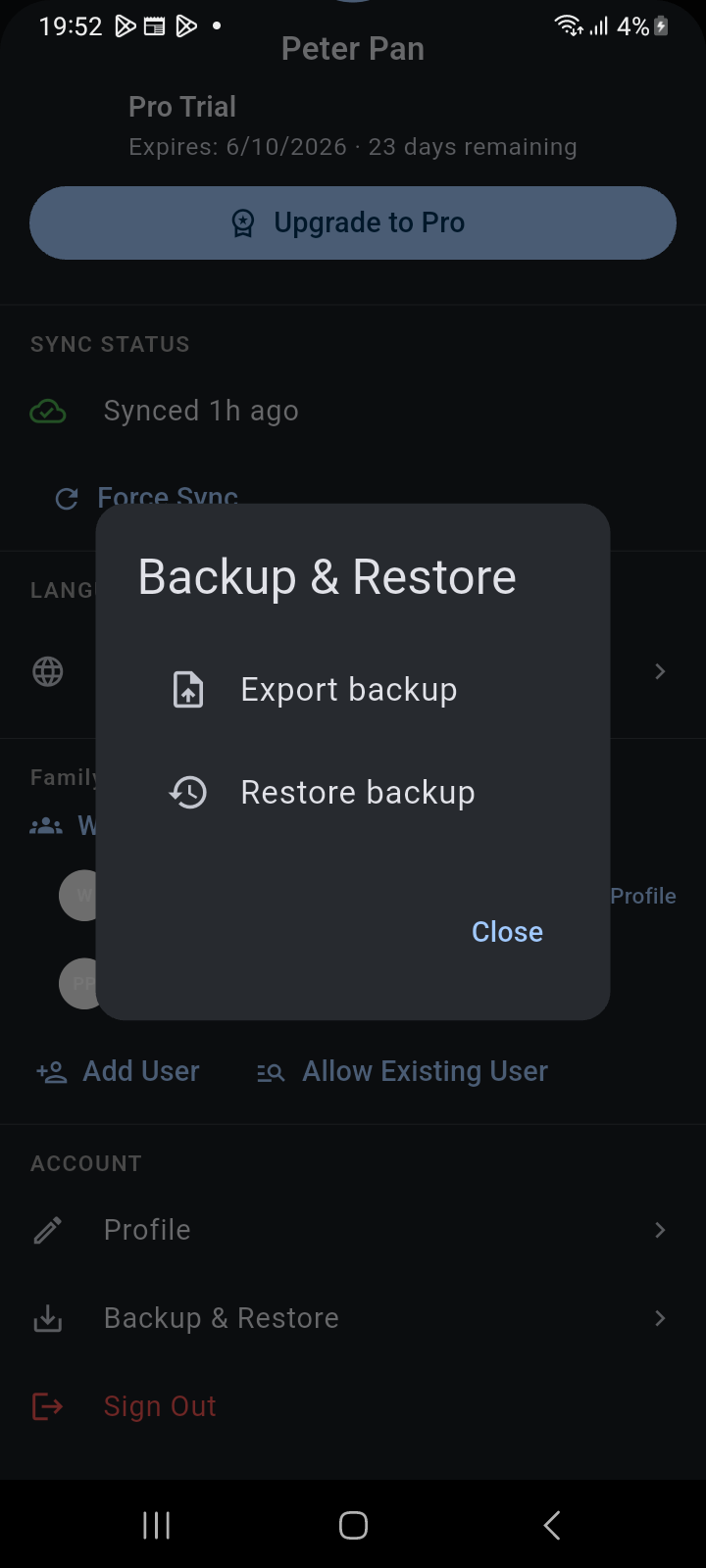
Figure 16.4: Backup & Restore dialog showing Export backup and Restore backup options for disaster recovery.
Navigate to Account → Backup & Restore → Restore backup to select your saved .ancora archive file. The app validates the manifest checksum and restores all tables instantly.
Related Articles
Keywords: