
Frequently Asked Questions: Accounts, Privacy & Sync
Get fast, definitive answers to questions concerning offline capabilities, account management, multi-user profile switching, household family groups, data privacy, and synchronization health.
Offline Operation & Synchronization
Does Ancora Planner work without an Internet connection?
Yes, absolutely. Ancora Planner is built from the ground up on a local-first offline architecture. Every schedule creation, checklist modification, task completion, and habit status update is written immediately to your device's local storage without waiting for network responses.
When you are offline or in airplane mode, the application remains fully functional with zero latency. All changes made while offline are queued locally and automatically reconciled with the Ancora Cloud server once an active Internet connection is detected.
How can I check if my schedule is properly synced?
You can verify cloud synchronization health at any time through the Account Panel:
- Open the side navigation drawer (☰).
- Tap your profile avatar or select Account.
- Look at the SYNC STATUS section. A green cloud icon accompanied by a relative timestamp (e.g., Synced just now or Synced 2h ago) indicates your local database matches the cloud.
- To immediately trigger a synchronization pass, tap Force Sync.
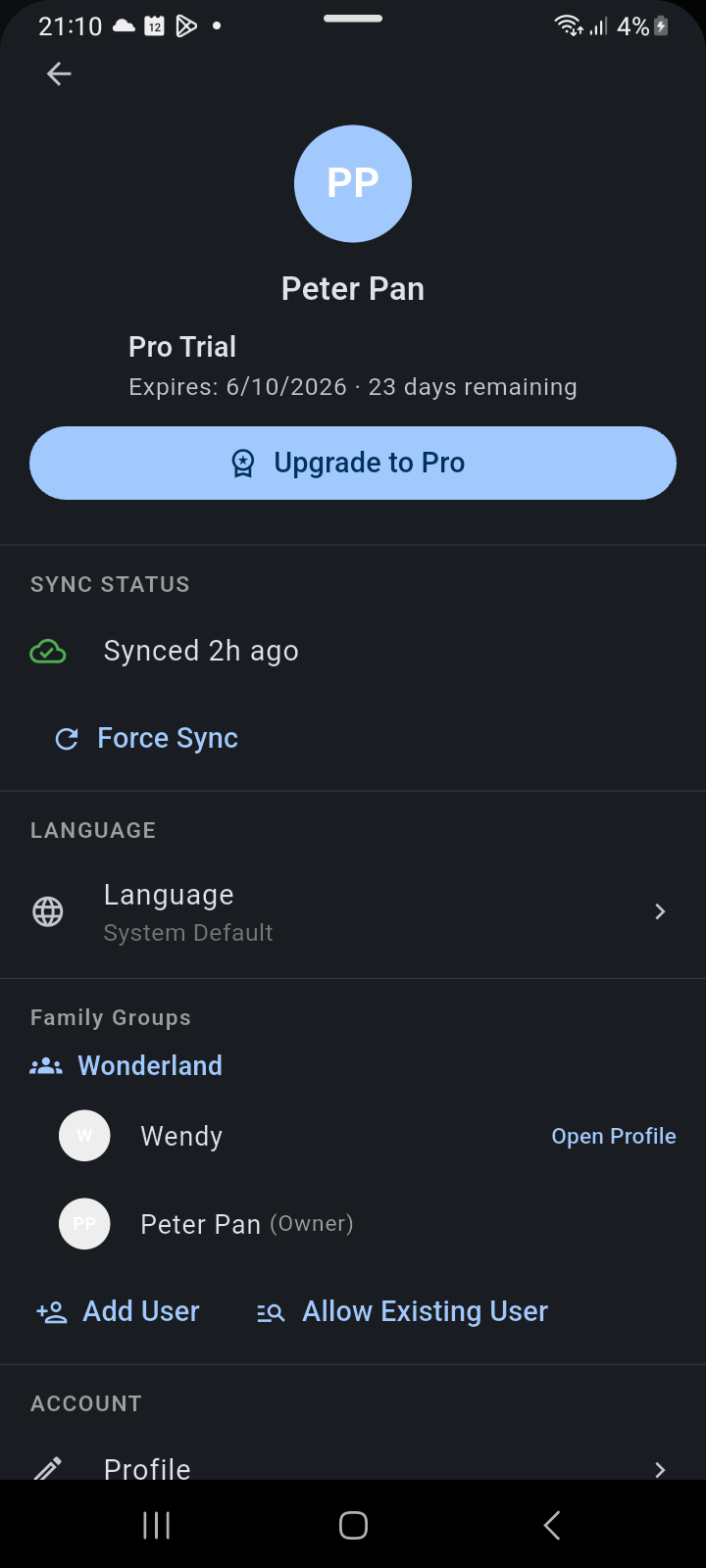
Figure 17.1: Account Panel showing user profile, subscription tier, real-time sync status, and family group management.
Family Groups & Profile Switching
How does subscription sharing work in a Family Group?
Ancora Planner features seamless subscription inheritance. When the owner of a family group subscribes to Ancora Pro (or is on an active Pro Trial), all active members in the group automatically receive full Pro benefits—including multi-profile switching, encrypted cloud synchronization, and collaborative family lists—at no extra cost.
Can family members see my private schedule and tasks?
No. Privacy is Ancora's primary design foundation. All calendar events, daily routines, tasks, and personal checklists are private by default. A family member can only view an item if you explicitly select their name from the SharingChipRow in the edit dialog or if an item belongs to a collaborative shared checklist.
How does multi-user profile switching work on a shared device?
If multiple household members share a single tablet or phone, Ancora's decoupled profile architecture allows instant profile switching:
- Open the Account Panel and locate the member under Family Groups.
- Tap Open Profile next to the member's name. The app instantly switches the active session, displaying their unique timeline, routines, and task lists without requiring a sign-out or password prompt.
- To switch back, open the drawer and tap the prominent amber banner at the top reading Return to My Profile.
- Safety Guarantee: If the app is closed or restarted, Ancora automatically restores the master account owner's profile upon cold start.
Data Privacy & Local Backups
Where is my data stored, and does Ancora sell my personal data?
Your calendar and personal data reside in local storage stored securely within Ancora's private application sandbox on your Android device. When syncing to the cloud, data is encrypted in transit using industry-standard TLS 1.3 encryption. Ancora does not incorporate third-party ad trackers, does not profile user behavior, and never sells schedule data to advertisers.
How do I create a manual backup without using cloud sync?
If you prefer purely offline storage, you can export and import complete database backups using Ancora's built-in backup utility:
- Open the Account Panel (or navigate to Drawer → Settings).
- Tap Backup & Restore.
- Tap Export backup to save a portable .ancora backup file. Android will prompt you to save the file to your device or cloud drive without granting broad filesystem access.
- To restore your schedule on a new device, tap Restore backup and select your previously saved .ancora archive.
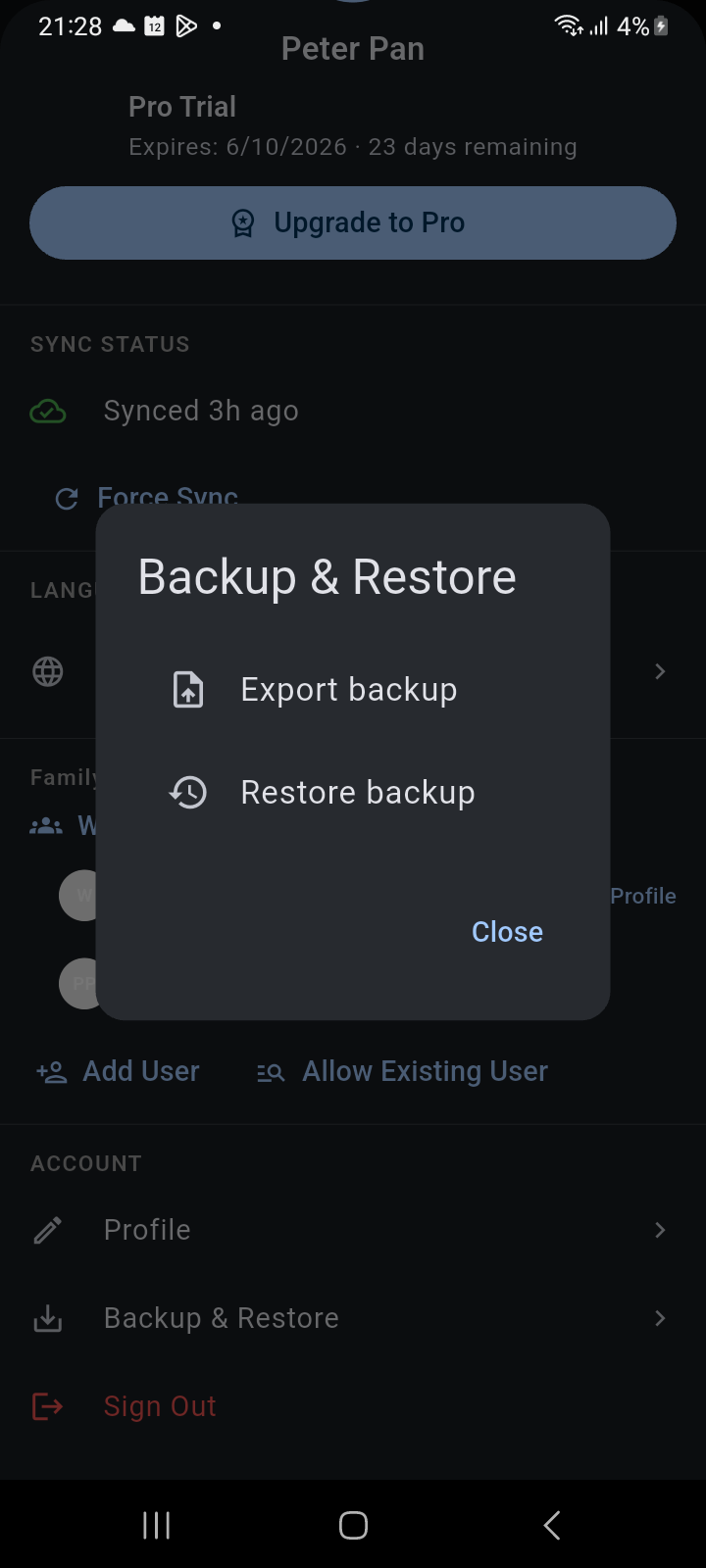
Figure 17.2: Backup & Restore modal dialog for local database export and disaster recovery.
Google Calendar Integration
Can I edit Google Calendar entries directly within Ancora?
Google Calendar events synchronized into Ancora are strictly read-only. They appear on your Day, Week, and Month views to help you avoid scheduling conflicts, but editing or deleting them must be performed directly in Google Calendar. Additionally, Google Calendar events cannot be shared with Ancora family members to respect Google's security boundary.
Why did my Google Calendar events stop appearing?
If external Google events disappear from your timeline:
- Open the side navigation drawer and expand the Google section under Calendars. Verify that the checkbox next to each calendar is enabled.
- If your Google credentials have expired, open Drawer → Account → Profile → Connected Services and tap Connect to refresh your Google OAuth token.
Related Articles
Keywords: